4135
Features of your vehicle
Using USB device
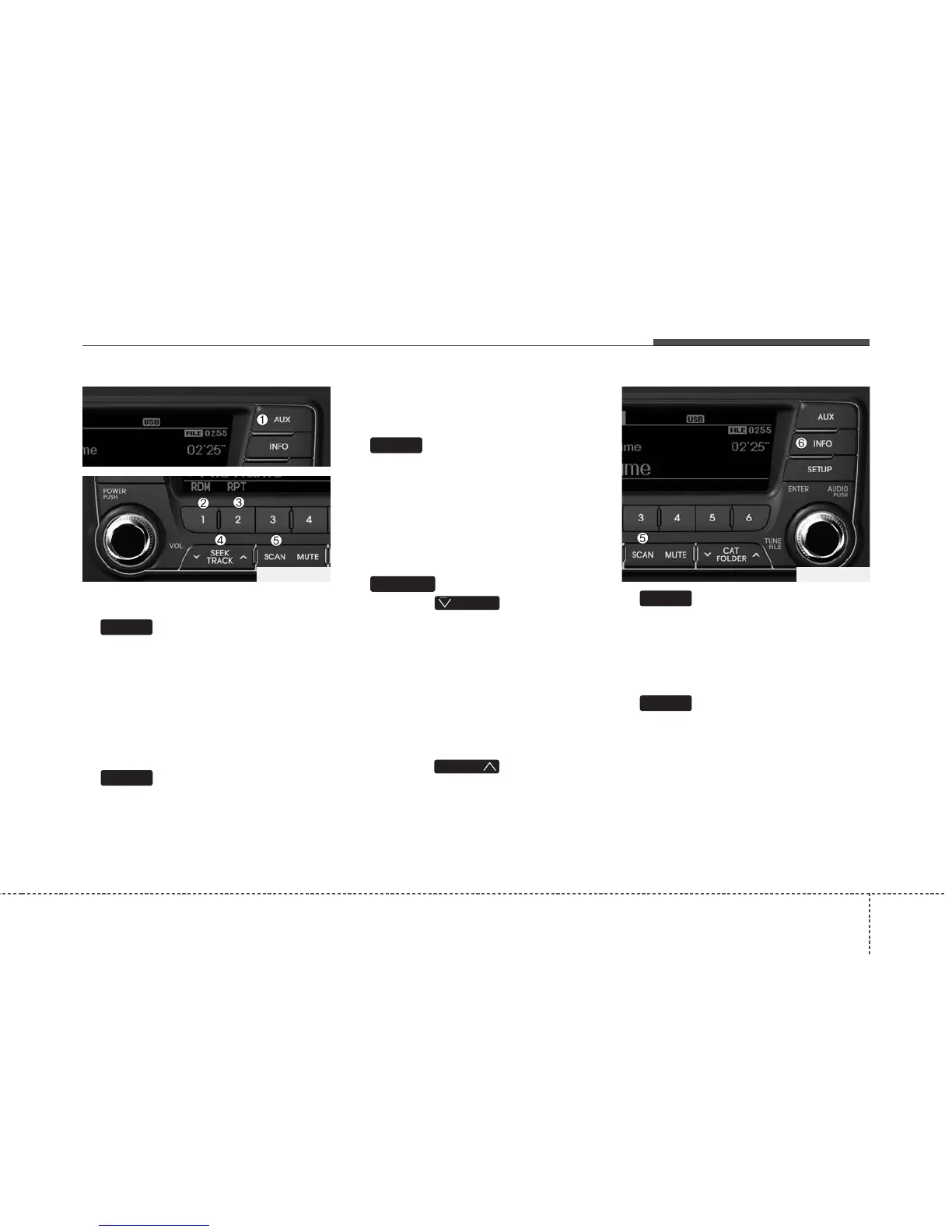
1. Button (USB or AUX)
If the auxiliary device is connected, it
switches to AUX or USB mode to play
the sound from the auxiliary player.
If there is no auxiliary device, then the
message “No Media” will become dis-
played on the LCD for 3 seconds and
returns to previous mode.
2. Button (RANDOM)
• Press this button for less than 0.8 sec-
onds to play songs randomly in current
folder.
• Press this button for 0.8 seconds or
longer to play songs randomly in entire
USB device.
• To cancel RANDOM play, press this
button again.
3. Button (REPEAT)
• Press this button for less than 0.8 sec-
onds to repeat current song.
• Press this button for 0.8 seconds or longer
to repeat all songs in current folder.
• To cancel REPEAT, press this button
again.
4. Button
• Press the button for less
than 0.8 seconds to play from the
beginning of the current song.
Press the button for less than 0.8 sec
onds and press it again within 1 sec-
ond to move to and play the previous
song.
Press the button for 0.8 seconds or
longer to play the song in reverse
direction in fast speed.
• Press the button for less
than 0.8 seconds to move to the next
song. Press the button for 0.8 seconds
or longer to play the song in forward
direction in fast speed.
5. Button
Plays each song in the USB device for 10
seconds.
To cancel SCAN Play, press this button
again.
6. Button
Displays the information of the file cur-
rently played in the order of
FILE NAME
➟ TITLE ➟ ARTIST ➟
ALBUM ➟ FOLDER ➟ TOTAL FILE ➟
NORMAL DISPLAY ➟ FILE NAME…
(Displays no information if the file has no
song information.)
INFO
SCAN
TRACK
T
TRACK
TRACK
2
1
AUX
TF_USA_USBTF_USA_USB






 To Next Page