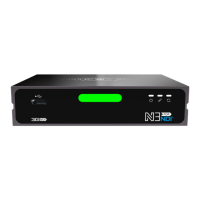
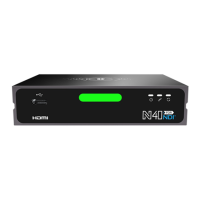
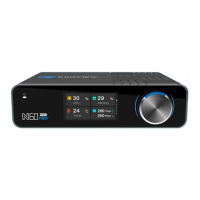
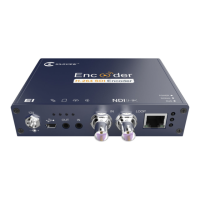
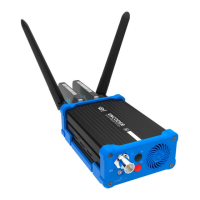
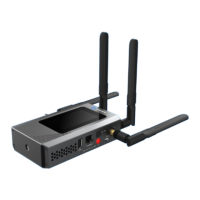
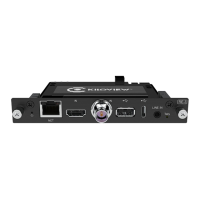
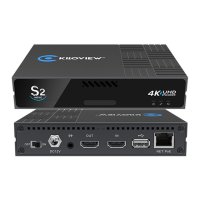
The Kiloview N50/N60 Converter is a full-functional codec designed for NDI High Bandwidth and NDI|HX video transmission. This quick start guide provides an overview of its features, setup, and maintenance.
Function Description
The N50/N60 converter serves as a versatile device for both encoding and decoding video signals. It supports NDI High Bandwidth and NDI|HX, making it suitable for professional IP-based video workflows. The device can operate in either encoding or decoding mode, but not simultaneously.
In encoding mode, the N50/N60 takes an HDMI (N60) or SDI (N50) input from a camera or other video source and converts it into an NDI stream. This stream can then be transmitted over an Ethernet network. The device includes a loop-out feature (HDMI OUT for N60, SDI OUT for N50) to monitor the input signal locally.
In decoding mode, the N50/N60 receives an NDI stream from the network and converts it back into an HDMI (N60) or SDI (N50) output for display on a monitor. The device automatically discovers NDI sources on the network, allowing users to select and decode the desired stream. It supports up to 9 presets for frequently used NDI sources, enabling quick selection and output.
Important Technical Specifications
- Video Interfaces:
- N60: HDMI IN, HDMI OUT
- N50: SDI IN, SDI OUT
- Network Interfaces:
- 1GbE Port
- 1GbE Port with PoE (Power over Ethernet) on "ETHERNET 1" port only. PoE+ (802.11AT) standard switcher is recommended.
- Audio Interfaces: LINE IN, LINE OUT
- Other Ports: Type-C Extension, USB Extension, Micro SD/TF slot
- Power: DC 12V input, Power ON/OFF switch
- Display: Color LCD screen on the front panel
- Control: Scroll Wheel for navigation and configuration
- Tally: Tally light/LCD screen for PVW (Green) and PGM (Red) status indication in encoding mode when receiving TALLY signal.
- Power Indicator: LED light to show power status (ON/OFF/Failure).
Usage Features
- LCD Screen and Scroll Wheel: The large color LCD screen on the front panel provides real-time device status, configuration parameters, and Tally status (PGM/PVW). The scroll wheel allows users to switch display modules, check detailed parameters, and modify basic configurations or working modes.
- Device Discovery and IP Address Check: The device's IP address can be easily checked on the LCD screen by turning the scroll wheel to view "ETHERNET 1" or "ETHERNET 2" network port information.
- Web Page Management: The N50/N60 can be configured and managed via a web browser. The default username and password are "admin". It is recommended to change the password after the first login for security.
- Kiloview Multiview Software: Kiloview Multiview is a free software for NDI video discovery, management, and multi-view. It can be used to find the device in the discovery list and access its web page.
- Encoding Mode Operation: In encoding mode, ensure the video signal from the camera is connected to the HDMI IN/SDI IN interface. The web page displays video preview, which can be switched between "Image" (refreshed every 3 seconds) and "Video" (smoother, requires good CPU performance) modes.
- Decoding Mode Operation: In decoding mode, ensure the video signal cable is connected to the HDMI/SDI output port. The web page automatically displays NDI sources on the network. Users can select a source to decode and output, and save up to 9 presets for quick access.
- PoE Support: The "ETHERNET 1" port supports PoE, simplifying cabling by allowing both power and data transmission over a single Ethernet cable. It is crucial to use a PoE+ (802.11AT) standard switcher to avoid device abnormality or damage.
Maintenance Features
- Firmware Upgrading: Kiloview regularly releases new firmware for the N50/N60. Firmware can be downloaded from the Kiloview website.
- Via Web Page: Users can log into the device's web page, navigate to "Settings" > "Firmware Upgrade", select the downloaded firmware file, and click "Firmware Upgrade". The device will reboot after a successful upgrade.
- Recovery Mode: If the web page is inaccessible, firmware can be upgraded using recovery mode. This involves copying the firmware file to a USB flash drive or SD card, inserting it into the device, and then entering recovery mode by long-pressing the scroll wheel for more than 10 seconds during startup. Users can then select "Recover from USB Device" or "Recover from SD Card" from the LCD screen.
- Restore to Factory Settings: If the device malfunctions due to incorrect parameters or forgotten IP configuration, it can be restored to factory settings.
- Via Web Page: If accessible, navigate to "Settings" > "System settings" > "Restore factory settings".
- Hardware Reset: If the web page is inaccessible, press the RESET button at the bottom of the device for 5 seconds. Restoring factory settings will revert the login username and password to "admin", set the device to obtain a DHCP-assigned IP address (with a failover address of 192.168.1.168), and restore all encoding/decoding video and audio parameters to default values.
- Device Longevity: To prolong the device's life, it is recommended to unplug the power and store it properly when not in use for extended periods.

 Need help?
 General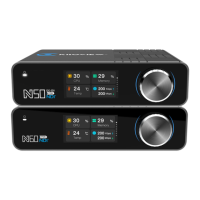

 To Next Page