8 9
Instructions for use
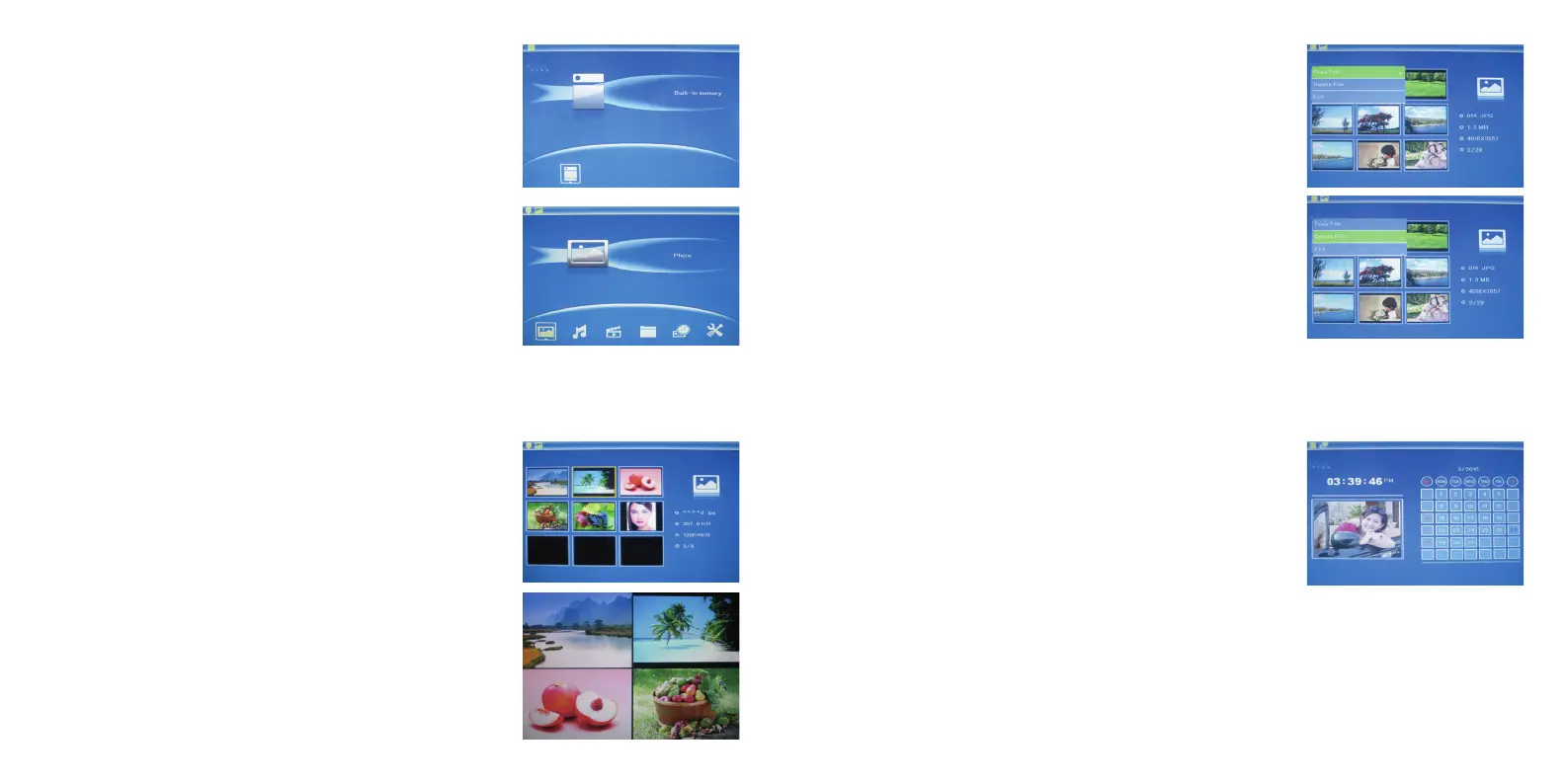
When the unit is switched on, it will show the startup picture.
Press ENTERtoaccessthebuilt-inmemory.
Calendar
SelectCalendar from the main menu, press ENTER to enter and use
to select the date you want to view.
Picture mode
Press EXIT to select “MEMORY CARD”inthemainmenu.Highlight
Photo and press ENTERtoaccesstheninepicturemode.Use
to select a picture, then press ENTER to play the picture
in single window.
Copy and delete function
Inninepicturemode,use to select the picture you want to
copytothebuilt-inmemory,thenpressMENU to enter copy interface
and press ENTER to confirm.
Press ENTER to start slideshow pictures in the selected slide mode.
Tochangetheslidemode:Inthemainmenu,pressSETUP to choose
the SLIDE MODE (single window or four windows), then use
to select your preferred choice and press ENTER to confirm.
Inninepicturemode,use to select the picture you want to
delete, then press MENU to enter the delete interface and press
ENTER to confirm.
Note:Thecopyfunctiononlyappliestobuilt-inmemory.Whenthe
copyleoptionisshowngrayinthebuilt-inmemoryinterface,you
cannot do anything to it.
Card and USB
TheDigitalPhotoFramesupportsSD/SDHC/MS/MMCandUSB2.0.
AfterinsertingacardorUSBdevice,theslideshowwillplayautomatically.
Press EXIT twice to access photo, music and video files, calendar and
setup. Press ENTER to confirm.
Note:Makesuretherearesupportedphoto,musicandvideoles
onthecardorUSBdevice.
Note:IftherearesupportedphotoandmusiclesonthecardorUSB
device, the slideshow will play automatically with background music.


 To Next Page