10 11
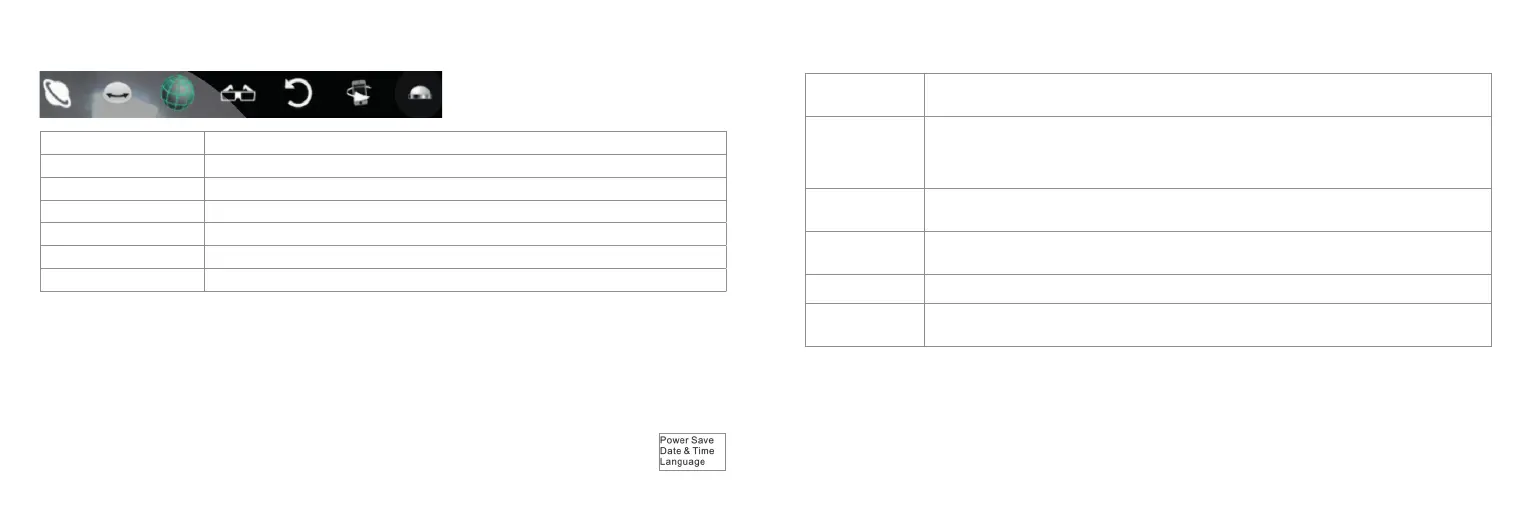
Viewing eects
Planet
Large distortion
Dome axis
Allows the image to rotate on a horizontal axis
Globe
Image can be rotated within a sphere
VR
Creates a split screen eect to view the footage in a VR Headset
Collaboration reset
Resets the view to the front of the recording / photo
Phone gyroscope
Activates your smart device’s gyroscope to allow you to use your device to look around your les
Lens ip
Flips your video/photo upside down for upside-down mounting
Camera settings
1. To access the Menu, press and hold Wi-Fi/Menu (5) for 2 seconds and you will see gure 1 screen.
2. To scroll through the options, press Wi-Fi/Menu (5). Once you have highlighted the camera setting
you wish to access, press Shutter/OK (7).
3. Press and hold Wi-Fi/Menu (5) to move back to the previous menu. When on the menu home
screen, hold down Wi-Fi/Menu (5) to exit the camera settings menu.
Menu settings
Power Save
Set Power Save mode. You can set the camera to enter Power Save mode after a certain period of time
[1min / 3min / 5min / OFF]
Date & Time
Manually set the date and time for the camera. To select the number to change, press Power/Mode (2) to
move the highlighter. To scroll through the numbers, press Wi-Fi/Menu (5) until you reach the number
required. To save the changes you have made, press Shutter/OK (7). If you don’t want to save any
changes you have made, hold down Wi-Fi/Menu (5) to return to the Menu Screen
Language
Set the system language for the camera. English is set as default.
[English / Chinese/ French / Spanish / Italian / Portuguese / German / Russian]
Factory Reset
Restore factory default settings
[Yes / No]
System
Check system (software version number) and storage card (capacity and available space) information
Format
Format your storage memory card. This will create an FAT32 storage ling system
[Yes / No]
Note: When formatting your memory storage card, all existing data will be erased. Please ensure you have
backed-up and saved any content on the card before formatting.
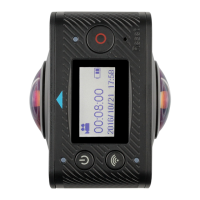
gure 1


 To Next Page