$
Kobo$Arc$User$Guide$19$
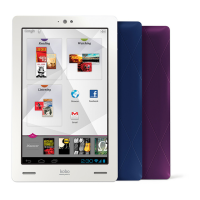
Tapestries$makes$it$easier$to$find$apps$w h e n$y o u $w a n t$t he m,$and$gives$
you$the$convenience$of$using$the$app$when$it’s$most$useful.$$
To$add$a$shortcut$or$widget$to$a$Tapestry:$
1. Tap$the$ $Home$icon$at$the$bottom$of$the$screen.$
2. Tap$the% %All$Apps$icon$at$the$top$of$the$screen.$$
3. Tap$Widgets$to$view$your$widgets.$
4. Swipe$left$to$see$more$widgets.$
5. Press$and$hold$the$app$or$widget$you$want$to$add$to$a$Tapestry.$
The$Home$Tapestry$will$appear.$
6. Drag$the$app$or$widget$to$a$location$on$your$Home$Tapestry,$or$
over$another$Tapestry.$$$
Notes:$$
• If$you$release$the$app$or$widget$ove r$anoth er$item ,$you’ll$create $
a$new$Tapestry.$$
• If$you$drag$the$app$or$widget$over$a$T ape stry$and $hold$it$there,$
the$Tapestry$will$open.$You $can$the n$drag$the $app $or$widg et$
where$you$want.$
Opening%an%app%
You$can$add$apps$to$Tapestries$and$find$them$there,$or$find$and$open$
all$your$apps$and$widgets$on$the$All$Apps$screen.$$
• To$open$an$app$on$a$Tapestry,$just$tap$its$icon.$
To$open$an$app$or$use$a$widget$on$your$All$Apps$screen:$
1. Tap$the$ $Home$icon$at$the$bottom$of$the$screen.$


 To Next Page