Need help?
Do you have a question about the Kodak FLIK X4 and is the answer not in the manual?
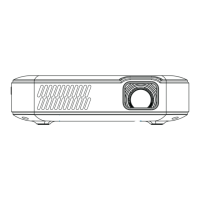
Identifies all available input and output ports on the KODAK FLIK X4 HOME PROJECTOR for various connections.
Describes the initial 'Main Page' layout and how to return to it from other menus.
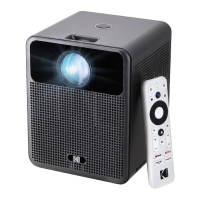
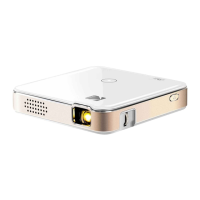
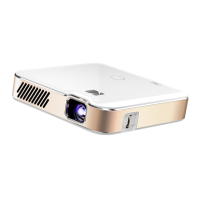
The KODAK FLIK X4 Home Projector is a versatile device designed for household use, allowing users to project movies, photos, and music from various media sources onto a screen. This user-friendly projector is intended to provide an immersive viewing and listening experience in a home environment.
The KODAK FLIK X4 functions primarily as a home projector, capable of displaying video, image, and audio files. It supports multiple input sources, including VGA, USB, HDMI®, SD™ cards, and AV connections, making it compatible with a wide range of external devices such as laptops, personal computers, smartphones, tablets, and video game consoles. The projector features built-in speakers for audio output, but also includes a 3.5 mm Audio Out Jack for connecting headphones or external portable speakers, offering flexibility in sound delivery.
The projector's interface is designed for straightforward navigation. Upon powering on, it automatically loads the Main Page, which serves as the central hub for all operations. From this page, users can access dedicated sections for Movies, Photos, Music, and Settings. Each section is clearly labeled with an icon, and selection is made via the "OK" button on either the projector's top panel or the remote control.
For video playback, the Movies page displays available video files. Users can select a file to begin playback and utilize a Control Bar at the bottom of the screen to manage playback options. Similarly, the Photos page allows users to browse and open image files, with a Control Bar available during playback for desired options. The Music page is dedicated to audio files, enabling users to select and play music, also with a Control Bar for playback management.
The Settings page provides comprehensive control over the projector's operational parameters. Here, users can adjust date/time, display size, picture mode, volume, and various sound settings. This page also allows for customization of picture settings such as contrast, brightness, color, and sharpness, either by selecting from preset options or by manually adjusting "User" settings.
The Input Source Menu is crucial for switching between different media inputs. Accessible via a dedicated "Input Source" button, this menu appears in the top right corner of the screen, allowing users to select the desired source (AV, PC-RGB, HDMI 1, USB, TF) to ensure the projector receives the correct signal from the connected device.
Operating the KODAK FLIK X4 is intuitive, with controls available on both the projector's top panel and a supplied remote control.
Powering On/Off: The projector is turned on or off by pressing the power button located on its top panel.
Navigation: The Main Page is the starting point for all projector functions. Users can navigate through menus and options using the directional arrows (Up, Down, Left, Right) on the projector's top panel or the remote control, confirming selections with the "OK" button. The "Back" button allows users to return to the Main Page at any time.
Adjusting Focus: To ensure a clear image, the projector features a focus wheel on its top. If the projected image appears fuzzy, users can rotate this wheel left or right until the image becomes sharp. A dial behind the focus wheel also allows for adjustment of the screen's viewing angle. It's important to note that for optimal performance, the projector should be placed at a minimum distance of 3.5 feet (1 meter) from the screen. If the Main Page graphics are clear but a specific image or video remains fuzzy, the issue might be with the media's quality rather than the projector's focus.
Adjusting Volume: Volume can be adjusted during playback using the "<" and ">" buttons on the projector's top panel or the dedicated volume buttons on the remote control. Further sound settings, including treble/bass adjustments and audio presets, are available on the Sounds Page within the Settings menu.
Setting Screen Orientation: The Settings page also offers an option to adjust the screen orientation. By selecting "Rotate" and pressing "OK," users can cycle through various orientation options until the projected screen matches their projector's physical orientation.
Resetting the Projector: If needed, the projector can be reset to its factory defaults. This option is found in the Options Menu, accessible from the Settings Page by using the left arrow on the projector's top. Users can select "Restore Factory Defaults" and confirm their choice in a popup window. This menu also allows for adjusting OSD language and installing firmware updates.
The KODAK FLIK X4 is designed for ease of use, and its maintenance primarily involves adhering to safety precautions to ensure longevity and optimal performance.
By following these guidelines, users can ensure the safe and effective operation of their KODAK FLIK X4 Home Projector, maximizing its lifespan and performance.
 General
| Aspect Ratio | 16:9 |
|---|---|
| Connectivity | HDMI, USB, Wi-Fi |
| Projection Distance | 1 - 4 m |
| Built-in Speakers | Yes |
| Power Supply | AC adapter |

 To Next Page