03
Kael RGB User Manual
LEDs display modes
∆ Common lighting settings
∆ Light modes
1. WAVE TRANSITION
2. GRADUAL TRANSITION
3. BREATHING EFFECT
4. FULL COLOR
5. REACTIVE LIGHT
6. EXPLOSION EFFECT
7. RADIATION EFFECT
INDEX
Technical Specification
Shortcut keys on keyboard
Anti-ghosting keys
Extra shortcuts
Lighting mode key
LEDs display modes
∆ Common lighting settings
∆ Light modes
∆ Custom lighting: presets
∆ Custom lighting: create
your own presets
∆ Custom lighting: create
your own colors
∆ Custom lighting: keyboard
right side lighting
Macro settings
Reset default settings
Lighting presets
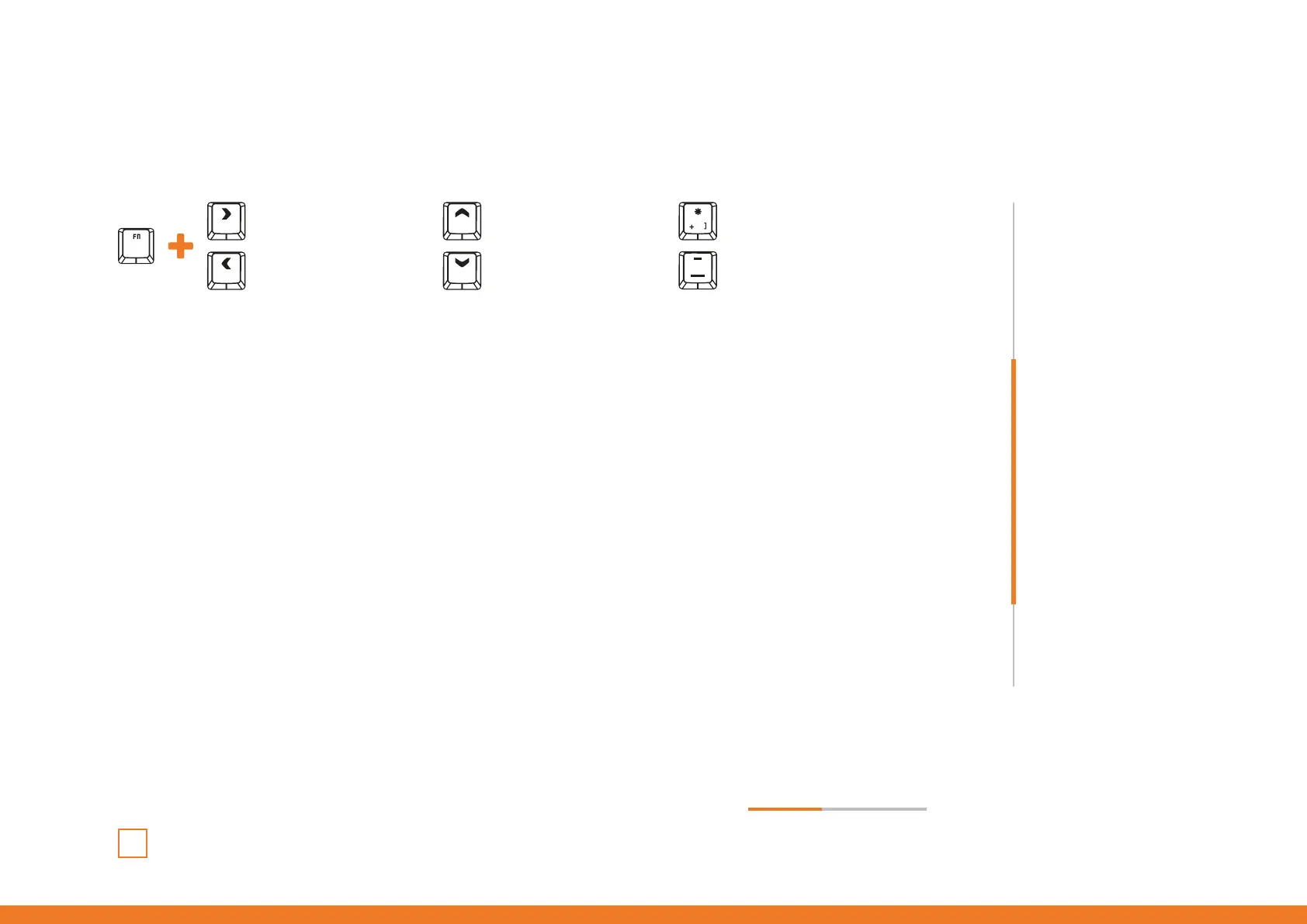
* The configuration of the backlight color direction, intensity and speed are available in almost all lightning modes
Backlight color by wave effect. You can configure it to see the effect on
one color or choose the RGB spectrum.
Keycaps backlight intensity changes by alternate gradual effect.
Keycaps backlight is breathing.
Keycaps show a fixed backlight color.
Keycaps illumination is reactive to your pulsation.
Keycaps illumination reacts to your pulsation with a expansive effect.
Keycaps illumination reacts to your pulsation with an expansive lineal effect.
continues in next page »
Changes
backlit color
Increases
backlit intensity
Changes
transition direction
Reduces
backlit intensity
Increases
backlit speed
Reduces
backlit speed
Shortcut keys on keyboard
∆ Custom lighting: presets
∆ Custom lighting: create
your own presets
∆ Custom lighting: create
your own colors
∆ Custom lighting: keyboard
right side lighting



 To Next Page