06
Kael RGB User Manual
∆ Custom lighting: keyboard right side lighting
« comes from previous page
3. Regarding that =Red color =Green color =Blue color
In order to create your own personal color, click the flicking R, G or B key and move through the
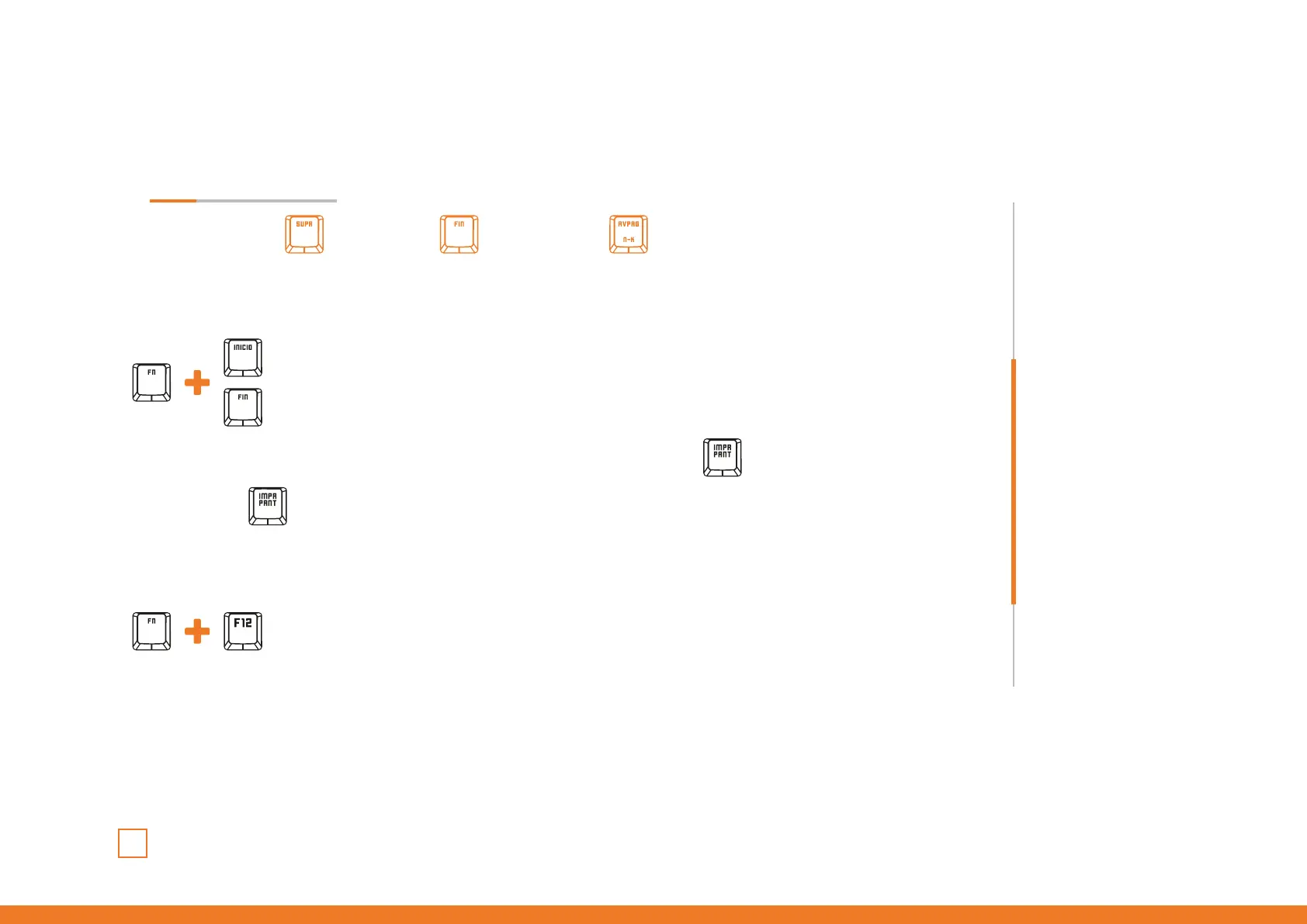
color spectrum using:
move upwards the chosen color spectrum
move downwards the chosen color spectrum
4. To save your custom chosen color and exit this mode, press FN + for five seconds.
5. Press FN + anytime to launch your custom color
INDEX
Technical Specification
Shortcut keys on keyboard
Anti-ghosting keys
Extra shortcuts
Lighting mode key
LEDs display modes
∆ Common lighting settings
∆ Light modes
∆ Custom lighting: presets
∆ Custom lighting: create
your own presets
∆ Custom lighting: create
your own colors
∆ Custom lighting: keyboard
right side lighting
Macro settings
Reset default settings
Lighting presets
To switch on/off keyboard’s right side lighting and
to choose among two different lighting modes:
· Breathing mode
· Fixed mode
Shortcut keys on keyboard
∆ Common lighting settings
∆ Custom lighting: create
your own presets
∆ Custom lighting: presets



 To Next Page