2
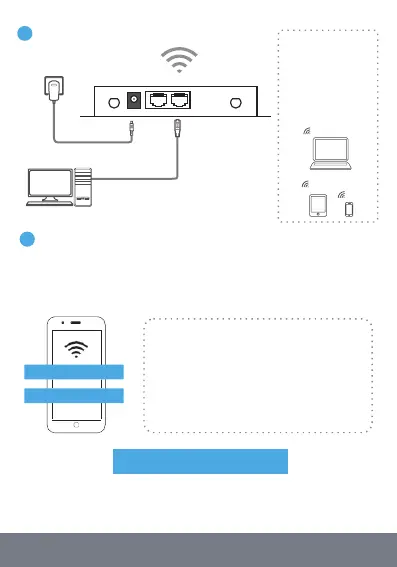
Connect the power
adapter
Power supply socket
Wireless connection
Wireless name and
WiFi password
Available on the
device label
Connect to
LAN network port
Wired connection
If you don't want a cable connection,
you don't need to connect LAN cable
3
To connect to the device's WiFi signal
Search for WiFi, find and connect to the WiFi wireless signal sent by
the device by default [each product has a unique WiFi name (SSID)
and password, which is located on the device
label, under the device)
When the machine is used for the first time, it
will send a wireless signal with ‘LTE-WiFi’ as
the prefix by default, and your phone can
connect to the this. If it is not found, it is
recommended to check the SSID name and
password on the product label. See FAQ for
details on how to reset the router.
To get connected
Wait several minutes. First you will get 3G or 4G lights, then you
will get the internet light if you are using a UK operator SIM.
2
Password:**********
LTE-WiFi_XXXX


 To Next Page