Configuration parameters
Change Kuma Connect Wi-Fi network name and password
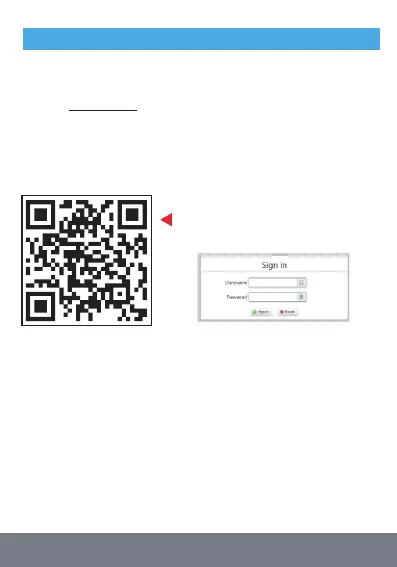
1. Connect to the Kuma Connect, enter 192.168.188.1 in the
browser address bar to enter the management area.
2. Enter the default account admin, the default password admin
(no spaces, all lower case). After logging in successfully, enter
the management interface and set the relevant parameters you
want to set.
If it is set by mobile phone, you can connect
the WiFi, scan QR code, enter the
management background.
3. In the router management background interface, click the
navigation bar LAN settings - > Wi Fi 2.4G, enter new name you
want to set in the "network name (SSID)" input box, s
elect "AES" in
"WPA password policy", and enter in the "WPA-PSK Key" input box.
Enter the password you want to set and click the "apply" button to
confirm the setting.
Please note after changing these settings your Wi-Fi connection
will be disconnected. Reconnect to the new Wi-Fi name you set
and enter the new password you set to connect all your devices
4


 To Next Page