EasyManua.ls Logo

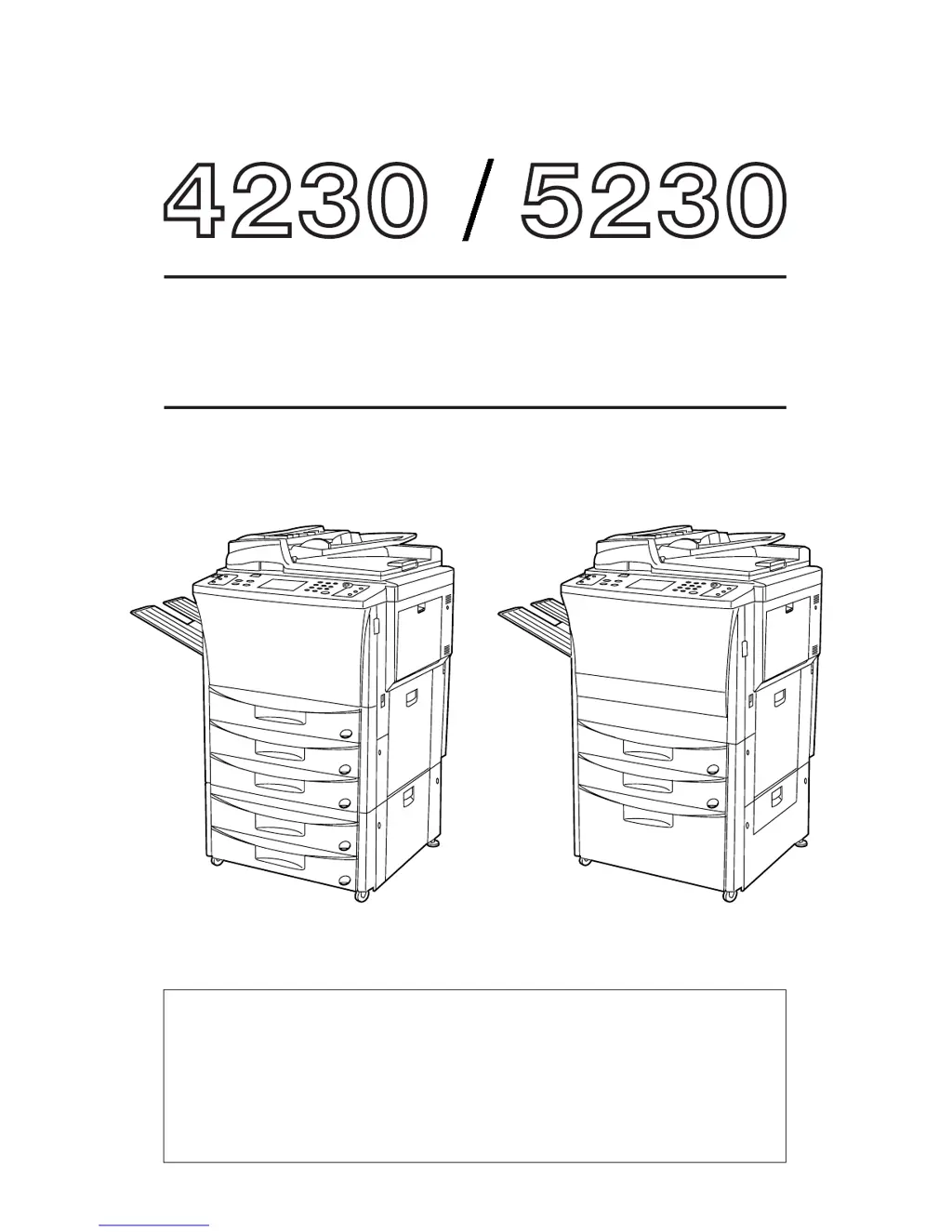
Kyocera 5230 - User Manual

Kyocera 5230
226 pages
Print Icon
To Next Page IconTo Next Page
Loading...
INSTRUCTION HANDBOOK
MANUEL D'INSTRUCTIONS
MANUAL DE INSTRUCCIONES
Please read the instruction handbook before using the copier. Keep it close to the copier for easy
reference.
Veuillez lire la présente notice d'utilisation avant d'employer le copieur. Conservez-la à proximité de
celui-ci de façon à pouvoir vous y référer facilement.
Le rogamos lea el manual de instrucciones antes de utilizar la copiadora. Guárdelo cerca de la misma
para facilitar su utilización como material de referencia.

Table of Contents

Questions and Answers

  • G
    garrettfordAug 14, 2025
    Why are my copies coming out too light on my Kyocera 5230?
    • L
      Lisa MacdonaldAug 14, 2025
      If copies from your Kyocera Copier are too light, several factors could be at play. If the copier is in auto exposure mode, adjust the exposure settings. If it's in manual mode, use the manual exposure adjustment keys to correct the degree of exposure. You can also perform a manual exposure adjustment to adjust the overall exposure. Check if the 'Add toner' message is displayed and replace the toner cartridge if needed. Finally, if the paper is damp or wet, replace it with new paper.
  • C
    Christopher MckeeAug 17, 2025
    Why are my copies too dark on my Kyocera 5230 Copier?
    • J
      Jose BanksAug 17, 2025
      If copies from your Kyocera Copier are too dark, it could be due to the exposure settings. If the copier is in auto exposure mode, adjust the exposure settings. If it is in manual exposure mode, adjust the exposure using the manual exposure adjustment keys. You might also need to perform a manual exposure adjustment to adjust the overall exposure.
  • T
    tony76Aug 20, 2025
    What to do if black lines appear on copies from my Kyocera 5230?
    • K
      Kristin HillAug 21, 2025
      If your Kyocera Copier is producing copies with black lines, the slit glass might be dirty. Clean the slit glass to resolve this issue.
  • J
    Joshua BondAug 25, 2025
    Why are copies from my Kyocera 5230 Copier dirty?
    • B
      Brittany BarnettAug 25, 2025
      If your Kyocera Copier's copies are dirty, the platen, slit glass, or original cover might be dirty. Clean these components to resolve the issue.
  • E
    edwardslarryAug 27, 2025
    What to do if Kyocera Copier copies come out blank?
    • R
      Roy SmithAug 27, 2025
      If your Kyocera Copier produces blank copies, ensure the originals are set correctly. When using the document feeder, set originals face up. When using the platen, face them down and align them with the original size indicator lines.
  • M
    Miguel PatelAug 30, 2025
    What to do if my Kyocera Copier keeps misfeeding paper?
    • M
      matthewdavidsonAug 31, 2025
      If your Kyocera Copier is misfeeding paper, ensure the paper is correctly set in the drawers. If the paper is curled, folded, or wrinkled, replace it. Curled paper may cause paper misfeeds. In that case, remove the paper from the drawer, turn it over, and reset it. Also, check for and remove any misfed paper or loose scraps inside the copier.
  • J
    James OlsonSep 3, 2025
    How to fix askew copy image on Kyocera Copier?
    • W
      Wayne TrevinoSep 3, 2025
      If the copy image from your Kyocera Copier is askew, ensure the originals are set correctly. When using the document feeder, align the originals with the original insertion guide. When placing originals on the platen, align their edges with the correct original size indicator lines.
  • W
    William WalshSep 6, 2025
    What to do if drawer cannot be closed on Kyocera Copier?
    • C
      Christopher RushSep 6, 2025
      If you cannot close a drawer on your Kyocera Copier, it might be because more than one drawer was pulled open at the same time. To fix this, pull open the drawer that is closed, and then close it together with the drawer that could not be closed.
  • M
    Michael LawsonSep 10, 2025
    How to fix Kyocera 5230 Copier when nothing lights on operation panel?
    • Z
      zriveraSep 10, 2025
      If the operation panel of your Kyocera Copier doesn't light up when the main switch is turned on, make sure the plug is securely connected to an AC outlet.

Summary

Caution Labels

General Warnings

Describes general safety warnings and specific points of attention.

Prohibited Actions

Provides information on prohibited actions and their specifics.

Required Actions

Details information on actions that must be performed.

Installation Precautions

Environment

Covers precautions related to the copier's installation environment.

Power Supply and Grounding

Details precautions for connecting power and grounding the copier.

Handling of Plastic Bags

Explains safety precautions for handling plastic bags.

Precautions for Use

Cautions When Using the Copier

Provides safety warnings for operating the copier and handling its components.

Cautions When Handling Consumables

Details safety precautions for handling consumables like toner.

Making Full Use of the Machine’s Advanced Functions

Paper Selection and Size Adjustment

Explains automatic paper selection and size adjustment functions.

Copy Features

Outlines various copy functions like enlargement, reduction, and duplex.

Optional Equipment

Lists and describes available optional equipment for the copier.

Names of Parts

Preparations

How to Load Paper

Provides instructions on how to load paper into the copier.

Setting Originals

Setting Originals in the DF

Explains how to set originals in the document feeder.

Setting Originals on the Platen

Provides instructions for setting originals on the copier's platen.

Basic Operation

Basic Copying Procedure

Outlines the fundamental steps for performing a basic copy operation.

Functions

Enlargement;reduction

Details how to enlarge or reduce copy size using various zoom modes.

Two-sided copying

Explains the process for copying on both sides of the paper.

Booklet copying

Describes how to create booklet copies from book originals.

Applicable Copy Modes

Job reservation

Allows reserving another copy job while a current one is in progress.

Job build function

Enables copying multiple originals at once by building a job.

Copier Management

Copy management

Manages copier usage by assigning department codes and copy limits.

Week timer

Allows automatic ON/OFF switching of the copier based on a weekly schedule.

Default settings

Covers initial settings for copy quality, exposure, and paper selection.

Optional Equipment

Finisher

Describes the finisher for sorting and stapling copies.

Booklet stitcher

Explains the booklet stitcher for stapling and binding copies.

Key counter

Details the key counter for managing copy counts.

Messages

Replacing the Toner Cartridge

When Paper Misfeeds

Misfeed location indicators

Identifies the locations where paper misfeeds can occur.

Cautions

Provides important safety cautions when dealing with paper misfeeds.

Troubleshooting

Copies come out blank

Addresses issues where copies are produced blank.

Copies come out too light;dark

Resolves issues with copies being too light or too dark.

Paper misfeeds

Provides solutions for frequent paper misfeed problems.

Cleaning the Copier

Cleaning the original cover, DF original reading cover

Instructions for cleaning the original cover and DF reading cover.

Cleaning the platen and the slit glass

Guide for cleaning the platen and slit glass.

Cleaning the touch panel

Steps for cleaning the touch panel surface.

Specifications

About 52 PPM Copier

Names of parts for main body

Identifies main body parts specific to the 52 ppm model.

Removal procedure of misfeed in duplex unit

Details the steps to remove misfed paper from the duplex unit.

Safety of Laser Beam

Laser Beam Safety Overview

Explains the safety of the laser beam and its classification.

Kyocera 5230 Specifications

General IconGeneral
Max Paper SizeA3
Duplex PrintingYes
Duplex ScanningYes
Resolution600 x 600 dpi
FunctionsCopy, Print, Scan
Copy Capacity999 copies
Paper SizeA3, A4, A5, B4, B5
Power Consumption1.5W (Sleep)

Related product manuals