EasyManua.ls Logo

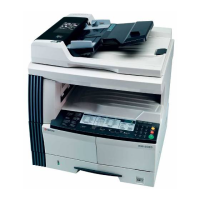
Kyocera KM-1620 - User Manual

Kyocera KM-1620
124 pages
Print Icon
To Next Page IconTo Next Page
Loading...
Please read the Operation Guide before using the copier.
Keep it close to the copier for easy reference.
KM-1620
KM-2020

Table of Contents

Other manuals for Kyocera KM-1620

Questions and Answers

  • J
    jamiewoodAug 17, 2025
    Why does the Replenish Toner display blink on my Kyocera Copier?
    • B
      Blake ShannonAug 17, 2025
      If the Replenish Toner display blinks on and off on your Kyocera Copier, it means there is very little toner remaining. Replace the toner container with a new one as soon as possible.
  • K
    kleinashleyAug 19, 2025
    What to do if Toner Waste display blinks and “E31” appears on Kyocera Copier?
    • B
      Brian CampbellAug 19, 2025
      If the Toner Waste display blinks and “E31” appears on the copy quantity display of your Kyocera Copier, it means that the waste toner box is full. Replace it with a new waste toner box.
  • K
    kelly75Aug 22, 2025
    How to fix “E33” error on Kyocera Copier?
    • E
      Erica CharlesAug 22, 2025
      If the Replenish Toner display blinks and “E33” appears on the copy quantity display of your Kyocera Copier, replace the toner container with a new one.
  • M
    Margaret SavageAug 25, 2025
    What to do if “E90” appears on Kyocera Copier display?
    • C
      cassandramooreAug 25, 2025
      If “E90” appears on the copy quantity display of your Kyocera Copier, it indicates that the memory is full. To resolve this, you can: * Press the [Enter] key to start outputting the copies read in. * Press the [Reset] key or the [Stop/Clear] Key to delete the data read in. * Reduce the number of originals and repeat the copying procedure.
  • B
    Barbara HarrellAug 28, 2025
    What does “E70” mean on my Kyocera Copier?
    • J
      Jessica SnyderAug 28, 2025
      If “E70” appears on the copy quantity display of your Kyocera Copier and the optional Document Processor is being used, it means there are originals left on the original table. Remove the originals, return them to the original table, and try copying them again.
  • B
    brewersavannahAug 30, 2025
    What does error “E14” mean on Kyocera Copier?
    • A
      Alexandria FreemanAug 30, 2025
      If “E14” appears on the copy quantity display of your Kyocera Copier, it means that an original size that cannot be copied has been set. Check the original. It could be due to: * The original was set in a vertical direction during the Book Border Erasure copying operation. Set the original horizontally. * An irregular size original was set during the Border Erase or Merge Copy operation. * An original size other than 8 1/2" × 11", 11" × 17", A3, A4R, A5R, B4 or B5R was set to make a split copy or a 2-Sided Copy from a double-page spread original.
  • J
    Joseph CannonSep 2, 2025
    What does “E72” error mean on Kyocera Copier?
    • E
      Erin BridgesSep 2, 2025
      If “E72” appears on the copy quantity display of your Kyocera Copier, originals were set in the optional Document Processor when copying on 2-sides (front and back sides). Remove the originals from the Document Processor, replace the originals on the Original Table after exiting the front and back copying, 2-Sided copy, 2 in 1, 4 in 1 or Sort Mode and resume copying.
  • C
    chungdianaSep 5, 2025
    What to do if “E32” appears on Kyocera Copier display?
    • H
      Heidi WilliamsSep 5, 2025
      If “E32” appears on the copy quantity display of your Kyocera Copier, it indicates that the Toner Container has not been set. Set the Toner Container.
  • J
    Joanna NavarroSep 8, 2025
    What does error “E15” mean on Kyocera Copier?
    • M
      meyerslindsaySep 8, 2025
      If “E15” appears on the copy quantity display of your Kyocera Copier, it means that a size that cannot be copied on both sides has been specified. Specify a paper size that can be used.
  • K
    Kevin DiazSep 12, 2025
    What does error “E71” mean on Kyocera Copier?
    • H
      hernandezlisaSep 12, 2025
      If “E71” appears on the copy quantity display of your Kyocera Copier, return all of the originals to the original table and try copying them again.

Summary

Important Safety and Precautions

Caution Labels

Identifies safety labels attached to the product for hazard prevention.

Installation Precautions

Guidelines for safe and proper placement and environmental conditions for the copier.

Precautions for Use

Critical safety instructions for operating the copier to prevent damage or injury.

Handling Consumables Safely

Safety advice for handling toner containers and waste toner boxes.

Laser Safety Information

Information regarding the copier's Class 1 laser product classification and safety.

Names of Parts

Preparations for Operation

Loading Paper into Drawers

Instructions on how to load paper into the copier's drawers.

Basic Operation Procedures

Copy Functions

Making 2-Sided Copies

Procedures for copying on both sides of the paper from various original types.

Copier Management

Copy Management Mode Overview

Overview of features for managing copy usage by department or section.

Optional Equipment

Document Processor

Details on the automatic document feeder for scanning originals.

Troubleshooting

Error Message Displays

Lists common error codes and their corresponding corrective actions.

Paper Jam Removal Procedures

Step-by-step guide on how to clear paper jams from various locations.

Other Troubleshooting Issues

Addresses common copy quality problems and their solutions.

Kyocera KM-1620 Specifications

General IconGeneral
Time to first page (black, normal)5.9 s
Print speed (black, normal quality, A4/US Letter)16 ppm
Internal memory32 MB
Maximum internal memory160 MB
Custom media sizes98x147 - 297x432 (mm)
Maximum print sizeA3 (297 x 420 mm)
Standard media sizesA3, A4, A5, Ledger, Letter, Legal, Folio
Zoom capability50 - 200%
Maximum number of copies250 copies
Copy speed (black, normal quality, A4)16 cpm
Standard input capacity300 sheets
Grayscale levels256
TypeDigital copier
Dimensions (WxDxH)574 x 552 x 502 mm
Number of print cartridges1
Recommended media weight45 - 160 g/m²
Compatible ink types, suppliesTK-410
Maximum duty cycle20000 pages per month
Power requirements220-240V, 50/60 Hz
Power consumption (standby)88 W
Power consumption (typical)356 W
CertificationGS TUV CE ISO 9001 ISO 14001
Weight and Dimensions IconWeight and Dimensions
Weight39000 g

Related product manuals