EasyManua.ls Logo

Kyocera 5035 - User Manual

Kyocera 5035
292 pages
Print Icon
To Next Page IconTo Next Page
Loading...
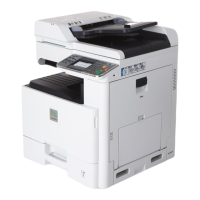
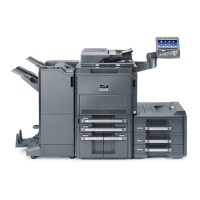
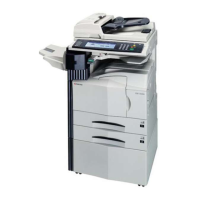
Please read the Operation Guide before using the copier
Keep it close to the copier for easy reference
3035
4035
5035
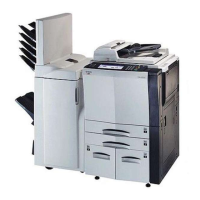
* The above illustration includes the optional original cover.

Table of Contents

Questions and Answers

  • H
    Heather FreemanAug 16, 2025
    What to do if my Kyocera 5035 Copier says 'Add toner to resume copying'?
    • D
      daviscrystalAug 16, 2025
      If your Kyocera Copier displays 'Add toner to resume copying', it means the toner is low. Replace the toner container immediately to continue.
  • J
    Jasmine Torres DDSAug 19, 2025
    What to do if my Kyocera 5035 Copier shows a system error? (Kyocera)
    • C
      cvargasSep 12, 2025
      If a system error occurs on your Kyocera Copier, turn the power switch OFF and then ON to attempt to resolve the issue.
  • N
    Nicole HunterAug 22, 2025
    What to do if Kyocera Copier displays system error and disconnect power plug?
    • S
      Samuel PriceAug 22, 2025
      If your Kyocera Copier displays a system error, disconnect the power plug from the outlet and connect it again.
  • K
    Katherine BaldwinAug 25, 2025
    Why does my Kyocera 5035 say 'Reposition original'?
    • K
      Kristen NavarroAug 26, 2025
      The 'Reposition original' message on your Kyocera Copier indicates that the orientation of the original and the selected paper are different. Change the orientation of the original. If you press the [Start] key, same-size copying will be performed.
  • D
    David WiseAug 27, 2025
    What to do if Kyocera Copier says 'Set drawer'?
    • S
      Sarah MartinezAug 27, 2025
      If your Kyocera Copier displays 'Set drawer', it means one of the drawers is not closed properly. Pull it out and push it back in all the way.
  • J
    Jennifer Perry MDAug 30, 2025
    What to do if Kyocera 5035 says 'Close paper cassette'?
    • A
      Amy MatthewsAug 30, 2025
      If your Kyocera Copier displays 'Close paper cassette', it means one of the cassettes is not closed properly. Pull it out and push it back in all the way.
  • L
    Laura HernandezSep 2, 2025
    What does 'Ready to copy. Add toner' mean on my Kyocera 5035 Copier?
    • N
      Nathan JonesSep 2, 2025
      If your Kyocera Copier says 'Ready to copy. Add toner', it indicates low toner. Replace the toner container immediately, as only one copy can be made at a time.
  • C
    Christina MooreSep 5, 2025
    What to do if Kyocera 5035 Copier exceeds pre registered copying quantity?
    • R
      rchambersSep 5, 2025
      The message 'Exceeds pre registered copying quantity' on your Kyocera Copier means the number of copies has reached the limit set in the copy management mode. Clear the copy count from the management mode.
  • L
    Lisa HartmanSep 7, 2025
    How to close xxx cover x on Kyocera 5035 Copier?
    • D
      Danielle YangSep 7, 2025
      If your Kyocera Copier displays 'Close xxx cover x', it means the indicated cover is open. Close the cover securely.
  • D
    Dr. Stephanie Thornton DDSSep 10, 2025
    What to do if Kyocera 5035 says 'Paper drawer is out of order'?
    • J
      johnrandallSep 12, 2025
      If your Kyocera Copier displays 'Paper drawer is out of order' because the drawer currently in use is out of order and cannot be used, contact your service representative immediately. Continue copying using another drawer.

Summary

Section 1: IMPORTANT! PLEASE READ FIRST.

CAUTION LABELS

Safety labels attached to the copier for user protection.

INSTALLATION PRECAUTIONS

Guidelines for safely installing the copier in the environment.

PRECAUTIONS FOR USE

Crucial safety warnings and cautions for operating the copier.

Section 3: PREPARATIONS

1. Loading paper

Instructions for correctly loading paper into the copier's drawers and trays.

Section 4: BASIC OPERATION

1. Basic copying procedure

Step-by-step guide for performing a standard copy job.

Section 6: DOCUMENT AND OUTPUT MANAGEMENT FUNCTIONS

1. Document management functions

Overview of functions for scanning and saving documents to the hard disk.

Section 7: COPIER MANAGEMENT FUNCTIONS

1. Copy management mode

System for managing copy usage via department ID-codes and setting usage limits.

Section 8: OPTIONAL EQUIPMENT

(1) Document Processor

Information on the automatic document feeder for scanning originals.

Section 9: TROUBLESHOOTING

1. If one of the following messages is displayed

Actions to take when specific error or status messages appear on the display.

3. When paper misfeeds

Procedures for identifying and removing jammed paper from various locations.

Section 10: MAINTENANCE AND OPERATION INFORMATION

2. Replacing the toner container and waste toner box

Steps for replacing toner and waste toner, including related part cleaning.

Kyocera 5035 Specifications

General IconGeneral
BrandKyocera
Model5035
CategoryCopier
LanguageEnglish

Related product manuals