12 User Manual
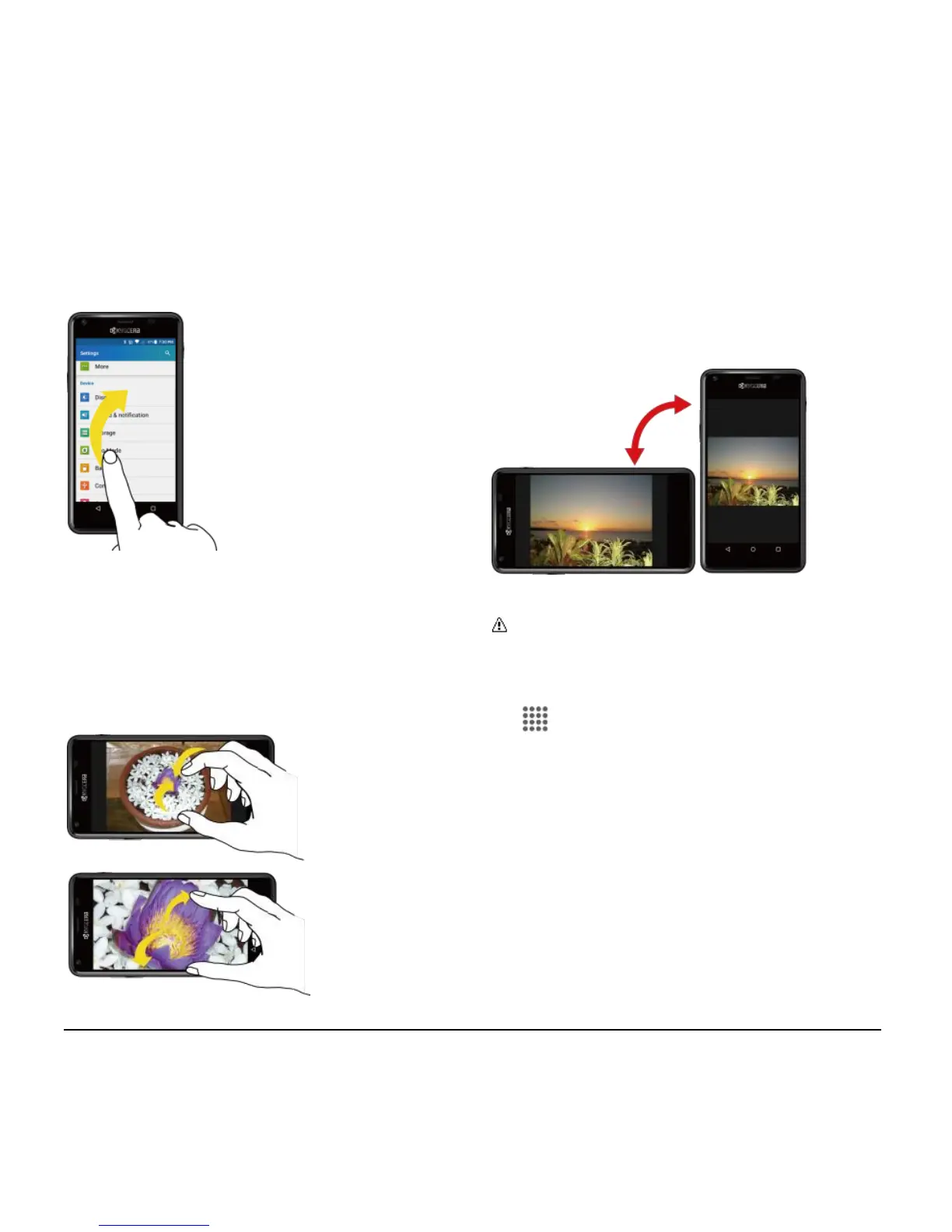
Flick
Flicking the screen is similar to swiping,
except that you need to swipe your finger in
light, quick strokes.
Pinch and Spread
Pinch the screen using your thumb and
forefinger to zoom out or spread the screen
to zoom in when viewing a picture or a Web
page. (Move fingers inward to zoom out
and outward to zoom in.)
Rotate
For most screens, you can automatically
change the screen orientation from portrait
to landscape by turning the phone
sideways. When entering text, you can turn
the phone sideways to bring up a bigger
keyboard.
Note: The Auto-rotate feature needs to
be turned on for the screen orientation
to automatically change. To turn this on
or off, from the Home screen, tap Apps
> Settings > Accessibility > Auto-
rotate screen.












 To Next Page