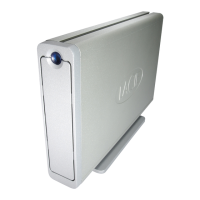
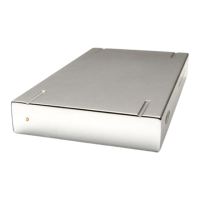
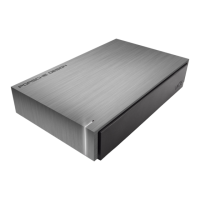
LaCie Brick Hi-Speed FireWire &
USB 2.0 Hard Drive User’s
Mac OS 9.x Users Only! Silverlining Pro Installation
Before connecting the power supply and FireWire or USB 2.0 cable to your drive, you will need to install Silverlining
Pro, which will help you manage your drive. Follow the steps below to install the necessary drivers and software to
configure your drive. Then move on to the power supply and FireWire or USB 2.0 cable installation steps.
1) Insert the LaCie Storage Utilities CD-ROM in your computer’s internal CD/DVD drive.
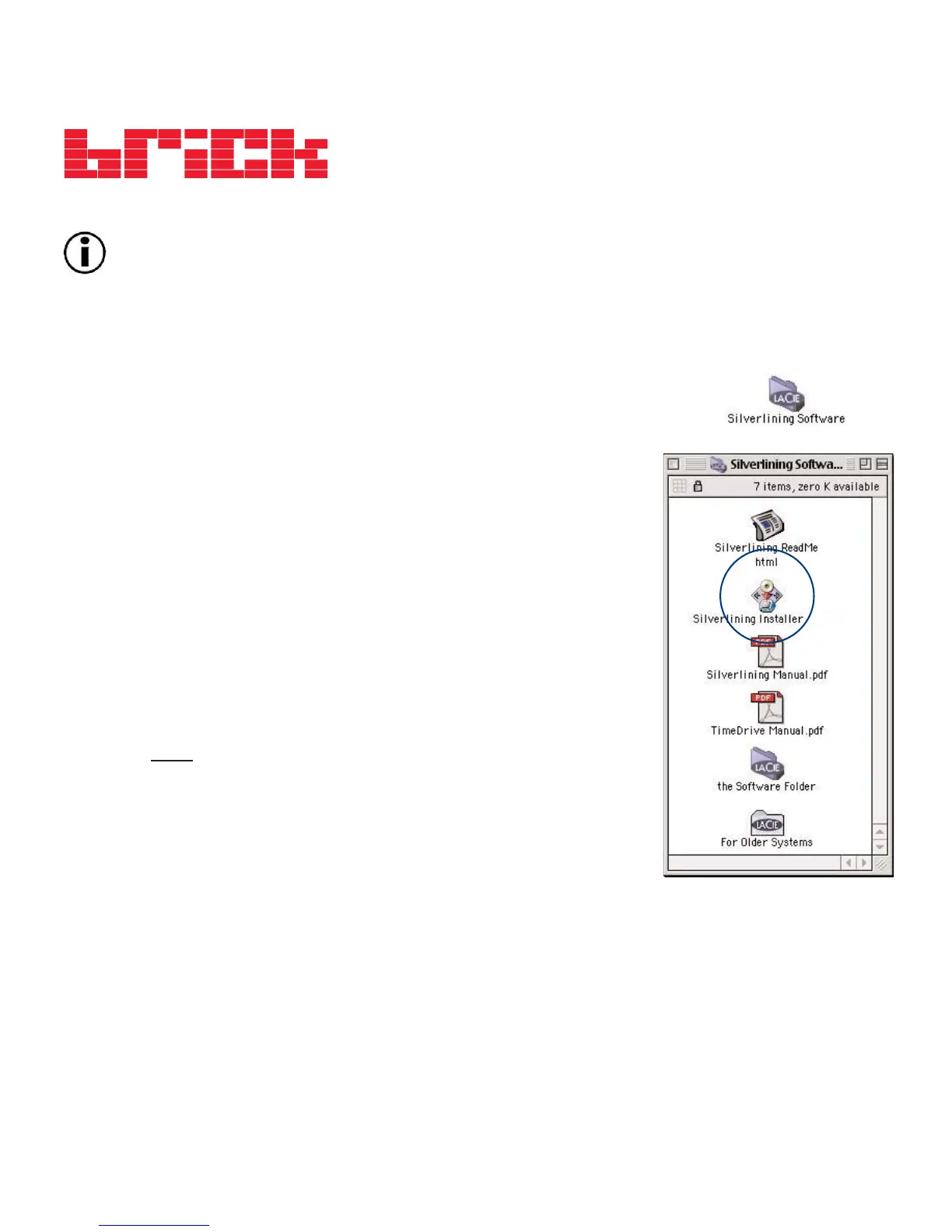
2) Open the CD icon and double-click on the Silverlining Software folder.
3) Click on the Silverlining Installer icon (Fig.2.1).
4) The Silverlining Utilities screen appears. Click on Continue.
5) The “Silverlining Read Me” screen appears. Read the following information
and click on Continue.
6) The “License Agreement” screen appears. Click on Agree.
7) The “Installation” screen appears. Choose either Easy Install, Custom Install or
Uninstall from the pull-down menu in the upper left-hand side of the “Installation”
screen. Once you’ve made your choice, click on Install.
8) A message appears to confirm that the installation was successful. Now move
onto Step 1
.
2. Getting Connected
page 10
Fig.2.1


 To Next Page
 Loading...