LaCie Brick Hi-Speed FireWire &
USB 2.0 Hard Drive User’s Manual
2. Getting Connected
Follow these steps to quickly get your LaCie Drive powered on and connected to your computer. To get
started, go to: 2.1. Connect the Fir
eWire Cable to Your LaCie Drive and to Your Computer; 2.2. Connect
the USB 2.0 Cable to Your LaCie Drive and to Y
our Computer; or 2.3. Connecting the Optional Power
Sharing Cable.
Once you’ve gotten the drive connected to your computer, move on to section 3. Using Your LaCie Drive
for important information on how to format and utilize your drive.
Tech Note:
*iLink Users! The iLink bus does not provide the necessary power to use your drive. You will need to use
the optional power supply sharing cable to operate your drive. See section 2.3 Connecting the Optional Power
Sharing Cable for instructions.
Tech Note:
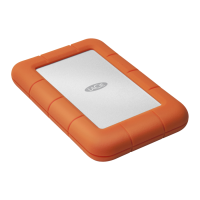
The LaCie Mobile Hard Drive does not require a power supply for computers equipped with a standard
bus-powered FireWire or USB port. If your computer’s FireWire or USB bus does not provide the necessary power to
operate your drive, use the optional power sharing cable to turn on your drive. See section 2.3 Connecting the
Optional Power Sharing Cable for instructions.
Windows 98 SE and Windows Me Users!
Mac OS 9.x Users!
Before following the next three steps, first install this important software to help you configure and manage your LaCie drive.
• Windows 98 SE and Windows Me Users must install Silverlining 98 and USB 2.0 Driver
• Mac OS 9.x Users, must install Silverlining Pro.
See the following pages for more information.
2. Getting Connected
page 8






 To Next Page