SETTING THE DATE
Example: Change the date from October 20, 2017 to October 21, 2017.
Press the SELECT button and position
the " " mark at the "DATE".
At that moment, the "Year" flashes. (The
flashing means it can be changed.)
Change the "Year".
In case of the example, press the SET
button because the year 2017 is not to be
changed.
At that moment, the flashing changes
from "Year" to "Month".
Step 1
DATE
SELECT CHANGE SET
DATE
SELECT CHANGE SET
DATE
SELECT CHANGE SET
DATE
SELECT CHANGE SET
Change the "Month".
In case of the example, press the SET
button because the month is not to be
changed.
At that moment, the flashing changes
from "Month" to "Date".
Step 2
Change the "Date".
Press the CHANGE button to set at "21",
and then press the SET button.
Step 3
After you finish setting the date, press
the SET button once again.
Now the date setting has been completed.
Replace the cover and lock.
IMPORTANT: If you do not complete
Step 4, the clock will not print.
Step 4
TU WE TH FR SA SUMO
Year
Month
Date
13
10
SETTING THE 12/24 HOUR
Example: Change the hour format to 24 hour.
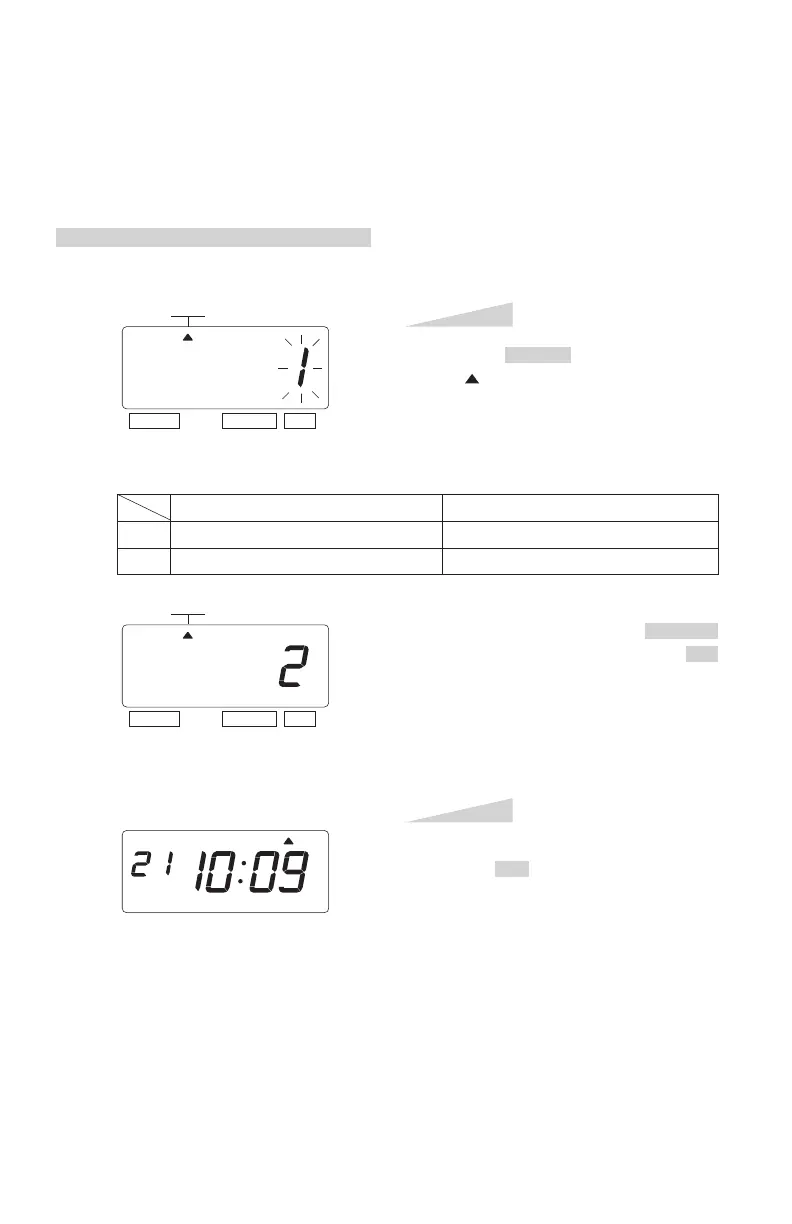
Press the SELECT button and position
the " " mark at the "HOUR".
At that moment, the flashing digit
indicates "Order Options" of the hour
format. (The flashing means it can be
changed.)
Step 1
HOUR
SELECT CHANGE SET
After you finish setting the 12/ 24 hour,
press the SET button once again.
Now the 12/24 hour setting has been
completed. Replace the cover and lock.
IMPORTANT: If you do not complete
Step 2, the clock will not print.
Step 2
HOUR
SELECT CHANGE SET
1.
2.
Order Options
12 hour
24 hour
Display
PM 3:00
15:00
In case of the example, press the CHANGE
button to set at "2". And then press the SET
button.
TU WE TH FR SA SUMO
ENGLISH


 To Next Page