LAUNCHLAUNCH
44 45
www.x431.com +86 755 8455 7891 www.x431.com +86 755 8455 7891
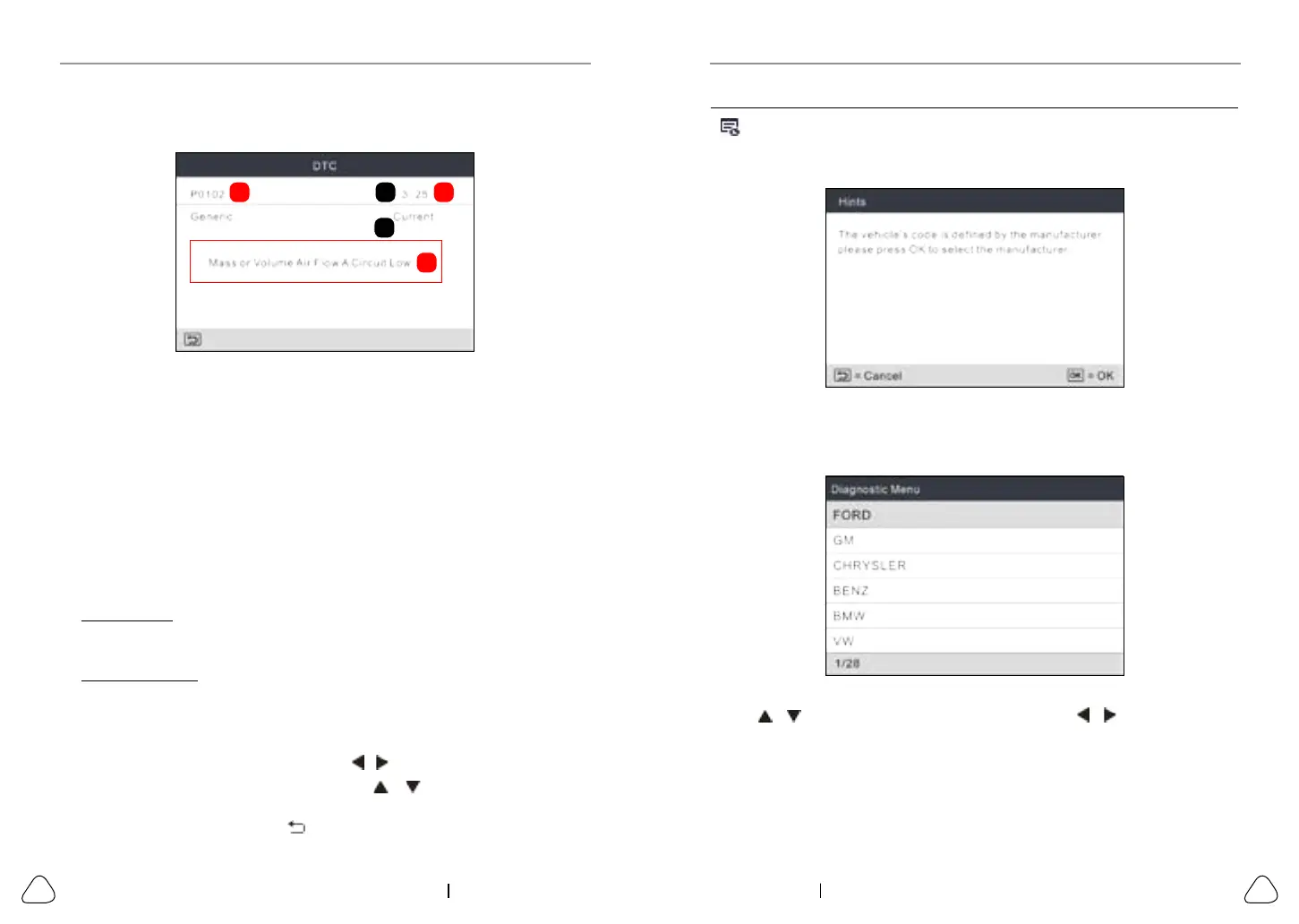
automatically read the SAE-standard DTCs and a screen similar to Figure 6-5
will appear.
A B C
D
E
Figure 6-5
In Figure 6-3,
• A - DTC: Displays the Diagnostic Trouble Code (DTC) number. Each fault
is assigned a code number that is specic to that fault.
• B - Code Number Sequence: The tool assigns a sequence number to
each DTC that is present in the computer’s memory, starting with “1.” This
number indicates which code is currently displayed.
• C - Code Enumerator: Indicates the total number of codes retrieved from
the vehicle’s computer.
• D - Code Type: Indicates the type of code being displayed: Generic
Current, Generic Pending, Generic Permanent, etc.
Pending DTC: A code recorded on the “rst trip” for a “two-trip” code. If the
fault that caused the code to be set is not detected on the second trip, the
code is automatically erased.
Permanent DTC: It indicates there is a problem in one or more of the
vehicle’s systems. In this case, the Malfunction Indicator (“Check Engine”)
lamp on the vehicle’s instrument panel will light steady on.
• E - Test Data Display Area: Displays DTC denitions.
If more than one DTC was retrieved, press
/ to view dierent DTCs.
In the case of long code definitions, use
/ to view the additional
information.
After viewing all the codes, press
to return to Diagnostic Menu.
Note: In case the diagnosc codes are manufacturer-specic, users need to
select the manufacturer manually and the following prompt message will appear
on the screen.
Figure 6-6
Press OK to enter to select the manufacturer. Figure 6-7 will be shown on the
screen.
Figure 6-7
Press
/
to select dierent manufacturer; press the
/
buon to turn to
next or previous page. Aer selecng the desired one, press OK to conrm.
• If some DTCs are found, the screen will display the DTCs (Refer to Figure 6-5).
• If the DTC can not be found, a screen similar to the following gure will appear:


 To Next Page