1
2
WLANSetup
The tablet has built-in WLAN module that can be used to get online. Once you're online,
you can register the tool, update diagnostic software & apk, surf the Internet and send
email on your network.
2. Select the desired WLAN connection from the list (Password may be required for
secured networks).
3. When “Connected” appears, it indicates that it is properly connected to the network.
1. Tap on [Settings] on the home screen and then [WLAN] to configure WLAN setting.
Initial Use
The Diagnostic App is not pre-installed on the diagnostic tool. The user needs to download
and install it manually using the built-in "APP Init" program. Follow the steps below to
proceed:
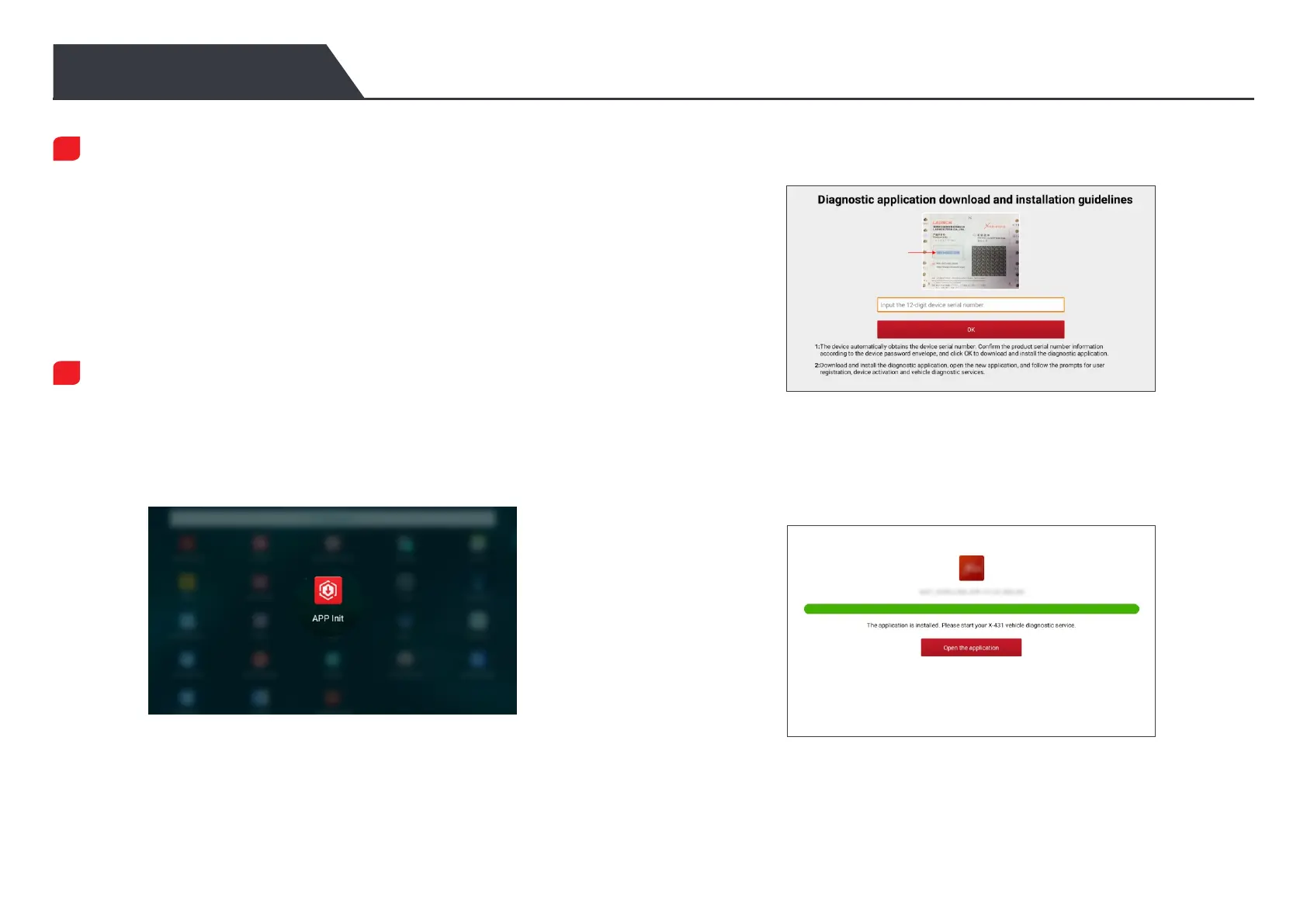
1. On the Android's Home Screen, tap the mini program "APP Init" to run it.
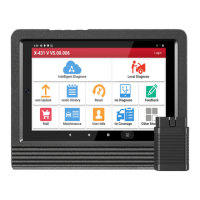
2. The program automatically obtains the Serial Number of the diagnostic tool. Carefully
check the product Serial Number information against the included Password Envelope.
If consistent, tap "OK" to start downloading and installing.
*Note: If inconsistent, touch the displayed Serial Number to revise it.
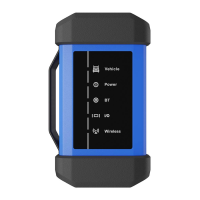
Tap "Open the application" to launch it and a new Diagnostic App icon will appear on
the Home Screen.
3. After the downloading and installation is completed, the following screen will appear.
Diagnostic App Download




 To Next Page