EasyManua.ls Logo

Launch X-431 Throttle - User Manual

Default Icon
2 pages
Print Icon
To Next Page IconTo Next Page
Loading...
Quick Start Guide
Quick Start Guide
X-431 Throttle
X-431 Throttle
LAUNCH
LAUNCH
5. Vehicle Connection
B Via Battery Clamps Cable
VCI Connector
OBD I Adaptor
Battery Clamps CableTo V 'ehicle s Battery
1. OBD II Vehicle Connection
A Directly plug the VCI into vehicle’s DLC
B Using OBD II extension cable
2. Non-OBD II Vehicle Connection
A Via Cigarette Lighter Cable
VCI Connector
OBD I Adaptor
To Vehicle’s DLC
Non-16pin Connector
Cigarette Lighter CableTo Cigarette Lighter Receptacle
VCI Connector
OBD II Extension Cable To Vehicle’s DLC
If the power supply on vehicle diagnostic socket is insufficient or the power pin is damaged,
you can get power in the following ways:
To Vehicle’s DLC
Non-16pin Connector
The method used to connect the diagnostic connector to a vehicle's DLC depends on the
vehicle's configuration as follows:
?
?
A vehicle equipped with an OBD II management system supplies both communication and
12V power through a standardized DLC.
A vehicle not equipped with an OBD II management system supplies communication
through a DLC connection, and in some cases supplies 12V power through the cigarette
lighter receptacle or a connection to the vehicle battery.
6. Start Diagnostics
Preparation
Start Diagnostics
Before diagnosing, please make sure the following:
Switch the ignition on.
Vehicle battery voltage range should be 9 14Volts
Throttle should be in a closed position.
X-431 Throttle supports three kinds of diagnosis approaches: Smart Diagnosis, Remote
Diagnosis and Manual Diagnosis.
Through simple wireless (BT) communication between the handset and VCI device, you can
easily get the VIN (Vehicle Identification Number) information of the currently identified
vehicle.
Once the VIN is successfully identified, the system will retrieve it from the remote server and
then guide you to vehicle information page without the necessity of step-by-step manual
menu selection.
This option aims to help repair shops or professional technicians launch instant messaging
and remote diagnosis, making the repair job getting fixed faster.
In this mode, you have to diagnose a vehicle by performing the menu-driven command
manually.
s
s
s
.-
Smart Diagnosis (AutoDetect):
Remote Diagnosis (Tech to Tech)
Manual Diagnosis:
:
For new users, please follow the operation chart shown below to get familiar with and start
using this tool * .( If you choose “AutoDetect” to diagnose a vehicle, this flowchart shall not apply)
1. Charging & Turning On
2. Changing Language
4. Register & Update
3. Wi-Fi Setup
4. Register & Update(Cont.)
1. Plug one end of the included power adaptor into the charging port of the handset, and
other end into the AC outlet.
2.
Once
the battery is fully charged, disconnect the power adaptor from the AC outlet.
handset
*
If
the battery remains unused for a long period of time or the battery is completely discharged, it is
normal that the tool will not power on while being charged. Please charge it for a period of 5 minutes
and then turn it on. Please use the included power adaptor to charge your tool. No responsibility can
be assumed for any damage or loss caused as a result of using power adaptors other than the one
supplied.
3. Press the POWER] button on the , the system starts initializing and then enters
the home screen.
[
X-431 Throttle supports multiple languages. To change the language of the tool, please do
the following:
1.
On
the home screen, tap on .
2. Tap on ”, and then choose the desired language from the list.
3. Tap and hold the desired language and drag it to the top of the screen and then release it,
the system will change into the target language.
Settings -> Language & Input -> Languages
Add a language
X-431 Throttle has a built-in Wi-Fi module that can be used to get online. Once you're online,
you can register your tool, update the diagnostic software & APK, surf the Internet, get apps
and send email on your network.
X-431 Throttle
X-431 Throttle
->1. On the home screen, select
2 Select the Wi Fi switch to ON will start searching for available wireless
networks.
3 Select a wireless network
If the chosen network is open will connect automatically.
If the selected network is encrypted a network password will need to be entered
Settings Wi Fi
.- ,
.:
.
-.
?
?
Register/Login
Has this unit been registered?
New Customer Existing Customer
1. : On the home screen, tap the application icon
to launch it, a dialog box similar to the following will pop up
on the screen.
A. , tap on “New Customer” in Fig. A to
start your sign-up. Refer to Steps 2-4.
B. , tap on “Existing
Customer” to login the system directly.
Launch App
If you are a new user
If you have registered to be a member
2. A
B
Create an App Account: Tap on “New Registration” in Figure , input the information
(items with * must be filled) and then tap on “Register”. Refer to Figure .
3.
C
Activate VCI Connector: Input the Product S/N and Activation Code (can be obtained
from the password envelope), and then tap on “Activate”. Refer to Figure .
4. Finish Registration: To download the diagnostic software, tap on “Yes” to navigate to the
download page. Tap on “No” to download and install it later.
On the download page, tap on “Update” to start downloading until it is complete.
Select Country
*
Email
*
Confirm Password
*
Password
*
Username
*
CAPTCHA CAPTCHA
Register
23
1
Create an Account
Activate VCI
Finish Registration
Register
B
Create an Account
Activate VCI
Finish Registration
Register
13
2
Serial Number
Activation Code
Where is my activation code?
>> Skip
Activate
C
A
Register
1
2
3
Yes
No
Congratulations You have registered successfully Do you download vehicle
software
! .
?now
Create an Account
Activate VCI
Finish Registration
D
Launch App Tap on “Diagnose”
Select test systemSelect test function
Select vehicle
Select software
version
* Note: To enjoy more service and functions, you are suggested to check for updates on a frequent
basis and keep synchronized with the latest available software.
Statement: LAUNCH owns the complete intellectual property rights for the software used by this
product. For any reverse engineering or cracking actions against the software, LAUNCH will block
the use of this product and reserve the right to pursue their legal liabilities.
Question and Answer IconNeed help?

Do you have a question about the Launch X-431 Throttle and is the answer not in the manual?

Summary

Charging and Turning On

Changing Language

Wi-Fi Setup

Registration and Software Update

Launch Application

Launch the application and identify user type (new/existing).

Create App Account

Input required information to create a new user account.

Activate VCI Connector

Input Product S/N and Activation Code to activate the VCI.

Finish Registration

Confirm registration and initiate software download.

Vehicle Connection Methods

OBD II Vehicle Connection

Connect VCI directly or via extension cable to vehicle's OBD II DLC.

Non-OBD II Vehicle Connection

Connect VCI using alternative power sources like cigarette lighter or battery clamps.

Starting Diagnostics

Diagnostic Preparation

Ensure ignition is on, battery voltage is 9-14V, and throttle is closed.

Smart Diagnosis (AutoDetect)

Automatically detect VIN via wireless communication for guided diagnostics.

Remote Diagnosis (Tech to Tech)

Enable instant messaging and remote diagnosis between technicians.

Manual Diagnosis

Manually select vehicle, test function, and system via menu commands.

X-431 Throttle Handset Overview

Handset Components

Details of the handset's physical features, ports, and buttons.

VCI (Vehicle Communication Interface) Details

VCI Indicators and Ports

Explains VCI indicators and data transmission port.

VCI Installation and Connection

Instructions for locating the DLC and connecting the VCI.

Important Safety Instructions

General Safety Precautions

Essential safety guidelines for operating the diagnostic tool.

Accessory Checklist

Included Accessories

List and description of accessories included with the X-431 Throttle.

Overview

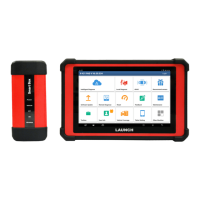
The X-431 Throttle is a comprehensive diagnostic tool designed for automotive professionals, comprising a central processing handset and a Vehicle Communication Interface (VCI) connector. This system facilitates advanced vehicle diagnostics, offering a range of functions from basic charging and language settings to complex vehicle connections and diagnostic approaches.

Function Description

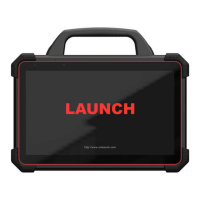
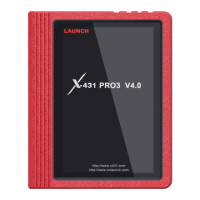
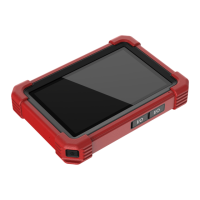
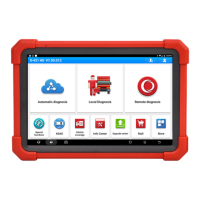
The X-431 Throttle Handset serves as the central processing unit, receiving and analyzing live vehicle data from the VCI connector and displaying test results on its 10.1" touch screen. It features a Type-C Charging Port for charging and data transfer, a Data Transmission Port for add-on modules and other USB devices, and a Memory Card Slot for storage extension. A Power/Screen Lock Button and Volume Buttons provide essential control. The handset includes an Ambient Light Sensor, a Charging Indicator (red for charging, green for fully charged), a Microphone, a Rear Camera with Camera Flash, and an Audio Speaker. An Adjustable Kickstand allows for comfortable use at various angles or hanging on automotive parts. A Charging Slot is also present for charging the handset when placed in the docking station.

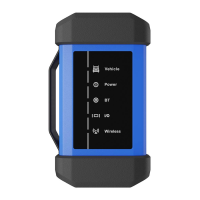
The VCI (Vehicle Communication Interface) connector is a crucial component that links the handset to the vehicle's Data Link Connector (DLC) socket. It reads vehicle data and transmits it wirelessly (via Bluetooth) to the handset. The VCI is designed to work with vehicles equipped with a 12V battery. It features a Power Indicator (lights up when plugged into the DLC), a Wireless (BT) communication indicator (blue when in wireless mode), and an ECU communication indicator (flashes during communication with the vehicle). A Data Transmission Port is reserved for future use.

Usage Features

Charging & Turning On: The device is charged using the included power adaptor. Once fully charged, the power adaptor should be disconnected. The device powers on by pressing the [POWER] button. If the battery is completely discharged or unused for a long time, it may require 5 minutes of charging before it can be turned on.

Changing Language: The X-431 Throttle supports multiple languages. Users can change the language by navigating to Settings -> Language & Input -> Languages, adding the desired language, and then dragging it to the top of the list.

Wi-Fi Setup: The built-in Wi-Fi module allows the device to connect to the internet. This enables registration, software updates, internet browsing, app downloads, and email. Wi-Fi can be enabled via Settings -> Wi-Fi, where the device will search for available networks. Open networks connect automatically, while encrypted networks require a password.

Registration & Update: Upon launching the application, new users can register by tapping "New Customer" and filling in the required information, including creating an App Account. Existing members can log in directly. After creating an account, the VCI Connector needs to be activated by inputting the Product S/N and Activation Code (found in the password envelope). Once activated, users can choose to download diagnostic software immediately or later. Updates can be initiated from the download page.

Vehicle Connection: The method of connecting the diagnostic connector to a vehicle's DLC varies based on the vehicle's configuration.

  1. OBD II Vehicle Connection: For vehicles with an OBD II management system, the VCI can be directly plugged into the vehicle's DLC or connected via an OBD II extension cable.
  2. Non-OBD II Vehicle Connection: If the power supply from the vehicle diagnostic socket is insufficient or the power pin is damaged, alternative power sources can be used. This includes connecting via a Cigarette Lighter Cable (to the cigarette lighter receptacle) or a Battery Clamps Cable (to the vehicle's battery). In these cases, an OBD I Adaptor and a Non-16pin Connector might be used to connect to the VCI.

Start Diagnostics: Before initiating diagnostics, ensure the ignition is on, the vehicle battery voltage is between 9-14 volts, and the throttle is in a closed position. The X-431 Throttle offers three diagnostic approaches:

  • Smart Diagnosis (AutoDetect): This method uses wireless (BT) communication to automatically identify the vehicle's VIN. Once identified, the system retrieves vehicle information from a remote server, guiding the user to the vehicle information page without manual menu selection.
  • Remote Diagnosis (Tech to Tech): This option facilitates instant messaging and remote diagnosis between repair shops or professional technicians, streamlining the repair process.
  • Manual Diagnosis: This mode allows users to diagnose a vehicle by manually navigating through menu-driven commands. For new users, a flowchart guides them through selecting the app, tapping "Diagnose," selecting the vehicle, test function, test system, and software version.

Maintenance Features

Software Updates: Users are strongly encouraged to check for and install updates frequently to ensure access to the latest software, services, and functions. This keeps the tool synchronized with the most current diagnostic capabilities.

VCI Connector Handling: It is important to remove the VCI connector from the vehicle's DLC when not in use to prevent potential issues.

Safety Instructions: Adhering to safety guidelines is crucial. Always perform automotive testing in a safe environment, wear ANSI-approved eye shields, and ensure the work area is well-ventilated. Avoid connecting or disconnecting test equipment while the ignition is on or the engine is running. Use blocks in front of drive wheels and never leave the vehicle unattended during testing. Keep clothing, hair, hands, and tools away from moving or hot engine parts. A fire extinguisher suitable for chemical, gasoline, and electrical fires should be kept nearby. Before starting the engine, the gear lever should be in NEUTRAL (manual transmission) or PARK (automatic transmission) to prevent injury. To avoid damaging the test equipment or generating false data, ensure the vehicle battery is fully charged and the connection to the vehicle DLC is clear and secure. Automotive batteries contain sulfuric acid, so direct contact should be avoided, and ignition sources should be kept away from the battery.

Accessory Checklist: The product comes with various accessories, including the X-431 Throttle Handset, Power Adaptor, Docking Station, VCI Device, Cigarette Lighter Cable, OBDII Extension Cable, OBD I Adaptor Cable, Battery Clamps Cable, and a Private & Confidential Paper containing the Product S/N and Verification Code for VCI activation. Users should consult the local agency or the packing list for detailed accessory items.

Launch X-431 Throttle Specifications

General IconGeneral
BluetoothYes
UsageProfessional automotive diagnostics
Operating SystemAndroid
FunctionDiagnostics, coding
ConnectionWi-Fi
Compatibility12V passenger cars, light-duty trucks, SUVs, and some heavy-duty vehicles

Related product manuals