EasyManua.ls Logo

LB-Link 4G LTE - User Manual

Default Icon
12 pages
Print Icon
To Next Page IconTo Next Page
Loading...
4G Router User Manual V1.0
Thank you for purchasing the 4G LTE Mobile WiFi. This device brings you a high speed
wireless network connection. This document will help you understand your Mobile WiFi so you
can start using it right away. Please read this document carefully before using your Mobile
WiFi.
Getting to Know Your Mobile WiFi
Note: The Mobile WiFi function descriptions and illustrations in this document are for your
reference only. The product you have purchased may vary.
Application
Wi-Fi devices (such as smartphones, tablet computers, and game consoles) or computers can
all access the Internet through Mobile WiFi. The specific connection procedure depends on the
operating system of the Wi-Fi device or computer. Establish a connection according to your
device's specific instructions.
To access the Internet through a USB port connection, install the driver according to the
instructions.
Access 4G/3G/2G Internet by PC
Note: The PC will automatically install the driver after the device is connected to the PC via
USB cable, if not, please click “My computer” to open the CDROM and manually install the
driver.
When the installation can not be completed, please check the anti-virus and security software
first, you should turn off those anti-virus and security software and try it again.
Question and Answer IconNeed help?

Do you have a question about the LB-Link 4G LTE and is the answer not in the manual?

Summary

Getting to Know Your Mobile WiFi

System Requirements

WiFi Connection

Operating Instructions

Install SIM Card

Procedure for installing the SIM card, Micro SD card, and battery.

Key Descriptions

Management Guide

Log in Web Management Page

Steps to access and log into the device's web management interface.

WiFi Security Settings

Guide to setting a secure SSID and WiFi password for network protection.

PIN Code Management

Message Function

Warning and Attention

Summary

Getting to Know Your Mobile WiFi

System Requirements

WiFi Connection

Operating Instructions

Install SIM Card

Procedure for installing the SIM card, Micro SD card, and battery.

Key Descriptions

Management Guide

Log in Web Management Page

Steps to access and log into the device's web management interface.

WiFi Security Settings

Guide to setting a secure SSID and WiFi password for network protection.

PIN Code Management

Message Function

Warning and Attention

Overview

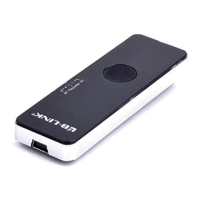
This document outlines the features and usage of the LB-LINK 4G Router, a portable device designed to provide high-speed wireless internet connectivity. It serves as a Mobile WiFi hotspot, allowing various Wi-Fi enabled devices and computers to access the internet.

Function Description

The 4G Router acts as a mobile Wi-Fi hotspot, enabling multiple devices such as smartphones, tablet computers, game consoles, and personal computers to connect to the internet via 4G LTE, 3G, or 2G networks. It supports both wireless Wi-Fi connections and wired USB connections for internet access.

Key Functions:

  • Mobile WiFi Hotspot: Broadcasts a Wi-Fi signal, allowing multiple devices to connect simultaneously.
  • USB Tethering: Can connect to a computer via USB to provide internet access, requiring a driver installation.
  • Multi-Network Support: Compatible with 4G LTE, 3G (TD-SCDMA/WCDMA), and 2G (EDGE) networks.
  • SMS Functionality: Allows users to send and receive text messages through the web management interface.
  • SD Card Sharing: Provides a feature to share files stored on an inserted Micro SD card via the network.
  • PIN Code Management: Offers security features to lock the USIM card with a PIN code, protecting against unauthorized use.
  • Data Usage Monitoring: Displays current and total upload/download speeds and data volume, along with networking duration.
  • Network Search: Supports both automatic and manual network selection.

Important Technical Specifications

While specific numerical specifications like battery capacity or exact Wi-Fi standards (e.g., 802.11n/ac) are not explicitly detailed, the manual highlights several important technical aspects:

  • Network Compatibility:
    • 4G LTE (TD-LTE/LTE FDD)
    • 3G (TD-SCDMA/WCDMA)
    • 2G (EDGE)
  • Operating System Support (for USB connection and driver installation):
    • Windows XP (32bit)
    • Windows Vista (32bit/64bit)
    • Windows 7 (32bit/64bit)
    • Windows 8 (32bit/64bit)
    • Mac OS X10.6-X10.9
  • Browser Support (for web management page):
    • Internet Explorer 8 and above versions
    • Safari 4 or Firefox 4 and above versions
  • Power Input (Charger): DC 5V, 1A (recommended original charger)
  • Connectivity: Micro USB port for charging and PC connection.
  • Display: LCD screen for displaying device status and text.

LCD Display Icons:

  • Unread message
  • Message box is full
  • Number of connected WiFi devices
  • Battery capacity
  • EDGE 2G network
  • TD-SCDMA/WCDMA 3G network
  • TD-LTE/LTE FDD 4G network
  • Roaming network
  • SD card inserting

Usage Features

The device is designed for ease of use, offering straightforward setup and management.

Initial Setup:

  1. SIM Card Installation: Requires opening the battery cover and inserting the SIM card and Micro SD card (if desired) according to the indicated direction.
  2. Charging: Can be charged via the included charger or by connecting to a computer's USB port. It's recommended to charge for some time if the battery is completely depleted or if the device hasn't been used for a long time before attempting to power it on.
  3. Driver Installation (for USB connection): For PC connection via USB, the driver should automatically install. If not, it can be manually installed from the CD-ROM drive that appears in "My Computer." Users might need to temporarily disable anti-virus or security software if installation fails.
  4. Auto-Play Function: For successful PC identification, ensure the "auto-play" function is enabled on the computer (instructions provided for Windows 7 and XP).

Connecting to Wi-Fi:

  • First-time Connection: Users need to locate the device's SSID (Wi-Fi account name) and enter the Wi-Fi password. This information is typically displayed on the device's screen.
  • Device-Specific Instructions: The manual provides step-by-step instructions for connecting from Windows 7, iOS (iPhone example), and Android mobile devices, including screenshots.
  • SSID and Password: The SSID and password can be customized via the web management page for convenience and security.

Web Management Page:

  • Access: Open a web browser and enter http://192.168.0.1 (or the automatically changed IP if there's a conflict).
  • Login: Default username is admin and default password is admin.
  • Settings: Allows configuration of Wi-Fi security (SSID, password, encryption mode), PIN code management, network search settings, and viewing data statistics.

Key Operations:

  • Power Button: Turns the device on/off and wakes it up.
  • Reset Button: Press for three seconds to restore factory settings.

Maintenance Features

The manual includes important warnings and recommendations for proper device handling and maintenance to ensure longevity and safe operation.

General Care:

  • Original Battery: Use only the original setting battery.
  • Charger: Use the original charger (DC 5V, 1A) to avoid affecting performance or causing danger.
  • Storage:
    • Avoid extreme temperatures (hot or cold) to prevent damage to electronic components, batteries, or circuit boards.
    • Keep the device dry.
    • Do not store near flammable liquids, gases, or explosive objects.
  • Physical Handling:
    • Do not handle with wet hands.
    • Do not drop or knock the device rampantly.
    • Do not attempt to disassemble the device; only professionals should perform service and repair.
  • Environmental Considerations:
    • Do not use in hot places or flammable gas stations.
    • Turn off the device where prohibited (e.g., hospitals, airports) or near high-precision electronic devices (e.g., embedded medical devices) to avoid interference.
    • Observe relevant laws and regulations regarding privacy and legal rights.
  • Heat: Normal heating may occur during long hours of operation, in weak signal areas, or in high-temperature rooms. This does not affect use or life. Avoid prolonged direct skin contact.
  • Distance: Maintain a minimum physical distance of 20cm between the device and users when it is turned on.
  • Data Protection: Use authorized Micro SD cards to prevent data loss or destruction.
  • Anti-virus Software: Temporarily disable anti-virus and security software if driver installation fails.

LB-Link 4G LTE Specifications

General IconGeneral
BrandLB-Link
Model4G LTE
CategoryWireless Router
LanguageEnglish

Related product manuals