7
Recording Videos
1. Tap the Camera icon in the camera software main menu.
2. Press the A button to start or end recording video. Your child
can take up to 3 minutes of video in one recording.
Viewing Videos
•Toviewvideosonthehandheld,taptheGalleryiconeitherin
the home menu screen or in the camera software main menu
screen. Select the video to view.
•YoucanalsoaccessvideosfromtheLEAPFROG
®
Connect
Application on your computer. See the Managing Photos
through LEAPFROG Connect section for more information.
Deleting Videos
1. To delete videos from the handheld, tap on the Gallery icon
either in the home menu screen or on the camera software main
menu screen.
2. Tap on the Trash icon to delete the video.
NOTE: If you delete video from the handheld you will not be able
to retrieve it.
Tips on recording video:
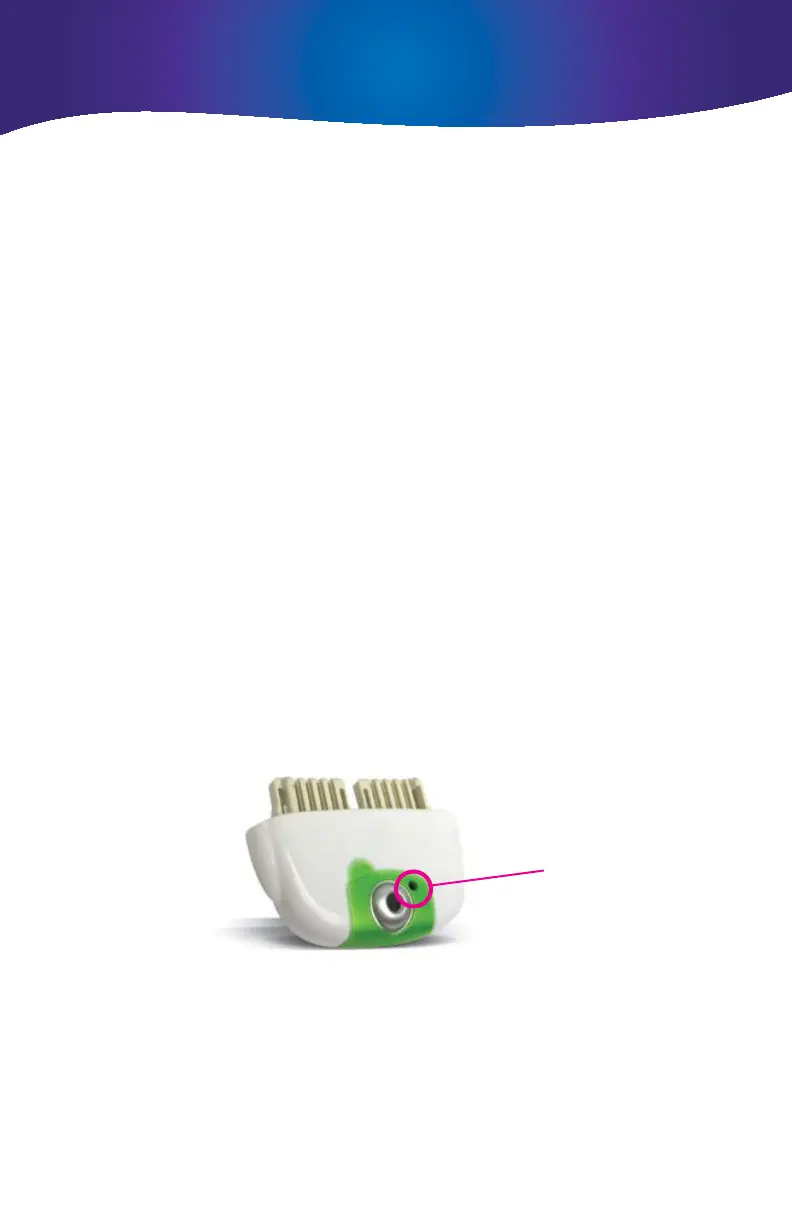
•Themicrophoneislocatedonthesamesideasthecameralens.
Point the microphone toward the sound to record and hold it as
close to the sound as possible.
•Thereisnoautomaticzoom.Toenlargetheobjectinthe
viewfinder, move the camera and handheld closer to the object.
NOTE: Up to 5 total minutes of video can be stored on the
LEAPSTER EXPLORER
™
handheld. (The exact amount of storage
space is determined by the number of pictures, videos and other
downloaded content, such as LEAPLET™ learning apps.)
Microphone
Video Recorder





 To Next Page