9
Once a photo is selected, you can rotate it to landscape or portrait,
zoom in and zoom out or delete it from your computer. There is also
a full screen browsing mode to browse through photos in a larger
default size.
To view videos on your computer, click on the
icon and select
the video to view. The video will play using the standard media
player installed on your computer.
Printing photos
After selecting the photo to print, click on the icon.
Deleting photos
After selecting the photo to delete, click on the icon.
This will delete the file from your computer. Please note photos
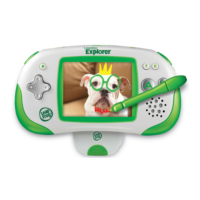
are not deleted from your LEAPSTER EXPLORER
™
handheld when
they are uploaded or when you delete them through LEAPFROG
®
Connect. You need to access the photos on the handheld and delete
them from the photo gallery if you need extra space on
the handheld.
Renaming photos and folders
Once a folder or image is selected, you can change its name by
clicking the pencil icon next to its current title.
Sharing photos or videos
Click on the icon. From here, you will be able to access photo
and video files to email to family and friends.
NOTE:
•Youcannottransferphotosfromyourcomputerbacktothe
handheld.
•AftertheCameraandVideoRecorderisinstalledonyour
handheld, an additional application called Photo and Video Gallery
will also be installed. You may remove the Camera and Video
Recorder application from your handheld on the On My LEAPSTER
EXPLORER page in LEAPFROG Connect to save space. The Photo
and Video Gallery will remain on the handheld to allow access to
photos and videos. If your child runs out of space on the handheld,
you may need to open the Photo and Video Gallery and delete
unwanted photos and videos to make room.





 To Next Page