24
Menu Adjustments
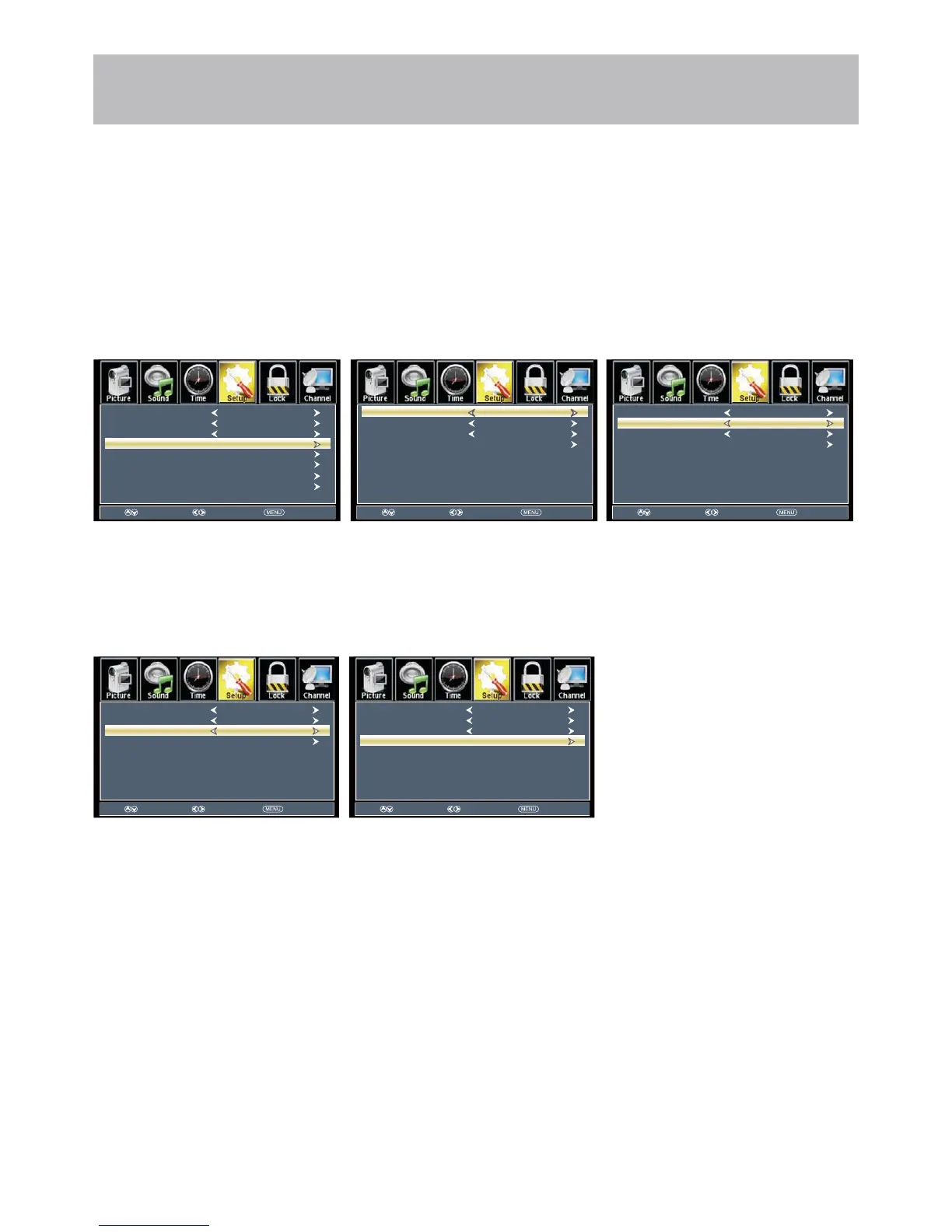
The Setup menu includes adjustments for activating the Closed Caption text feature for display on-screen and customiz-
ing CC display types and font styles.
+RZWR1DYLJDWH
Press the MENU button on the remote control. Navigate using arrow WX buttons to select Setup.
3UHVVWKHGRZQT arrow
button to highlight Closed Caption
then press theX arrow button to
highlight CC Mode.
1DYLJDWHXVLQJWKHWX
arrow buttons to select CC Off > CC
On > CC on Mute.
3UHVVGRZQT arrow but-
ton to highlight Analog CC. Navigate
using the WXarrow buttons to
select CC1-4, TEXT1-4.
3UHVVGRZQT arrow button to
highlight Digital CC.
Navigate using the WX arrow
buttons to select Off,Service 1-6.
3UHVVGRZQT arrow
button to highlight Option. Press
theX arrow button to enter a menu
with options to customize text fonts,
colors and opacities.
Note: When adjustments are completed, you may select another menu by pressing the Menu button.
Closed Captions
Select Move Exit
Menu Language
Transparent
Closed Caption
OSD Timeout
Other Settings
Input Label
Restore Default
Setup Wizard
English
25%
30Sec.
Select Move Exit
CC Mode
Analog CC
Option
Digital CC
CC Off
CC1
Service1
Select Move Exit
CC Mode
Analog CC
Option
Digital CC
CC Off
CC1
Service1
Select Move Exit
CC Mode
Analog CC
Option
Digital CC
CC Off
CC1
Service1
Select Move Exit
CC Mode
Analog CC
Option
Digital CC
CC Off
CC1
Service1



 To Next Page