Group 7 Data/Programming Page 204
Release R2.0 LEIBINGER JET3
The font editor has three command buttons in the lower right corner:
Accept (1): With this button all changes made to the currently selected character
are confirmed and the character is applied to the opened font. All changes will be
displayed in the font preview. The font editor will remain open for further editing.
Cancel (2): With this button you can leave the editor without saving changes
made after the last saving of the current file. The editor will be closed without
further notice.
OK (3): With this button you confirm the state of the current file. If the current
file was not already saved a message box will be displayed asking if you want to
save the current file. There are three options available:
a. Yes (4): the dialog box for saving files will be displayed
b. No (5): The message box and the font editor will be closed without saving
the current file.
c. Cancel (6): The message box will close and you will return to the font
editor.
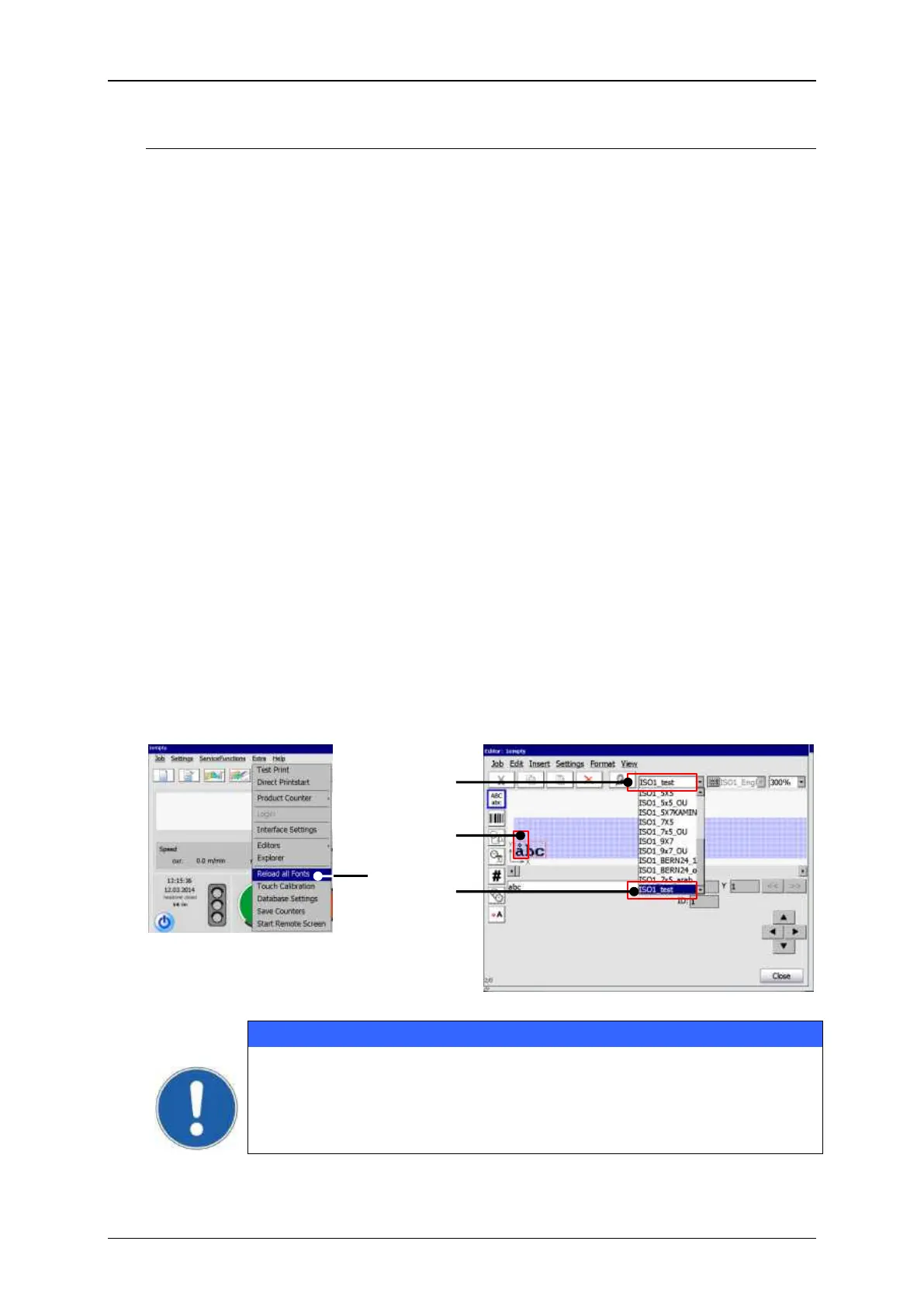
Make fonts available for the job editor
Edited or new fonts have to be loaded from the operating system before they are
available in the job editor. For this you have to reload all fonts in the software system.
The command for reloading all fonts is located in the <Extra> drop down menu (1).
After the reload you will find the new or the edited font in the font drop-down list of
the job editor (4). If the edited font is selected (2) the characters in the print job will
be adjusted to the new font (3).
A edited or a new font will not be available as long as the font is not
re-loaded!
Edited or new font will NOT be re-loaded automatically!


 To Next Page
 Loading...




