Group 8 Job editor Page 223
Release R2.0 LEIBINGER JET3
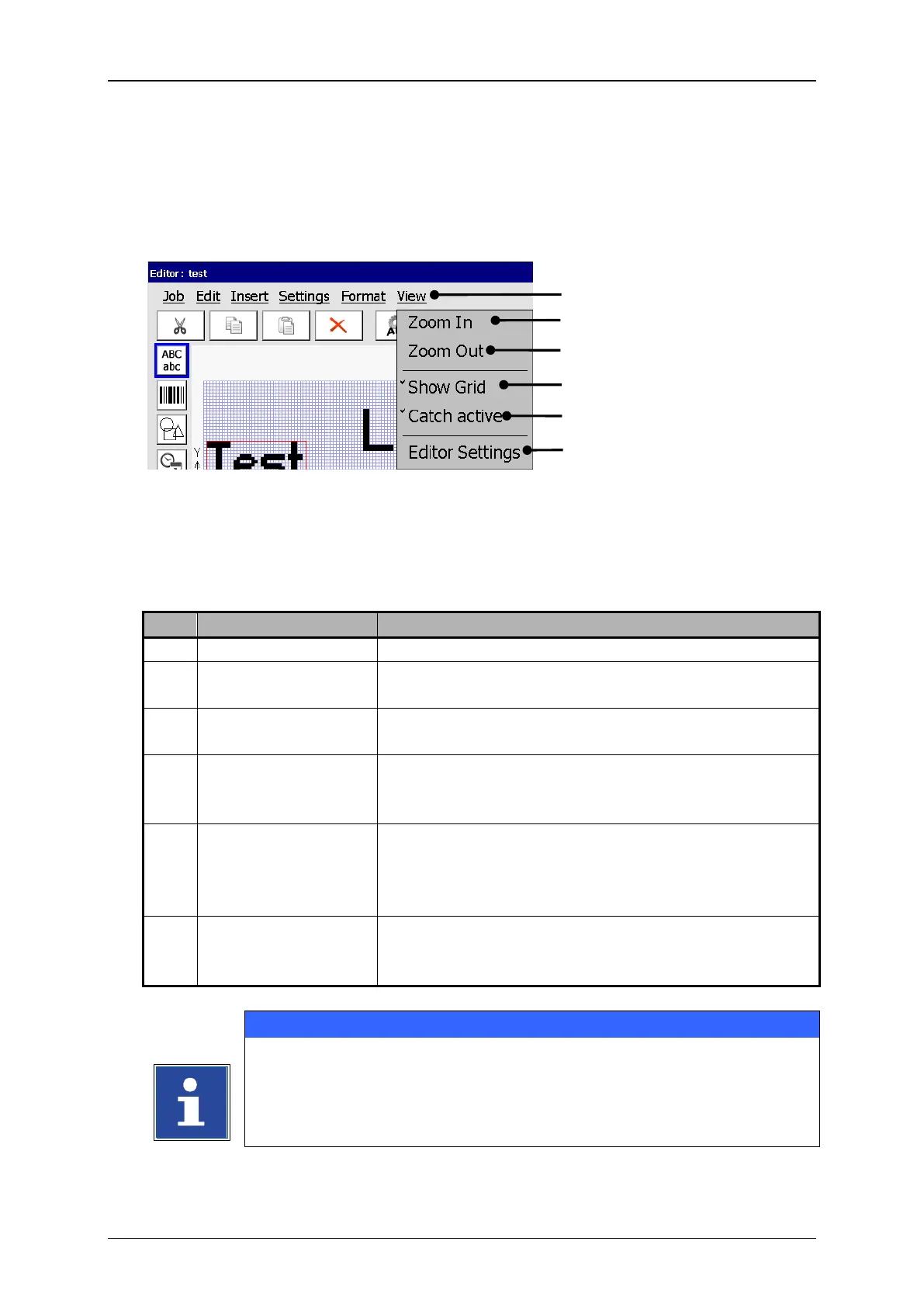
With the button <View> you can select the display tools of the job editor.
Job editor (Display tools)
4 – Display tool <Show Grid>
2 – Display tool <Zoom In>
5 – Display tool <Catch active>
3 – Display tool <Zoom Out>
6 – Display tool <Editor settings>
Zoom In enlarges the display in the display area <Print
image>.
Zoom Out reduces the display in the display area
<Print image>.
Turns on or off the reticule display. If the reticule is
turned on, it is displayed with a checkmark on the
button.
Turns on or off the catch (snap) function. The catch
function enables the easy and exact positionig of an
element at the reticule. If the function is turned on it
is displayed with a checkmark on the button.
Enables the setting of the editor size (width of the
display field <Print image>) as well as the settings of
the reticule size.
You will find further information regarding the functions of several
display tools in the chapter Carry out settings of the job editor!



 To Next Page