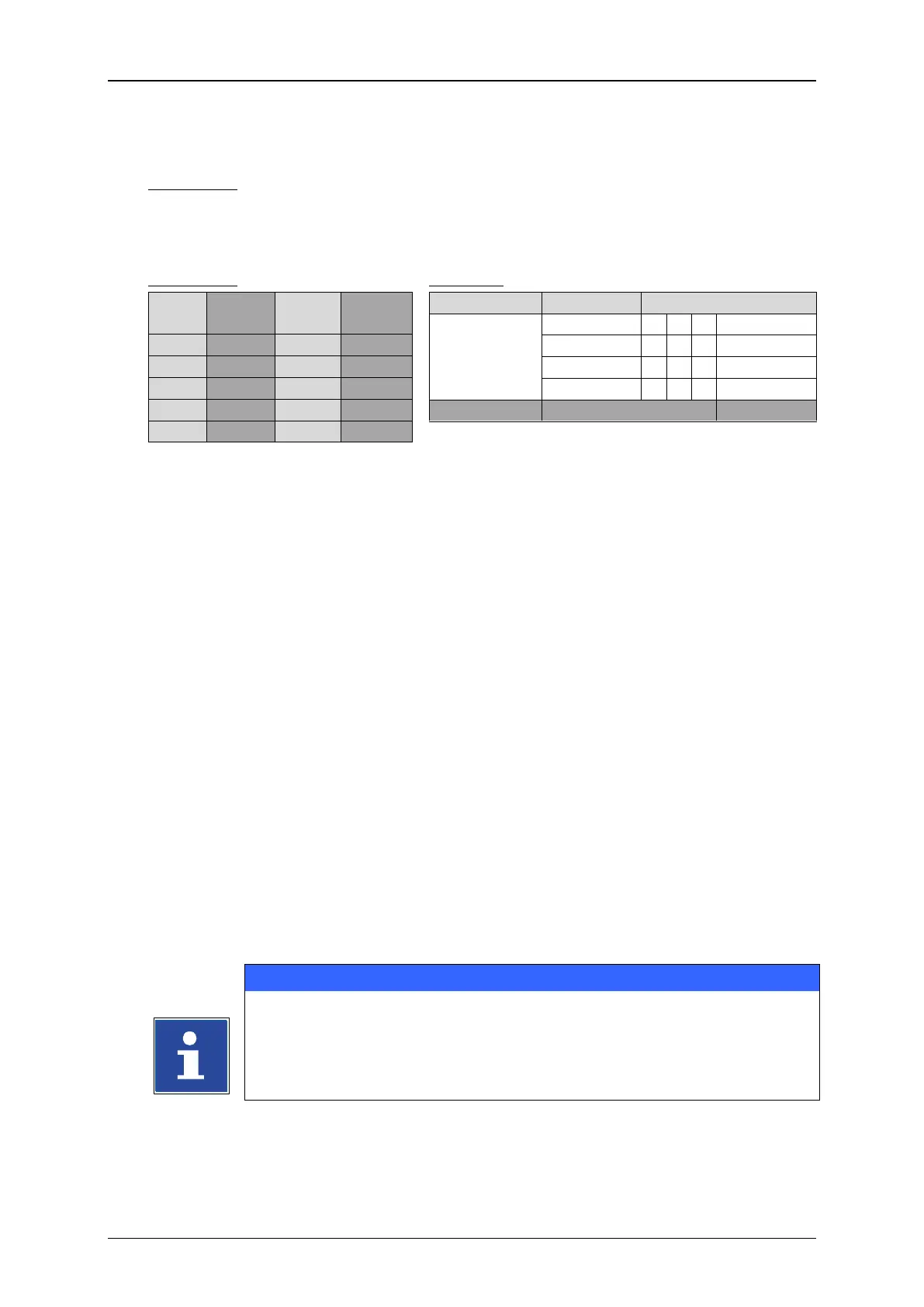
Example 2: The actual counter reading of a counter object should be replaced with
code. For this each figure of the counter reading is replaced by another
figure. The following table shows the coding and an example.
First select <Format> (1) from the menu bar and then <Object> (2) from the
drop down menu. Alternatively you can use the respective direct button (3) to
open the object settings dialog box.
The dialog box <Object Settings (Date/Time)> (5) opens.
Select the <Replacements> tab (4)
Select the element type „Figures“ (7) from the <Type> drop down list (6).
Each element in the <Name> list (9) has a corresponding input field in the
<Replacement> field list (8). By setting the cursor into one of the input fields a
virtual keyboard opens (10). Enter the required replacements for each element
(1=0, 2=9…..7=4….etc.) (11).
Confirm each input with the <Enter> button (12) of the keyboard.
Fill-in each required replacement in the <Replacement> field list (13). Run
through the list by using the scroll buttons (14).
Confirm all changes and close the dialog box with the <OK> button (16). Use
the <Cancel> button (15) to leave the dialog box without saving.
All changes are displayed in the editing window of the <Job editor> (17).



 To Next Page