
 Need help?
Do you have a question about the Lenovo Enhanced Performance USB Keyboard Gen II and is the answer not in the manual?
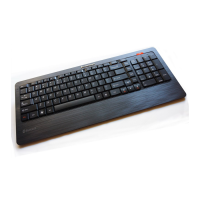
This document serves as a user guide for the Lenovo Enhanced Performance USB Keyboard Gen II and the Lenovo 700 Multimedia USB Keyboard. It provides comprehensive information on the keyboard's features, setup, usage, and troubleshooting.
The keyboard is designed to enhance user efficiency through its media keys and customizable RapidAccess keys. Users can perform various operations with a single key press, such as playing multimedia files, locking the computer desktop, or launching specific programs.
The keyboard integrates media keys for straightforward control of multimedia files. These include dedicated keys for muting/unmuting speakers, decreasing/increasing speaker volume, playing/pausing multimedia files, stopping playback, and navigating to the next or previous track.
A key feature of this keyboard is the inclusion of RapidAccess keys, which can be customized to perform quick launch functions or dynamic functions through a dedicated software program. By default, these keys are pre-assigned to functions such as locking the desktop, launching the calculator, opening a web browser, launching an email application, opening "My Documents," and launching a word processor or spreadsheet application. The "Setting" key is used to launch the Lenovo RapidAccess Keys Configurator software, which is essential for customizing these keys.
The keyboard offers flexibility in its physical setup, featuring tilt feet that allow users to adjust the angle between the keyboard and the desk. Three tilt angles are available: 3.5 degrees (no tilt feet raised), 5.6 degrees (small tilt feet raised), and 9.4 degrees (large tilt feet raised). Additionally, a palm rest can be installed or removed as needed, providing ergonomic support during use.
The keyboard connects to a computer via USB. It features a USB 2.0 connector and a USB 3.0 connector. The USB 2.0 connector is primarily for connecting full or low-speed USB-compatible devices, such as a USB mouse, with a data transfer speed of up to 12 Mbps and a power consumption limit of 100 mA. For optimal data transfer, especially for USB 3.0 devices, it is recommended to use the USB 3.0 connector, which supports data transfer at USB 3.1 speed, up to 5 Gbps, suitable for devices like USB storage drives or printers. The user guide emphasizes connecting both keyboard cables to the computer to ensure full functionality.
The keyboard requires specific operating systems to function correctly, supporting Microsoft® Windows® 7 and Microsoft Windows 10.
Setting up the keyboard involves connecting it to the computer using its USB cables. The guide recommends connecting both cables for full functionality. The palm rest can be easily installed by aligning it with the palm rest dents on the keyboard and connecting it. To remove the palm rest, specific instructions are provided to avoid damage, cautioning against applying excessive force in other directions.
To fully utilize the RapidAccess keys, the dedicated software program must be installed. Users can download this software from the Lenovo support website. Once installed, the Lenovo RapidAccess Keys Configurator allows users to enable or disable the RapidAccess keys and customize their functions.
Customization options include:
The user guide includes a troubleshooting section to address common issues:
The keyboard's software program supports a range of preinstalled and other applications.
Lenovo provides electronic documentation in accessible formats, such as properly tagged PDF files or HTML files, to ensure that visually impaired users can read the documentation through a screen reader. Images in the documentation include alternative text for screen reader users. To view PDF files, Adobe Reader is required and can be downloaded from http://www.adobe.com.
 General
| Brand | Lenovo |
|---|---|
| Product Name | Lenovo Enhanced Performance USB Keyboard Gen II |
| Type | Wired Keyboard |
| Connection Interface | USB |
| Key Switch Type | Membrane |
| Keys Layout | QWERTY |
| Color | Black |
| Cable Length | 1.8 m |
| Keyboard Layout | US |
| Number of Keys | 104 |
| Backlight | No |
| Compatibility | Windows |




 To Next Page