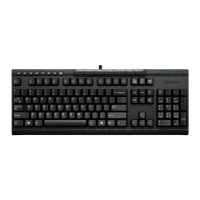
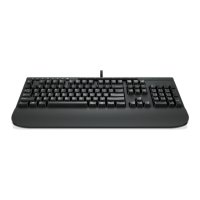
3.SelecttheLenovoEnhancedPerformanceUSBKeyboardsoftwareandthenright-clickyourmouse.
TheUninstalloptionisdisplayed.
4.ClickUninstall.
5.Followtheinstructionsonthescreentouninstallthedevicedriver.
FortheWindows8operatingsystem:
1.GotoControlPanelbydoingoneofthefollowing:
•Fromthedesktop,movethepointertothetop-rightorbottom-rightcornerofthescreentodisplay
thecharms,andthenclickSettings➙ControlPanel.
•FromtheStartscreen,dothefollowing:
a.Movethepointertothetop-rightorbottom-rightcornerofthescreentodisplaythecharms.
b.ClickSearch.
c.OntheAppsscreen,scrolltotherightside,andclickControlPanelintheWindowsSystem
section.
2.DependingonyourControlPanelmode,dooneofthefollowing:
•ClicktheUninstallaprogramoptionundertheProgramsmenu.
•ClickProgramsandFeatures.
3.SelecttheLenovoEnhancedPerformanceUSBKeyboardsoftwareandthenright-clickyourmouse.
TheUninstalloptionisdisplayed.
4.ClickUninstall.
5.Followtheinstructionsonthescreentouninstallthedevicedriver.
FortheWindows8.1operatingsystem:
1.GotoControlPanelbydoingoneofthefollowing:
•Fromthedesktop,movethepointertothetop-rightorbottom-rightcornerofthescreentodisplay
thecharms,andthenclickSettings➙ControlPanel.
•FromtheStartscreen,dothefollowing:
a.Clickthearrowiconinthebottom-leftcornerofthescreentogototheAppsscreen.
b.Scrolltotherightside,andclickControlPanelintheWindowsSystemsection.
2.DependingonyourControlPanelmode,dooneofthefollowing:
•ClicktheUninstallaprogramoptionundertheProgramsmenu.
•ClickProgramsandFeatures.
3.SelecttheLenovoEnhancedPerformanceUSBKeyboardsoftwareandthenright-clickyourmouse.
TheUninstalloptionisdisplayed.
4.ClickUninstall.
5.Followtheinstructionsonthescreentouninstallthedevicedriver.
8LenovoEnhancedPerformanceUSBKeyboardUserGuide


 To Next Page
 Loading...