8. Connect the data and power cables back to the hard disk drive.
9. Alignthe4screwholesintheharddiskdrivebaywiththemountingholesin
the chassis, then screw it back.
10. Install the computer cover and stand.
Replacing the keyboard
Attention:
Do not remove the computer cover or attempt any repair before reading the
“Important safety information” in the Safety and Warranty Guide that was
included with your computer or in the Hardware Maintenance Manual (HMM)
for the computer. To obtain copies of the Safety and Warranty Guide or
HMM, go to the Support Web site at http://consumersupport.lenovo.com.
To replace the keyboard:
1. Remove any media (diskettes, CDs, or memory cards) from the drives,
shut down your operating system, and turn off all attached devices and the
computer.
2. Unplug all power cords from electrical outlets.
3. Locate the connector for the keyboard. Refer to “Left and right view” and “Rear
view”.
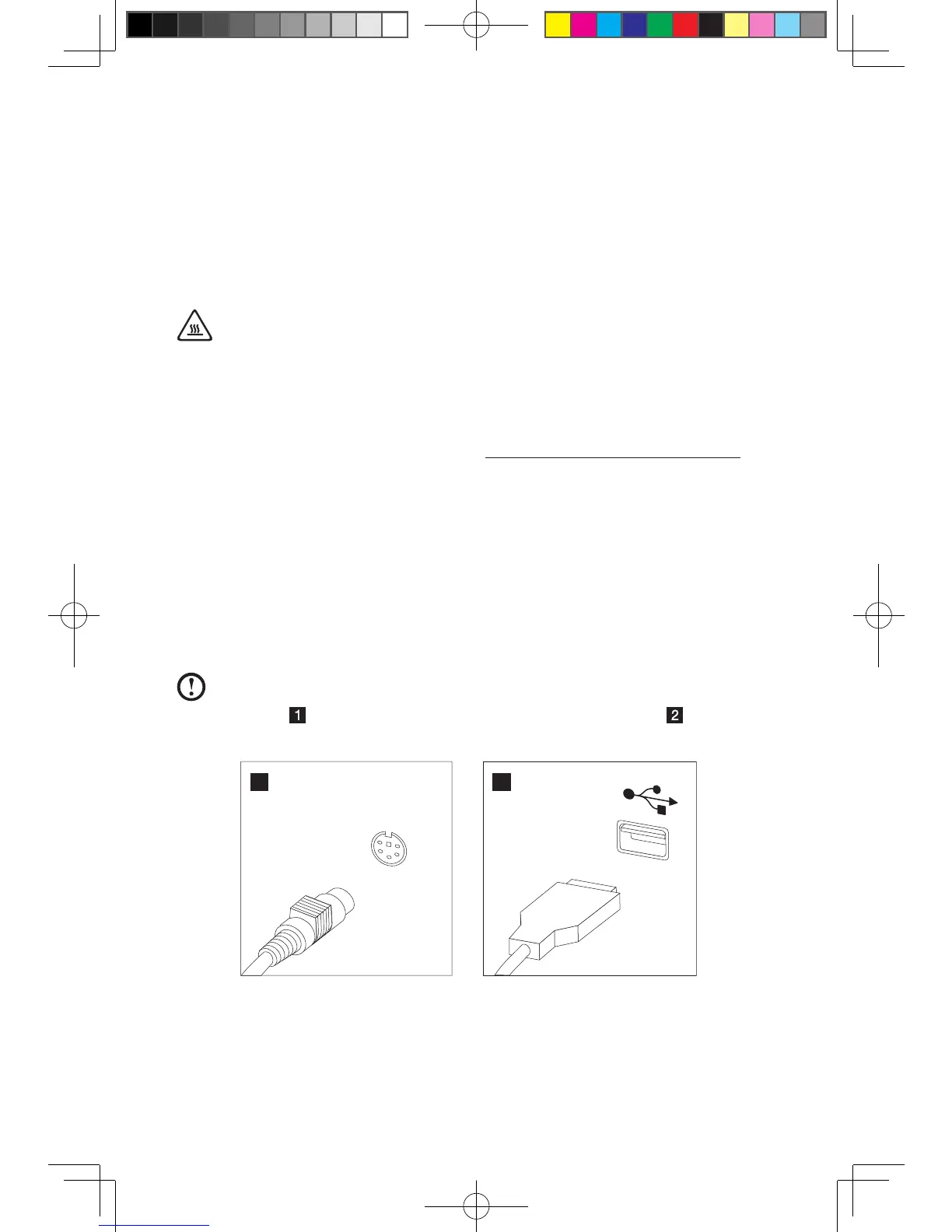
Note: Your keyboard might be connected to the standard keyboard
connector
attherearofthecomputerortoaUSBconnector
either side
or rear of the computer.
4. Disconnectthefailingkeyboardcablefromthecomputerandconnectthenew
keyboard cable to the same connector.





 To Next Page