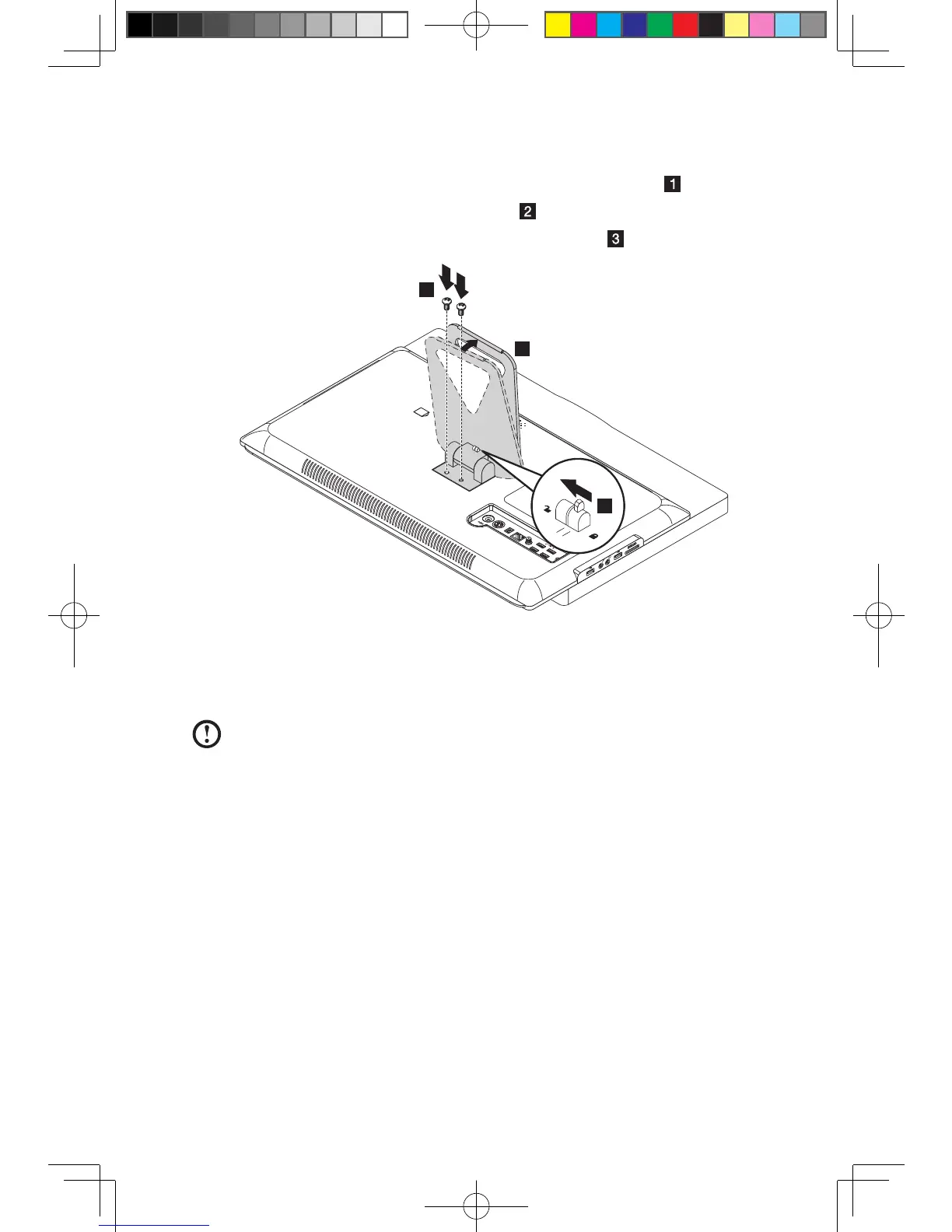
To reinstall the computer stand
1. Alignthenslidethecomputerstandbackinandscrewitback.
2. Pushthestandupwardasfarasitwillgo.
3. Slide the lock to the left to unlock the computer stand.
Removing the computer cover
To remove the computer cover:
Note: For this procedure, it helps to place the computer face-down on a soft
atsurface.Lenovorecommendsthatyouuseablanket,towel,orothersoft
cloth to protect the screen surface from scratches or other damage.
1. Remove any media (diskettes, CDs, or memory cards) from the drives, shut
down your operating system, turn off all attached devices, and the computer.
2. Unplug all power cords from electrical outlets.
3. Disconnect all cables attached to the computer. This includes power cords,
input/output (I/O) cables, and any other cables that are connected to the
computer. Refer to “Locating connectors on the rear of the computer”.
4. Removethecomputerstand.Referto“Removingthecomputerstand”.



 To Next Page