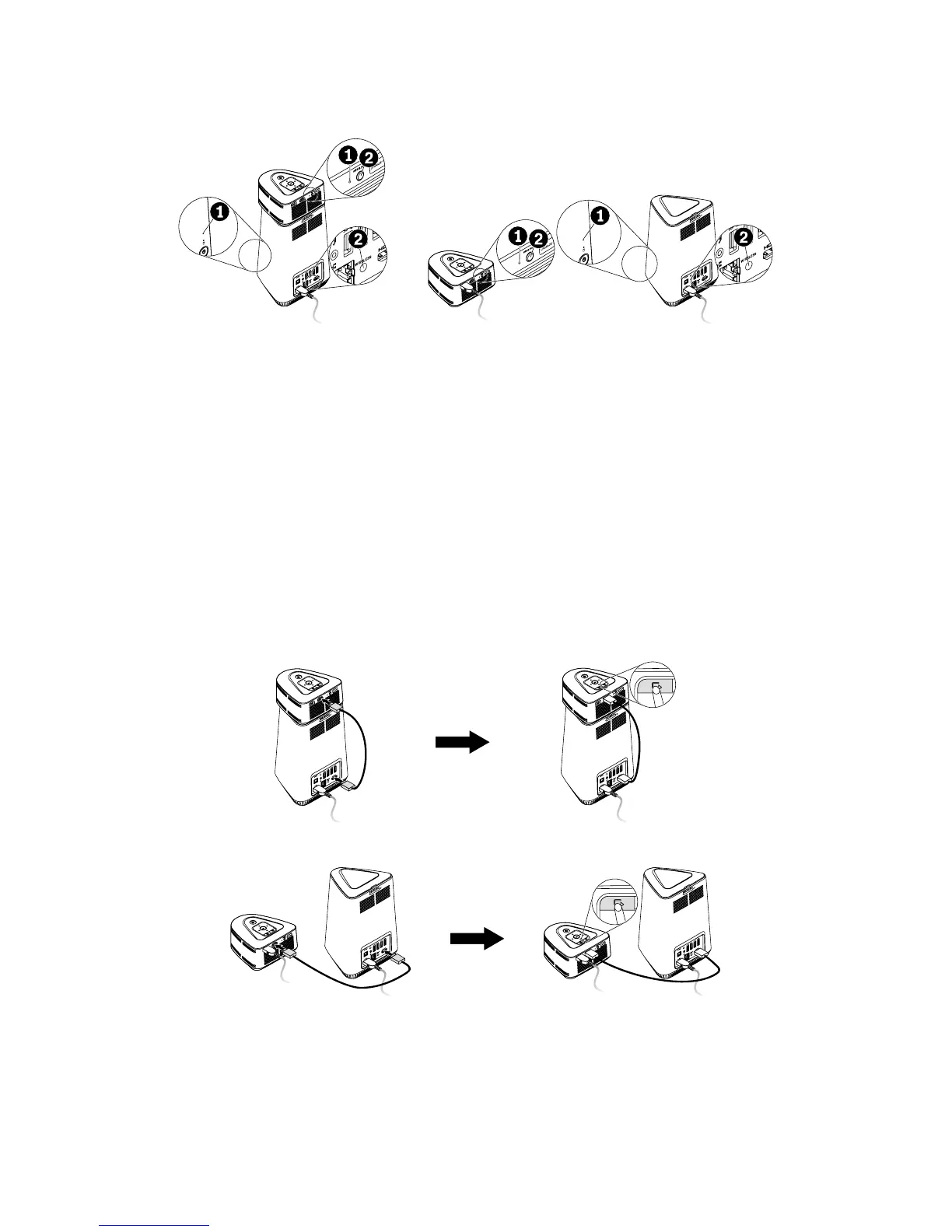
4. Pairing between the computer and the projector will start automatically
and wireless signals from the computer will be put into the projector upon
successful pairing.
or
1Wirelessactivityindicator
• Off: The computer or the projector is turned off or in the power-saving mode.
• Blinking slowly: The computer or the projector is searching for a device to pair
with.
• Blinking fast: The computer and the projector are in the process of pairing.
• On: The pairing is successful and signals are input into the projector.
2Wirelessresetbutton
• Iftheprojectorcannotndanavailableideacentre610Scomputeraftersearching
for a long time, the wireless module in the projector will enter the power-saving
mode. Press the wireless reset button on the projector to wake it up.
• Ifpairingfails,pressthewirelessresetbuttonsonthecomputerandtheprojector,
and hold them for over five seconds to restart the pairing.
5. You can also input HDMI signals instead of wireless signals.
NOTES:
• Ifyouhaverestoredtheprojectortothefactory-defaultsettings,wirelesssignals
will be also input into the projector automatically. To restore the projector to the
factory-defaultsettings,see“ChangingtheOSDsettings”.
• IfthisisnotyourrsttimeusingtheprojectorandyouinputHDMIsignalsinthe
previoussession,HDMIsignalswillbeinputintotheprojectorautomatically.Ifthe
HDMIcableisdisconnected,thesignalmenuwillbedisplayedafteryouturnon
the computer and the projector. Then, select the type of signals you want to input.



 To Next Page