1415 13
17
16
11
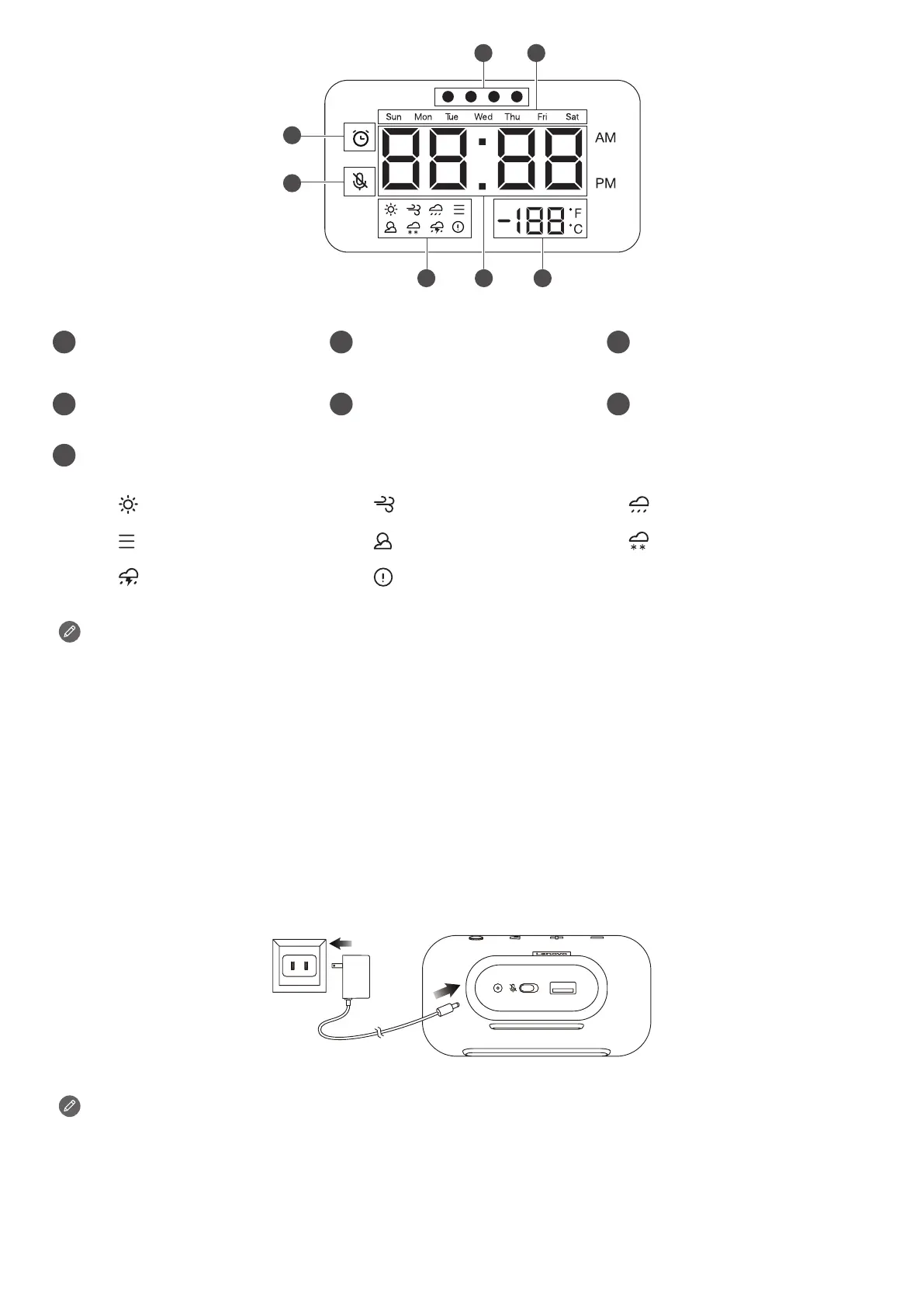
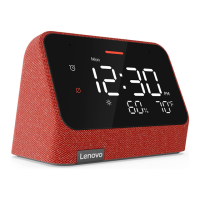
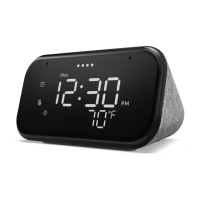
LEDstatusindicator
12
Dayoftheweek
indicator
13
Temperaturedisplay
14
Timedisplay
15
Weatherstatusicon
16
Microphonestatus
icon
17
Alarmstatusicon
Sun Wind Rain
Fog Cloudy Snow
Thunderstorms Badweathericon
• Allpicturesandillustrationsinthisdocumentareforyourreferenceonlyand
maydierfromthenalproduct.
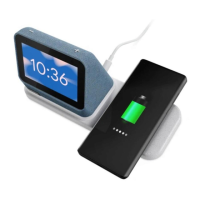
• TheUSBconnectorcanbeusedtochargeyourphoneorotherdevices.
Deviceswithaspecialchargingprotocoldonotsupportchargingwiththe
USBconnector.
• Toprotectyourprivacy,slidethebuttontothemuteiconsidetomute
microphone.
Plugging in the Lenovo Smart Clock Essential to turn it on
Connectthepoweradaptertoyourdevice.
Factoryreset:Pressandholdthealarmsetupbuttonandthevolumedownbutton
atthesametimefor12seconds.


 To Next Page