Downloading the Google Home app
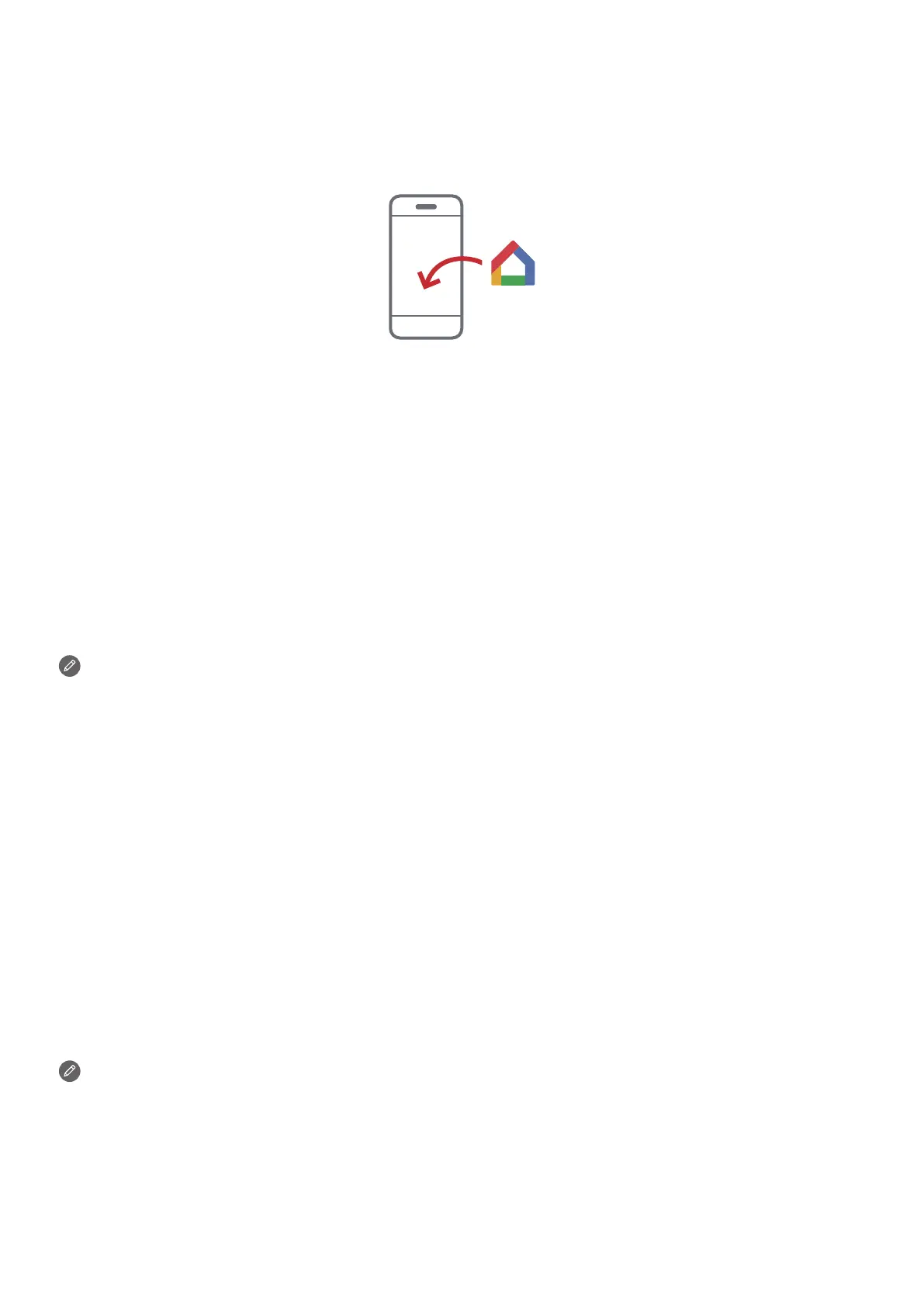
DownloadandruntheGoogleHomeapponGooglePlayonaphone/tablet.Orifyouare
aniPhoneuser,youcandownloadtheGoogleHomeappfromtheAppStore.
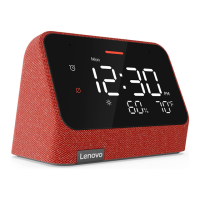
Followtheon-screeninstructionstosetupyourLenovoSmartClockEssential.
Connecting the Lenovo Smart Clock Essential to the Internet
You’llneedtoconnectyourdevicetotheInternetbeforeusingit.
1. OpentheGoogleHomeapp.
2. TapGet startedandregisteryourGoogleaccount.
3. AddthenewdeviceinGoogleHome.TheGoogleHomeappwillscanfornearby
devices.
4. Selectthedevicethatyouwanttoconnect.
5. Followtheon-screeninstructionstosetupyourdevice.
• UsethesameWi-FinetworkforyourLenovoSmartClockEssentialand
phone/tablet.
• Thesystemmaybeupdatedautomaticallywhenusingitforthersttime.
Waitseveralminuteswithoutoperating.
Using Bluetooth
• TomakeyourLenovoSmartClockEssentialdiscoverable,enableBluetoothpairingby
pressingandholdingthealarmsetupbuttonandthevolumeupbuttonforatleast3
seconds.
• TorestarttheBluetoothconnection,disconnecttheLenovoSmartClockEssential
frompower,waitforafewminutesandthenreconnecttopower.
• ToturnotheBluetoothfunction,pressandholdtheplay/pausebuttonforatleast
10seconds.
KeepthesmartclockandBluetooth-enableddeviceclosetoeachother(within10
meters).


 To Next Page