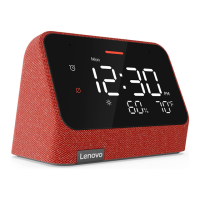
Talking to the Lenovo Smart Clock Essential
YoucantalktoGoogleonLenovoSmartClockEssential.Justsay“HeyGoogle”toget
started.
For example:
Ifyousay“HeyGoogle,what’stheweatherthisweekend?”theLenovoSmartClock
Essentialwilltellyoutheweatherinformation.
AccessyoursettingsintheGoogleHomeappat
anytimetoaddormodifyyourhomeaddress,work
address,setyournickname,andmore.
Nightlight
Thenightlightfunctionprovidesalightsourceforconvenienceindarkareas.
To enable/disable the nightlight:
—Useavoicecommand.
—Pressandholdthevolumedownbutton.
To adjust the brightness of the nightlight, use a voice command.
Alarm Clock
Checking the alarm clock
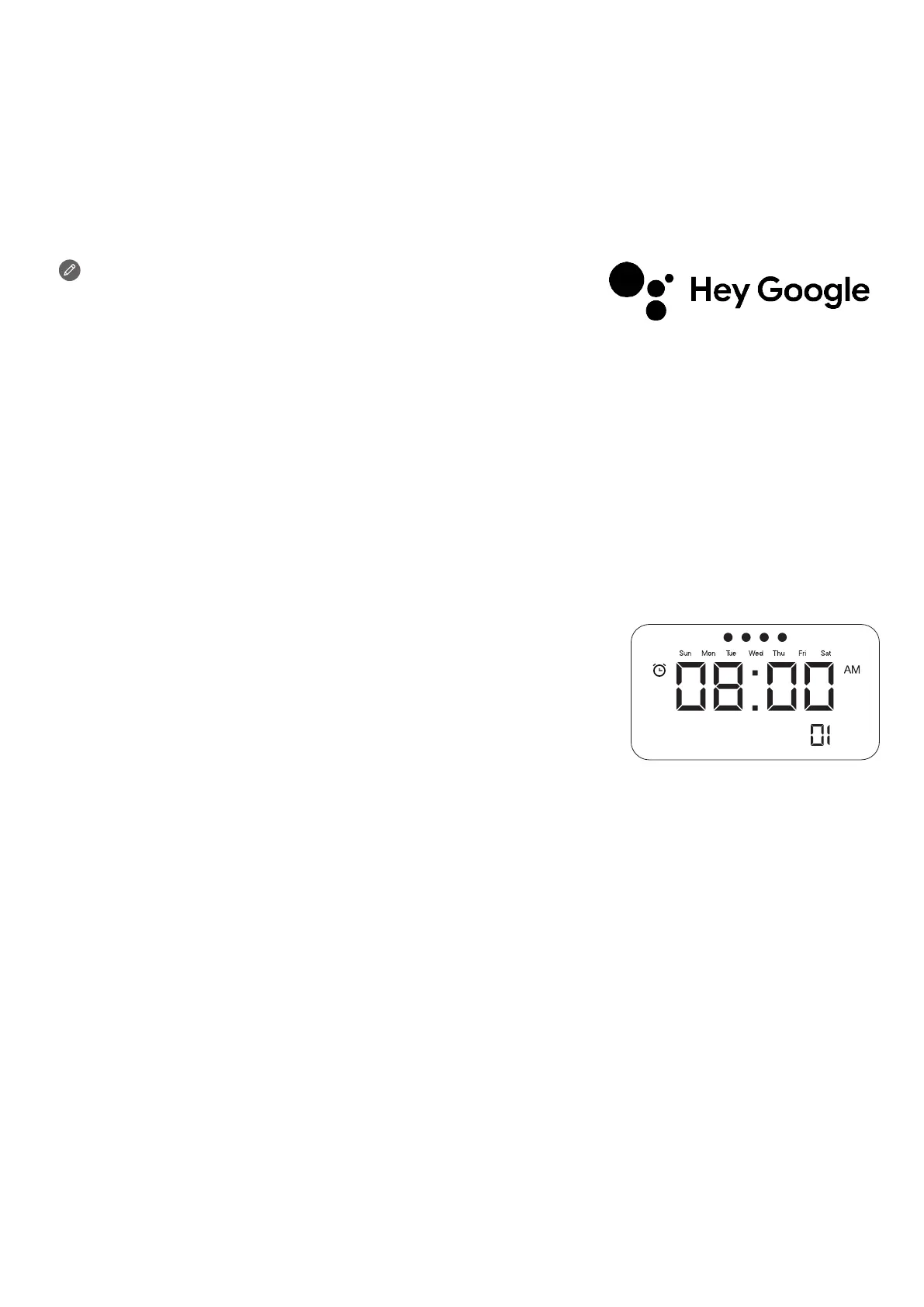
Shortpressthealarmsetupbuttontocheckexistingalarms.
Ifyouhavemorethanonealarm,shortpressthealarmsetup
buttonagaintoswitchtothenextalarmclock.
Setting an alarm clock
Youcansetanalarmthatplaysasoundataspecictime.
Method 1: Voice command
DirectlytalktoLenovoSmartClockEssential.Saysomethinglike:“HeyGoogle,setan
alarmfor8a.m.”
Method 2: Press alarm setup button
Pressandholdthealarmsetupbuttonformorethan2secondstoenterthealarmclock
settingmode.
• Pressthealarmsetupbuttontoconrmthecurrentsettingandautomaticallyswitch
betweentheroutine,hoursandminutescategories.
• Pressthevolumeup/downbuttonstoseteachcategory.


 To Next Page