There are three buttons in the taskbar.
Back button: Tap to return to the previous page.
Home button: Tap to return to the default home screen.
Recent button: Tap to see recent apps. You can do any of the following:
- Tap an app to open it.
- Swipe an app window right or left to close it.
- Tap
to lock the app or tap to unlock it.
- Tap
to stop running the app.
- Tap
to stop running all the apps.
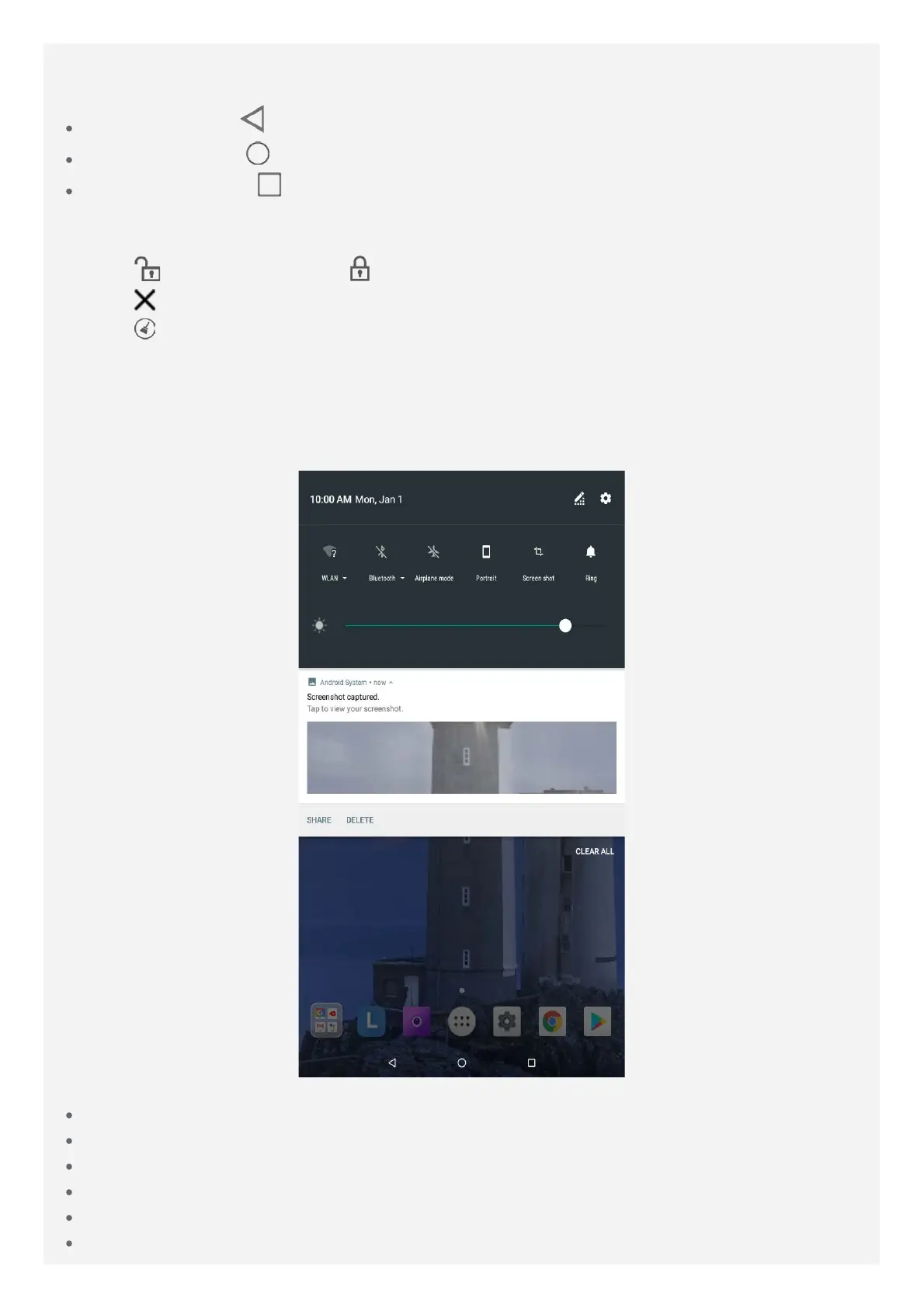
Notifications and Quick Settings
The Notifications panel informs you of new messages, USB connection, and activities in
progress such as file downloading. The Quick Settings panel allows you to access frequently-
used settings such as the WLAN switch.
You can do any of the following:
To see notifications, swipe down from the top of the screen.
To close the Notifications panel, swipe up from the bottom of the screen.
To dismiss a notification, swipe left or right across the notification.
To dismiss all notifications, tap CLEAR ALL at the bottom of the Notifications panel.
To open the Quick Settings panel, swipe down from the top of the screen twice.
To close the Quick Settings panel, swipe up from the bottom of the screen.



 To Next Page