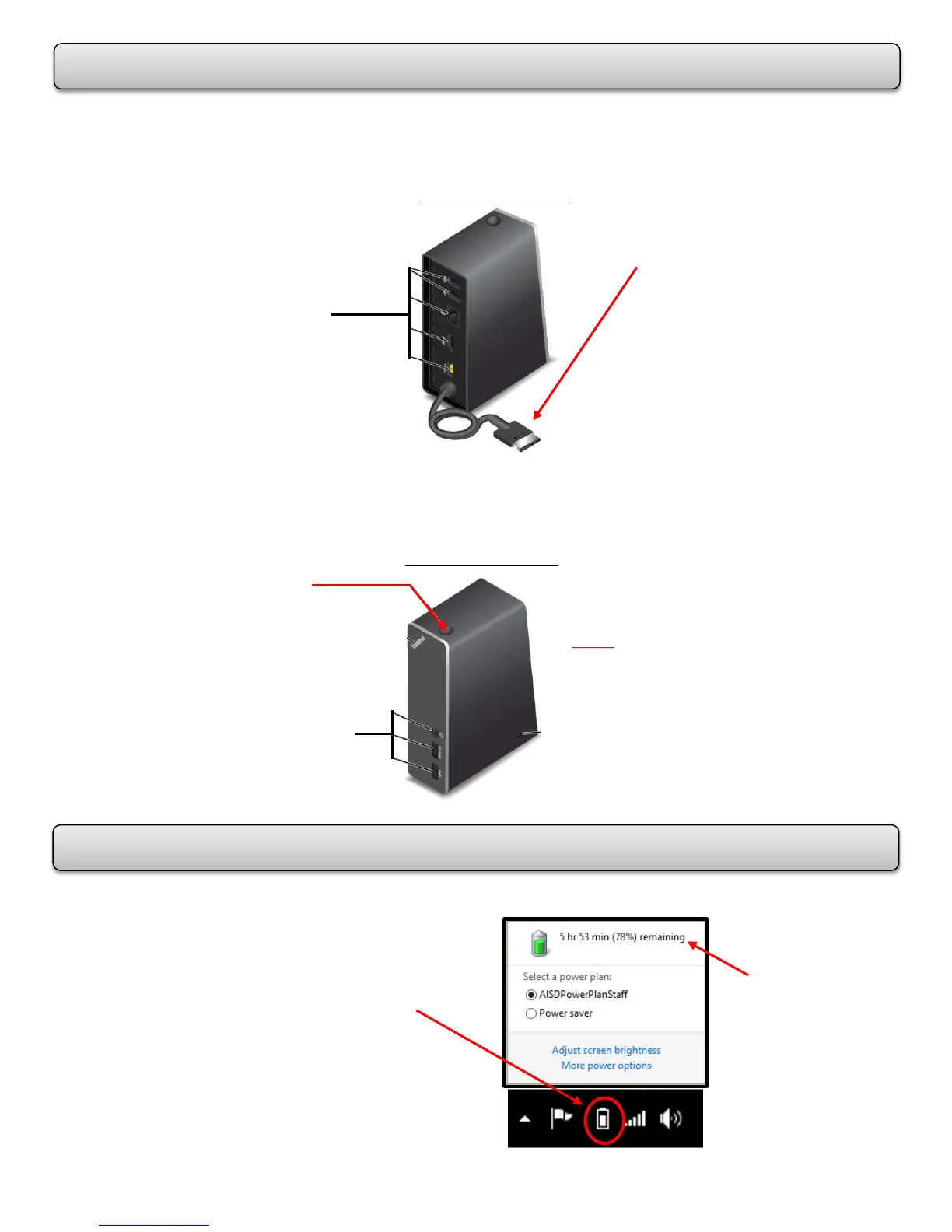
The laptop comes with the ThinkPad OneLink Dock which should be connected to the
laptop whenever it is stationary at a teacher desk. The Dock will charge the laptop.
Disconnect the OneLink Connector in order to be mobile in the classroom with the laptop.
When taking the laptop out of the classroom, disconnect the OneLink Connector.
The battery status icon in the Windows notification area displays the percentage of battery
power remaining. To view the percentage -
OneLink Connector
(used to connect the
dock to the laptop)
USB, Ethernet, HDMI,
and Power connectors
Combo Audio connector
and USB connectors
*Power Button
(functions the same as
the one on the laptop)
*NOTE: If you press the Power Button
on the dock, it will turn on or
turn off your computer.
Hover over the battery icon
OR
Touch or click on the battery icon.
This screen
appears when
you touch or
click on the
battery icon.














 To Next Page