Tips on the care and cleaning for the Multi-Touch Screen –
The multi-touch screen is a glass panel covered with a plastic film. Do not apply
pressure or place any metallic object on the screen, which might damage the touch
panel or cause it to malfunction.
Do not use fingernails, gloved fingers, or inanimate objects for input on the screen.
Regularly calibrate the accuracy of the finger input to avoid a discrepancy
Turn off the computer before cleaning the multi-touch screen.
Use a dry, soft, and lint-free cloth or a piece of absorbent cotton to remove
fingerprints or dust from the multi-touch screen. Do not apply solvents to the cloth.
Gently wipe the screen using a top-down motion. Do not apply any pressure on the
screen.
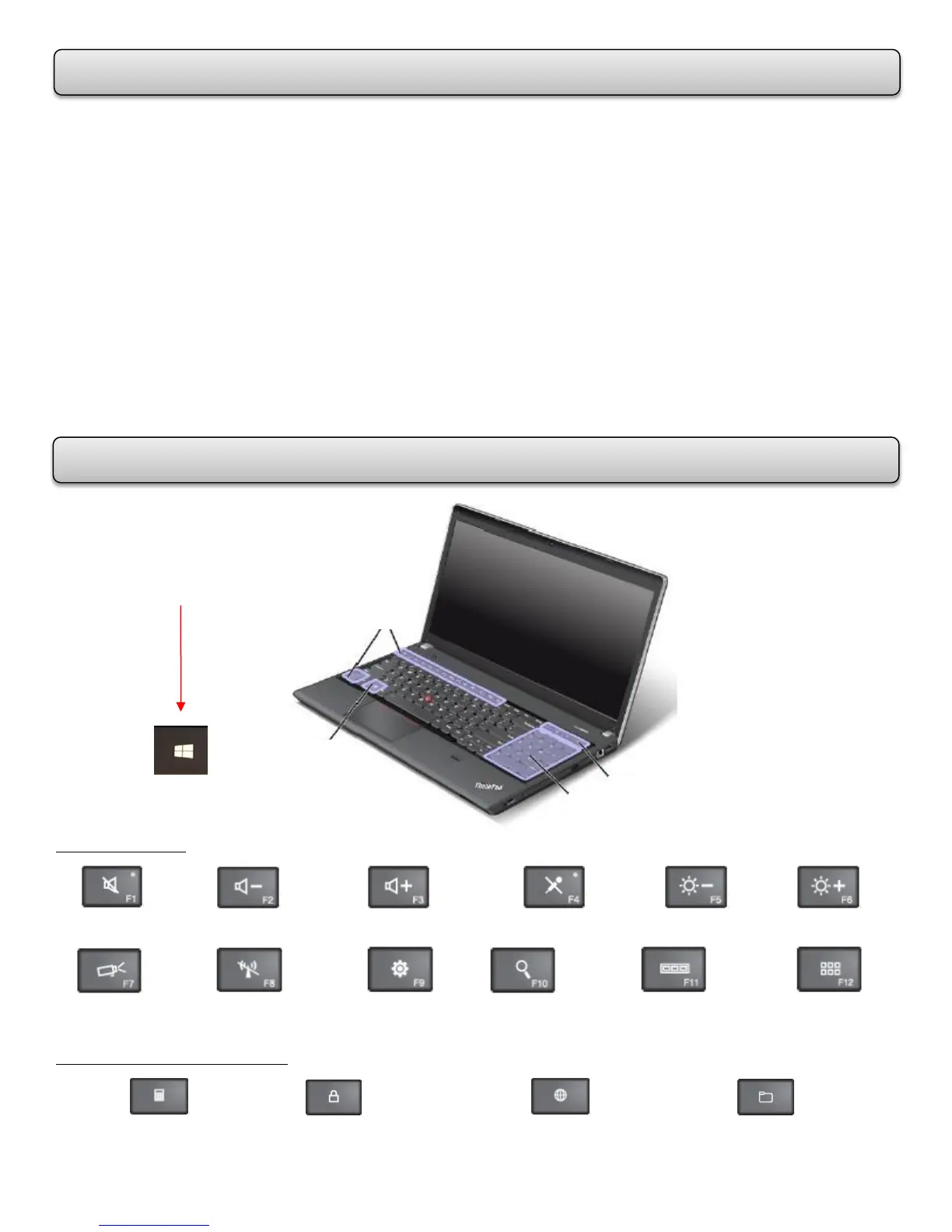
Function Keys
Mute Speakers Decrease Volume Increase Volume Mute Microphone Darken Display Brighten Display
Display Output Wireless Network Open Settings Open Search View Programs Opened All Programs
Additional Shortcut Keys
Calculator Lock Operating System Open Default Browser Open Computer
*Press the Windows Key to switch
between the current workspace
and the Start Screen.
CARE & CLEANING FOR THE MULTI-TOUCH SCREEN














 To Next Page