Chapter 4. Use the keyboard
Download and install the ThinkPad TrackPoint Keyboard II software
For full functionality and advanced settings, download and install the ThinkPad TrackPoint Keyboard II
software from
https://support.lenovo.com/accessories/trackpoint_keyboard.
Note: During the installation, if any software, such as Lenovo Vantage, prompts you to block EXE programs,
click Allow to continue.
Operating system requirements
• Windows 10
• Windows 7
Main features
• Adjusting the TrackPoint cursor speed
• Defining the F12 key
• Enabling or disabling the ThinkPad Preferred Scrolling function:
–
With this function enabled (default), you can use advanced functions of TrackPoint, such as scrolling
through a Web site in the vertical or horizontal direction. For more information, see “Use TrackPoint” on
page 7.
–
With this function disabled, you can use TrackPoint as a traditional mouse.
How to access the software after installation
1. Go to Control Panel and view by Large icons or Small icons.
2. Click Keyboard
.
3. Click External TrackPoint Keyboard
.
Use TrackPoint
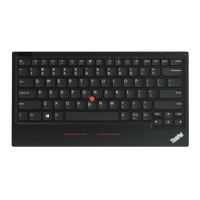
TrackPoint enables you to perform all the functions of a traditional mouse, such as pointing, clicking, and
scrolling.
1. Pointing stick
© Copyright Lenovo 2020 7


 To Next Page
 Loading...