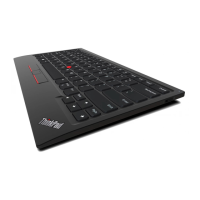
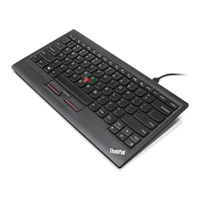
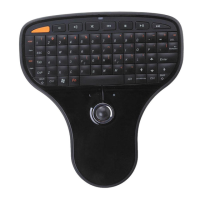
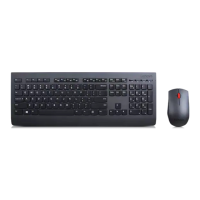
Chapter 3. Set up the keyboard
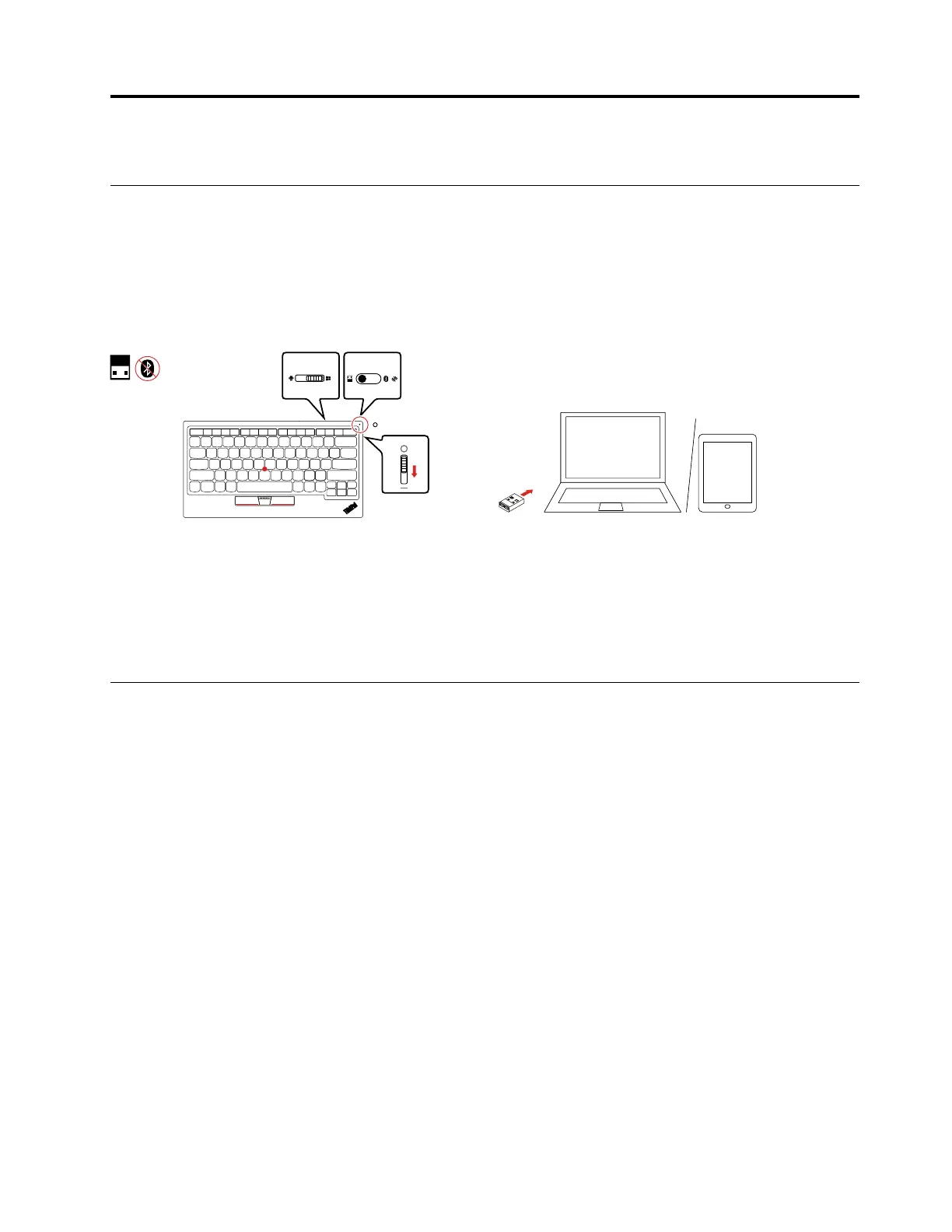
Set up the keyboard through 2.4 GHz USB receiver
Device requirements
•
Windows 10, Windows 7, or Android (8, 9, or later) operating system
• USB connector available
Setup steps
1. Slide the operating-system switch to choose the operating system according to that on your device.
2. Ensure the wireless-mode switch is put in the left position (2.4 GHz mode).
3.
Slide the power switch downward to turn on the keyboard. The power/Bluetooth LED turns on for one
second.
4. Insert the USB receiver into an available USB connector on your device. When the keyboard is
recognized by the device, it is ready for use.
Set up the keyboard through Bluetooth low energy
Device requirements
• Windows 10 or Android (8, 9, or later) operating system
• Bluetooth low energy
Notes:
–
For Windows 10 enabled device: Turn on Bluetooth. Type device manager in the search box and click
Device Manager
. Navigate to Bluetooth and expand all devices. Ensure that there is
Microsoft
Bluetooth LE Enumerator
.
– For Android enabled device: Check with your device manufacturer.
© Copyright Lenovo 2020 5


 To Next Page
 Loading...