Adjusting your monitor image
This section describes the control features to adjustyour monitor image.
Using the direct access controls
The direct access controls can be used when the On Screen Display (OSD) is not displayed.
Table2-1.Directaccesscontrols
Icon Control Description
Input Change Switches the video input source.
DDC-CI
Press and hold for 10 seconds to enable or disable the
DDC-CI function
Exit Exit from menu
Image Setup Activates automatic image adjustment.
Brightness Direct access to Brightness adjustment.
Menu Enter menu
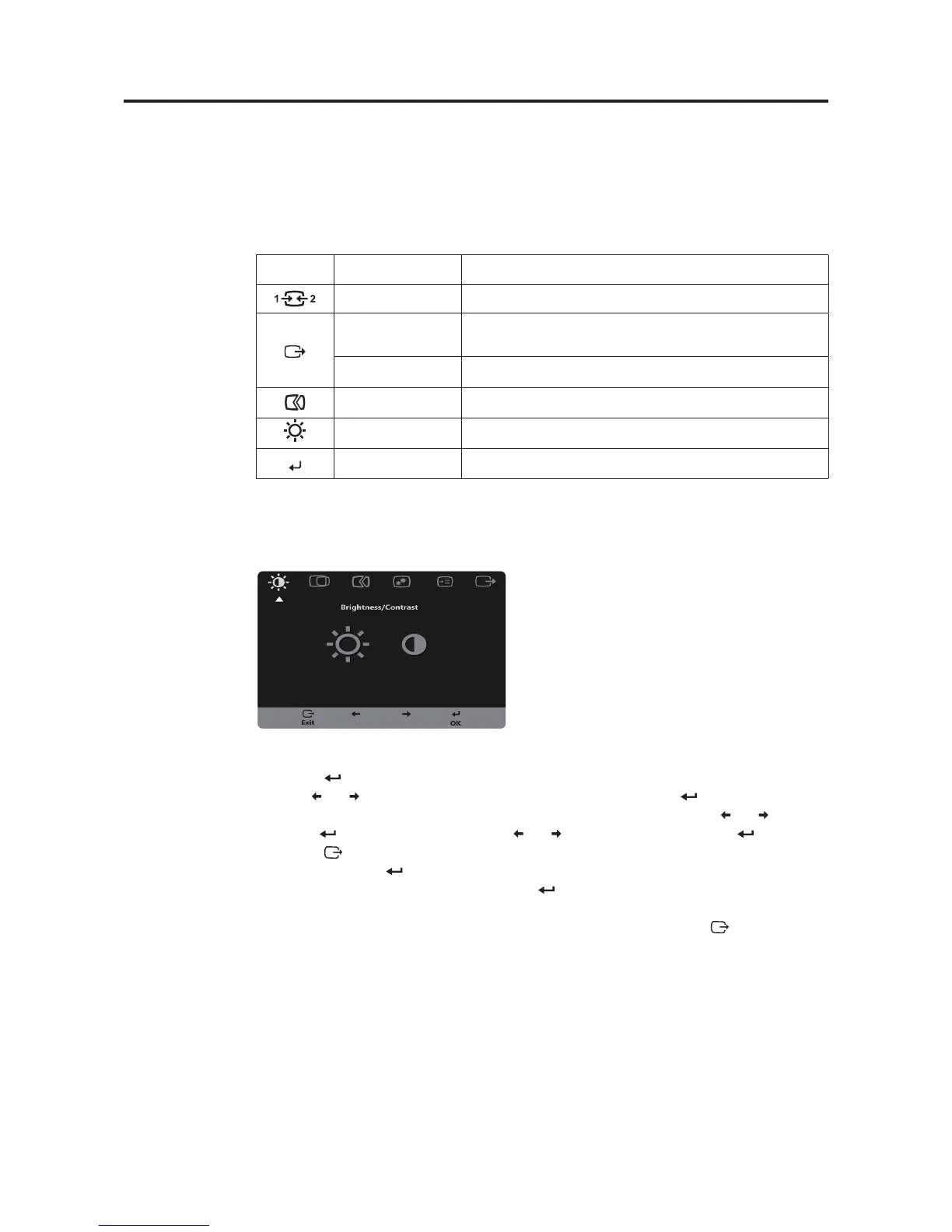
Using the On-Screen Display (OSD) controls
To adjust the settings, the user controls can be viewed through the OSD.
To use the controls:
1. Press to open the main OSD menu.
2. Use or to move among the icons. Select an icon and press to access that
function. If there is a sub-menu, you can move between options using or , then
press to select that function. Use or to make adjustments. Press to save.
3. Press to move backwards through the sub-menus and exit from the OSD.
4. Press and hold for 10 seconds to lock the OSD. This will prevent accidental
adjustments to the OSD. Press and hold for 10 seconds to unlock the OSD and
allow adjustments to the OSD.
5. Enables DDC/CI by default. Use OSD Exit Key, Press and hold the button for 10
seconds to disable / enable DDC/CI function. The words "DDC/CI disable"or"DDC/CI
enable" shows on the screen.
Chapter 2. 2-3



 To Next Page