Black screen or No signal.
1. Please use the original cables we provide. USB 3.0 A Male to USB Type-C cable
does not support video signal transmission.
2. Please plug in the wall charger to Type-C port for power supply and wait for
the screen displays “no signal”, then plug in the USB-C cable to another
Type-C port or HDMI cable to Mini HDMI port for video signal transmission.
3. For single USB-C connection for power and display, the Type-C port of some
laptop like HP Elitebook, Acer Aspire does
not support video output and only
supports charging. Please contact us to help you confirm if your device supports.
4. Please set the display mode to Extend in Windows.
5. Connect the monitor to other devices to check if the monitor can work well
with other devices.
6. Please contact us for help (lepow@afterservice.vip).
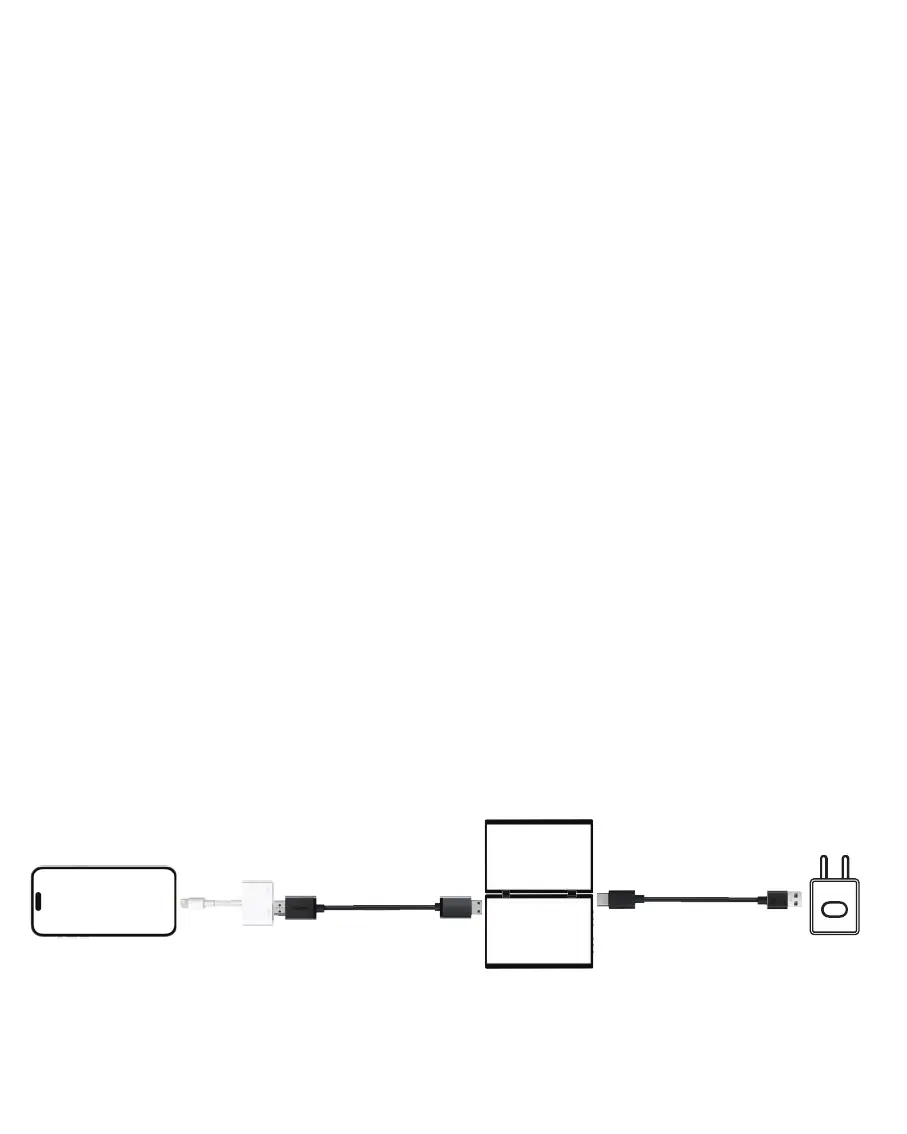
How to connect my iPhone?
We need to use the Lightning to HDMI Adaptor to connect the iPhone and the
monitor. In addition, because most iPhones can only provide 5V/1A power
supply, you need to connect a 5V/2A or higher power supply to the Lightning
to HDMI Adaptor.
FAQ
18
HDMI to Mini HDMI
Lightning to HDMI Adapter
USB-C to USB-A
Monitor
Monitor
iPhone


 To Next Page