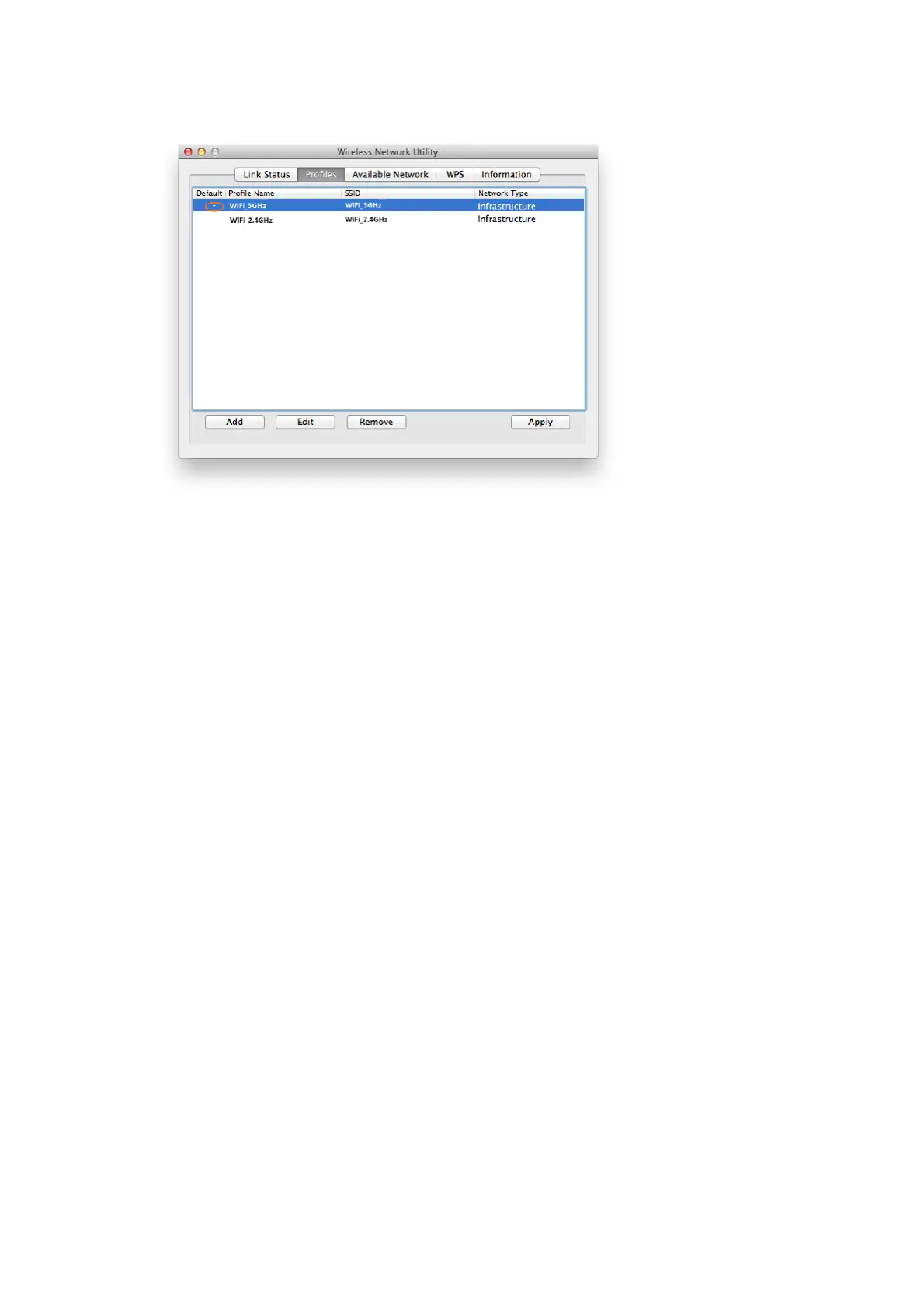
3.2.7 In the above interface, you can select a profile and:
3.2.7.1 See that the one with “*” in the front is the WiFi network you are
currently connected to.
3.2.7.2 Press the “Apply” button and you will be connected to the selected
WiFi network. No need to input WiFi network key again here.
3.2.7.3 Press the “Remove” button, the selected Wi-Fi network will be deleted
from your utility and your MAC will not connect to it automatically; in
order to connect to it again, you need to go to the “Available Network”,
select this WiFi network and input WiFi Network Key to connect to it
again
3.2.7.4 Press the “Edit” button to change the WiFi Network Key information of
this selected WiFi network in case its WiFi key is changed
3.3 Check my WiFi Connection Speed with my Wireless Router
3.3.1 By clicking the “Link Status” you will see the below screen with the
connection information between USB WiFi Adapter and your WiFi router,
including the Link Speed (also called connection speed), WiFi Signal
Strength, WiFi Channel, SSID (WiFi network name), Security Type etc.


 To Next Page