13
COLOR ACTIVITY STATUS
Green Slow Blink Ready to be added to a Wi-Fi network
Green Flash Connecting to a Wi-Fi network
Green or O Solid Normal operation, briefly lights up when a
button is pressed
Amber Blinking
Device was not able to connect to the Wi-Fi network
Green, Red,
Amber
Scrolling Joining My Leviton or identify feature was
triggered in the app
Please see My.Leviton.com support for additional diagnostic assistance
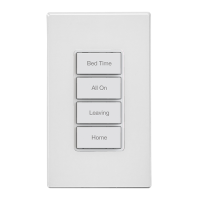
Bottom button light status
Diagnostic light
If your device is not properly connecting, the bottom button light
can be used as a diagnostic tool. Press the top button for two
seconds (but less than 7 seconds) and release.
When power is first applied to the controller and during the
enrollment process, the bottom button light may be used as a
diagnostic tool.
COLOR STATUS
Green Device is connected to Wi-Fi and the My Leviton cloud
and is working properly.
Amber Device is not connected to the Wi-Fi network.
Red Device is connected to Wi-Fi but not the My Leviton
cloud (most likely there is no internet signal).
Alternate green
and yellow
Device is connected to Wi-Fi and the My Leviton cloud
but it has been unable to set the time from the internet.
Please see My.Leviton.com support for additional diagnostic assistance




 To Next Page