Need help?
Do you have a question about the Lexmark MarkNet N7000E and is the answer not in the manual?
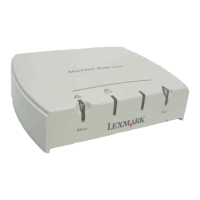
The Lexmark MarkNet N7000 Series Print Server is a network device designed to facilitate printer sharing among multiple computers on a network. This series includes models such as the 7000e, 7002e, and 7020e. Its primary function is to allow users to place their printer anywhere in their home or office, eliminating the need for the printer to be directly connected to a host computer or for a host computer to be powered on to send print jobs from a remote location. The print server enables quick transfer of information and, depending on the model, can make multiple printers available on the network.
To set up the MarkNet N7000 Series Print Server, users need:
The print server supports various network settings, including DHCP (Dynamic Host Configuration Protocol), RARP (Reverse Address Resolution Protocol), BootP (Bootstrap Protocol), AutoIP, and SLP (Service Location Protocol) broadcasts. It also supports IPv6, with options for auto-configuration and DHCPv6. The network card can display its status (connected/not connected) and speed in Mbps.
The MarkNet N7000 Series Print Server features a Liquid Crystal Display (LCD) that provides important information and allows for configuration. The LCD displays the printer type(s) connected to the server, and for four-port models, it shows the printer model connected to each port. Users can scroll through Menu options using left/right arrows. The LCD also displays printer status messages such as "Ready," "Busy," "Paper Out," "Paper Jam," and "No Network Connection."
The Setup Utility software guides users through the installation process. If multiple print servers are found on the local network, users can identify their specific print server by matching the MAC address to the Hostname displayed in the list. The utility then allows selection of the printer and continuation of the setup instructions. If a printer is not shown in the list, troubleshooting steps include verifying cable connections, printer power, network connectivity, and refreshing the network search. Users can also manually specify the printer by entering its IP Address/Hostname and Port information.
Once installed, users can print a test page from the Start menu by navigating to Settings → Printers, right-clicking the network printer icon, selecting Properties, and clicking "Print Test Page" from the General tab. A print server setup page, which lists network settings like IP address, Netmask, Gateway, and DHCP status, can be printed either from the print server LCD or via a web browser if the IP address is known. From the LCD, users press "Menu," then "Reports," and finally "Setup Page." If the print server has multiple ports, a port selection prompt will appear. Via a web browser, users enter the print server's IP address as the URL, click "Reports," then "Print Server Setup Page," and finally "File → Print."
The print server's network settings can be changed remotely through its web-based homepage. This interface allows users to view printer status, reset the print server, and modify various settings. The homepage can be accessed by right-clicking the print server in the Print Server Setup screen and selecting "Launch homepage," or by typing the print server's IP address into a web browser.
The LCD menus offer several configuration options:
Troubleshooting information is provided to address common issues. If the LCD is not illuminated, users should check the power supply and electrical outlet. Error messages, such as "A 900 or 976 service error code," typically require unplugging and re-plugging the power supply; persistent issues necessitate contacting Lexmark Customer Support.
If the MarkNet N7000 Series CD does not auto-launch, users are advised to close all open software, restart the computer, reinsert the CD, and if necessary, manually launch the setup utility by navigating to "My Computer," double-clicking the CD-ROM drive icon, and then setup.exe.
For printers not appearing in the "Printers Found on Local Network" list, users should verify the printer's power, connection to the print server (USB or parallel cable), the print server's LCD status, and the Ethernet connection. Refreshing the network search or manually specifying the printer's IP Address/Hostname and Port are also options.
If a network printer does not print, users should ensure all cables are secure, the LCD is on, check printer status, verify network operation, and confirm that printer software is installed on the computer. It is crucial to install printer software on every computer using the network printer. Users should also ensure the correct printer port is selected. If the problem persists, disconnecting the printer from the print server and connecting it directly to a computer (via USB or parallel cable) can help diagnose if the issue lies with the network. Uninstalling and reinstalling the printer software is another troubleshooting step.
To check the printer status, users go to Start menu → Settings → Printers, right-click the network printer, and ensure "Set as Default" is selected and "Use Printer Offline" is not selected. To verify the network printer port, users access printer properties (Details or Port tab) and confirm that the selected port consists of the printer name followed by the print server MAC address (e.g., Lexmark_E320_0020000035D0).
The device complies with various electronic emission standards, including FCC Class A (for 7020e) and Class B (for 7000e and 7002e), Industry Canada Class A, European Community (EC) directives, Japanese VCCI (Class A for 7020e, Class B for 7000e and 7002e), Korean MIC, and Taiwan BSMI. These notices provide information on potential radio interference and compliance requirements. For Class A devices, users may need to take corrective actions to mitigate interference in residential environments. For Class B devices, the equipment is designed to provide reasonable protection against harmful interference in a residential installation.
The MarkNet N7000 Series Print Server also adheres to the Waste from Electrical and Electronic Equipment (WEEE) directive, encouraging recycling of the product. Noise emission levels are measured in accordance with ISO 7779 and reported per ISO 9296, providing data on sound pressure during printing, scanning, copying, and idling. The product may also carry the ENERGY STAR label, indicating energy efficiency.
Lexmark offers customer support through its website (www.lexmark.com) for product registration, supported printer lists, and customer assistance. Additional support options include inserting the MarkNet N7000 Series CD or the printer software CD and selecting "Contact Lexmark" or "Customer Support," or accessing "Contact Information" from the Lexmark Solution Center for inkjet printers.
 General
| Brand | Lexmark |
|---|---|
| Model | MarkNet N7000E |
| Category | Print Server |
| Language | English |


 To Next Page