EasyManua.ls Logo

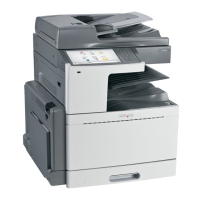
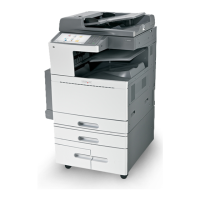
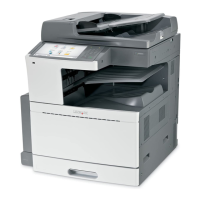
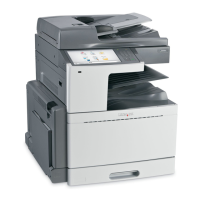
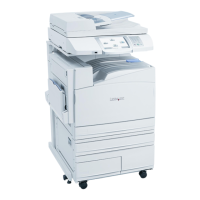
Lexmark X940E - User Manual

Lexmark X940E
272 pages
Print Icon
To Next Page IconTo Next Page
Loading...
X940e, X945e
User's Guide
April 2007 www.lexmark.com
Lexmark and Lexmark with diamond design are trademarks of Lexmark International, Inc., registered in the United States and/or other countries.
All other trademarks are the property of their respective owners.
© 2007 Lexmark International, Inc.
All rights reserved.
740 West New Circle Road
Lexington, Kentucky 40550

Table of Contents

Other manuals for Lexmark X940E

Questions and Answers

  • J
    Juan RandolphAug 16, 2025
    What to do if my Lexmark X940E All in One Printer jobs do not print?
    • H
      Heather ChangAug 16, 2025
      To resolve print job issues with your Lexmark All in One Printer, ensure 'Ready' or 'Power Saver' is displayed before printing. Also, remove paper from the standard exit bin, load paper into the tray, and verify you're using the correct printer software. Confirm that the internal print server is properly installed and the printer is connected to the network. Finally, check the cable connections to the printer and print server to ensure they are secure.
  • E
    Emily SteeleAug 18, 2025
    What to do if confidential jobs do not print on Lexmark X940E All in One Printer?
    • S
      steven35Aug 19, 2025
      If confidential or held jobs are not printing on your Lexmark All in One Printer, delete the job and try printing it again, as only part of the job may print. Also, free up printer memory by deleting held or invalid jobs.
  • M
    Matthew HansenAug 21, 2025
    How to fix an unresponsive Lexmark X940E All in One Printer?
    • C
      Christopher BoothAug 22, 2025
      If your Lexmark All in One Printer is unresponsive, try turning it off and then back on. This often resolves the issue.
  • A
    Amanda MurphyAug 25, 2025
    Why does my Lexmark X940E All in One Printer take so long to print?
    • K
      Karen TaylorAug 26, 2025
      To speed up print times on your Lexmark All in One Printer, reduce the number and size of fonts, the complexity and number of images, and the number of pages in the job. Alternatively, you can try turning the page protect setting off.
  • L
    Lacey HamptonAug 28, 2025
    Why is my Lexmark X940E All in One Printer printing incorrect characters?
    • G
      Gregory GonzalesAug 28, 2025
      If your Lexmark All in One Printer is printing incorrect characters and 'Ready Hex' appears on the display, the printer is in Hex Trace mode. Turn the printer off and back on to exit this mode and print your job correctly.
  • B
    Brian EdwardsAug 31, 2025
    Why is my Lexmark All in One Printer printing from the wrong tray?
    • U
      urichardsonAug 31, 2025
      If your Lexmark All in One Printer prints from the wrong tray or on the wrong paper, ensure the 'Paper Type' setting matches the paper loaded in the tray.
  • D
    David RoachSep 3, 2025
    How to fix large jobs not collating on Lexmark X940E?
    • J
      Jacqueline RoseSep 3, 2025
      To ensure large jobs collate properly on your Lexmark All in One Printer: 1. Set 'Collate' to 'On' from the Finishing menu or Print Properties. 2. Reduce the complexity of the print job by minimizing the number and size of fonts, the number and complexity of images, and the number of pages. 3. Consider adding printer memory or an optional hard disk.
  • L
    Lindsey DanielSep 6, 2025
    Why is tray linking not working on my Lexmark X940E?
    • A
      Ann RamirezSep 6, 2025
      To resolve tray linking issues on your Lexmark All in One Printer, load the same size and type of paper in each tray. Additionally, print a menu settings page and compare the settings for each tray.
  • K
    Kimberly WuSep 8, 2025
    What to do if Lexmark X940E All in One Printer has unexpected page breaks?
    • J
      jeremybarajasSep 8, 2025
      If you are experiencing unexpected page breaks with your Lexmark All in One Printer, increase the Print Timeout value.
  • M
    Michelle StanleySep 12, 2025
    What to do if Door A will not shut properly on Lexmark X940E All in One Printer?
    • J
      Joseph WoodSep 12, 2025
      If Door A on your Lexmark All in One Printer will not shut properly, make sure the green paper jam clearance lever behind Door A is in place.

Summary

Safety Information

General Safety Precautions

Covers general warnings, electrical, laser, and hot surface safety guidelines for product operation.

Electrical Safety and Connections

Details safety for power cords, outlets, GFCI, and proper cable connections.

Installing and Connecting Options

Installing Internal Printer Options

Guides for adding internal memory, firmware, print servers, and interface cards.

Paper Handling and Management

Setting Paper Size and Type

Configures paper characteristics via the control panel for accurate printing.

Copying Operations

Basic Copying Procedures

ADF and flatbed copying instructions for single and multiple pages.

E-mailing Functions

Faxing Functions

Printing Operations

Clearing Paper Jams

Avoiding Paper Jams

Prevention tips and best practices for paper feeding issues.

Understanding Jam Locations and Numbers

Guide to identifying and clearing specific paper jam codes and locations.

Administrative Support and Security

Troubleshooting Common Issues

Printer and Scanner Unresponsiveness

Basic diagnostic steps for non-responsive printer or scanner components.

Solving Printing Problems

Resolving common print job failures, errors, and quality issues.

Solving Fax and Paper Feed Problems

Addressing fax transmission issues and paper feeding malfunctions.

Solving Print Quality Issues

Diagnosing and fixing defects in print output like lines, smudges, or density.

Lexmark X940E Specifications

General IconGeneral
CategoryAll in One Printer
Print TechnologyLaser
Print Speed (Black)45 ppm
Print Resolution1200 x 1200 dpi
DisplayTouchscreen
Processor Speed1.2 GHz
RAM2 GB
Copy Resolution600 x 600 dpi
Scan Resolution600 x 600 dpi
Fax Resolution300 x 300 dpi
Duplex PrintingYes
Display Size10.2 inches
Connectivity TechnologyWired, Wireless
ConnectivityEthernet, USB
Operating System CompatibilityWindows, Mac, Linux
Copy Speed (Black)45 cpm
Network ConnectivityEthernet

Related product manuals