EasyManua.ls Logo

Lexmark X925 - Service Manual

Lexmark X925
488 pages
Print Icon
To Next Page IconTo Next Page
Loading...
Lexmark
X925
7541-03x
Table of contents
Start diagnostics
Safety and notices
Trademarks
Index
Lexmark and Lexmark with diamond design are
trademarks of Lexmark International, Inc., registered
in the United States and/or other countries.
Revision date: August 25, 2011

Table of Contents

Other manuals for Lexmark X925

Questions and Answers

  • K
    Kevin FoxAug 15, 2025
    What to do if Lexmark Printer shows memory full?
    • M
      Morgan DonaldsonAug 16, 2025
      If your Lexmark printer displays a 'Memory full' message, you can touch Continue to clear the message. You may also need to cancel the current print job or install additional printer memory.
  • J
    Julie GonzalezAug 18, 2025
    How to fix light colored line on Lexmark Printer?
    • T
      travishammondAug 18, 2025
      If you notice a light-colored, white, or incorrectly colored line appearing on your Lexmark printer's prints, the issue may be with one of the printer's components. Try replacing the defective toner cartridge, the defective imaging unit, or the defective transfer module.
  • A
    Aaron Ramirez PhDAug 22, 2025
    Why does my Lexmark Printer print streaked horizontal lines?
    • D
      danielle12Aug 22, 2025
      If streaked horizontal lines appear on prints from your Lexmark printer, try the following: 1. Select another tray or feeder using the printer control panel's Paper Menu and selecting Default Source. 2. Replace the worn, defective, or empty toner cartridge. 3. Clear the paper path around the toner cartridge.
  • M
    murphytimothyAug 25, 2025
    Why does my Lexmark Printer print streaked vertical lines?
    • S
      Stephanie CaldwellAug 26, 2025
      If streaked vertical lines appear on prints from your Lexmark printer, try the following: 1. Select another tray or feeder using the printer control panel's Paper Menu and selecting Default Source. 2. Replace the worn, defective, or empty toner cartridge. 3. Clear the paper path around the toner cartridge.
  • N
    Natasha MitchellAug 27, 2025
    How to resolve uneven print density on Lexmark Printer?
    • J
      John DavisAug 27, 2025
      If you are experiencing uneven print density with your Lexmark printer, try replacing the worn or defective toner cartridge, or replace the defective imaging unit.
  • A
    Ashley SmithAug 30, 2025
    What to do if Lexmark Printer shows an error has occurred with the USB drive?
    • C
      claudiagarnerAug 31, 2025
      If your Lexmark printer shows an error with the USB drive, remove and reinsert the flash drive. If the error message persists, the flash memory may be defective and require replacement.
  • D
    Deborah TaylorSep 2, 2025
    How to fix Lexmark Printer disk corrupted error?
    • S
      stephen94Sep 2, 2025
      To clear the 'Disk corrupted' message on your Lexmark printer, touch Format disk to reformat the printer hard disk. Note that formatting deletes all files stored on the printer hard disk.
  • M
    Marcus KingSep 5, 2025
    What to do if Lexmark Printer shows disk problem?
    • D
      David RiosSep 5, 2025
      To clear the 'Disk problem' message on your Lexmark printer, touch Format disk to reformat the printer hard disk. Note that formatting deletes all files stored on the printer hard disk.
  • J
    John FreemanSep 9, 2025
    How to reformat the hard disk on Lexmark Printer?
    • L
      Lisa ThompsonSep 9, 2025
      To clear the message indicating that the printer hard disk must be reformatted on your Lexmark printer, touch Format disk to reformat the printer hard disk. Keep in mind that formatting will erase all files stored on the disk.
  • D
    Donna LeeSep 12, 2025
    What to do if Lexmark Printer shows unsupported disk?
    • A
      Adam WrightSep 12, 2025
      If your Lexmark printer displays an 'Unsupported disk' message, remove the unsupported disk and install a supported one.

Summary

General Information

Maintenance Approach

Details the approach to troubleshooting printer issues, including print quality, paper jams, and error codes.

Models

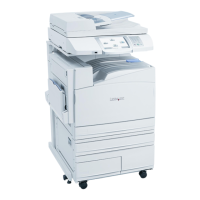
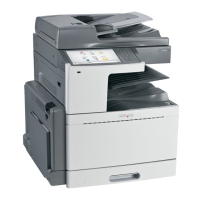
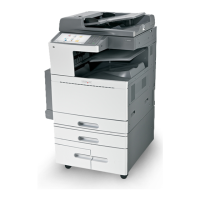
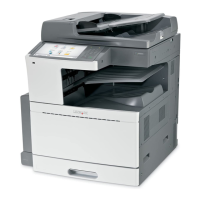
Lists the available Lexmark X925 printer models and their specifications.

Printer Configurations

Illustrates the different physical configurations and options for the printer.

Options and Features

Describes the available internal and media handling options for the Lexmark X925 printer.

Paper Specifications

Lists supported paper sizes, media types, and weights for the printer.

Media Guidelines

Provides guidance on selecting and using appropriate media for optimal printer performance.

Fax Features

Details the various features and functionalities of the printer's fax system.

Scanner Specifications

Provides technical specifications for the printer's scanner module, including ADF and flatbed.

Acronyms

Provides a glossary of acronyms used throughout the manual.

Diagnostic Information

Start

Provides initial steps and guidance for diagnosing printer problems.

Print Quality Issues

Troubleshooting steps for common print quality problems.

Paper Jams

Information on identifying and clearing various paper jam error codes.

Error Codes

Lists error codes and their corresponding actions or troubleshooting steps.

Service Checks

Provides step-by-step checks for diagnosing specific hardware and software issues.

Other Symptoms

Lists various printer symptoms and their resolution procedures.

Fax Symptoms

Troubleshooting guide for common fax transmission and reception issues.

Diagnostic Aids

Understanding the Operator Panel and Menus

Guide to navigating printer menus and understanding operator panel functions.

Accessing the Service Menus

Details on accessing the diagnostics menu for settings and operations.

Configuration Menu

Information on accessing configuration settings for printer setup.

Diagnostics Mode

Instructions for entering the printer's diagnostic mode.

Hardware Tests

Tests to verify the functionality of the printer's hardware components.

Scanner Tests

Diagnostic tests for the scanner assembly, including calibration and sensor checks.

Repair Information

Handling ESD-Sensitive Parts

Precautions for safely handling electrostatic discharge sensitive parts to prevent damage.

Removal Procedures

Organizes component removal procedures by printer area.

Cover Removals

Instructions for removing various covers of the printer.

Left Side Removals

Procedure for removing components located on the left side of the printer.

Right Side Removals

Step-by-step instructions for removing components on the right side of the printer.

Scanner Area Removals

Procedures for removing components within the scanner assembly.

Paperfeed Unit Component Removals

Detailed steps for removing components of the paperfeed unit.

Adjustments

Procedures for adjusting scanner calibration values and black levels.

Locations

Locations

Diagrams and descriptions of component locations within the printer.

Flatbed; ADF Sensors

Illustrates sensors and callouts for the ADF and flatbed scanner.

Rip Board Connectors

Diagram showing connector locations and assignments on the RIP board.

ICC Board

Connector pinout details for the Scanner ICC board.

Option Feeder Layout

Diagram illustrating the layout and connections of the option feeder.

Preventive Maintenance

Safety Inspection Guide

Guide to identifying and assessing unsafe conditions for printer maintenance.

Lubrication Specifications

Details recommended lubricants and their application points for printer maintenance.

Scheduled Maintenance

Lists parts used for regular printer maintenance based on page counts.

Parts Catalog

How to Use This Parts Catalog

Explanation of the legend and conventions used in the parts catalog.

Assembly 1: Covers

Exploded view and part list for printer covers.

Assembly 2: Flatbed and ADF

Exploded view and part list for the flatbed and ADF units.

Assembly 3: Flatbed

Exploded view and part list for the flatbed assembly components.

Assembly 4: ADF 1

Exploded view and part list for ADF components.

Assembly 5: ADF 2

Exploded view and part list for additional ADF components.

Assembly 6: Duplex Components 1

Exploded view and part list for duplex unit components.

Assembly 7: Duplex components 2

Exploded view and part list for additional duplex unit components.

Assembly 8: Paper Exit

Exploded view and part list for the paper exit assembly.

Assembly 9: Base 1

Exploded view and part list for the Base 1 assembly.

Assembly 10: Base 2

Exploded view and part list for the Base 2 assembly.

Assembly 11: Base 3

Exploded view and part list for the Base 3 assembly.

Assembly 12: Paper Feed

Exploded view and part list for the paper feed unit components.

Assembly 13: Electrical 1

Exploded view and part list for electrical components.

Assembly 14: Electrical 2

Exploded view and part list for additional electrical components.

Assembly 15: Upper assembly

Exploded view and part list for the upper assembly components.

Assembly 16: Printhead Controller Board Cables

Exploded view and part list for printhead controller board cables.

Assembly 17: Paper Trays

Exploded view and part list for paper trays.

Assembly 18: Fuser

Exploded view and part list for the fuser unit.

Assembly 19: 550 Sheet Option Feeder Covers

Exploded view and part list for 550 sheet option feeder covers.

Assembly 20: 550 Sheet Option Feeder Base

Exploded view and part list for the 550 sheet option feeder base.

Assembly 21: 550 Sheet Option Feeder Paper Feed

Exploded view and part list for the 550 sheet option feeder paper feed.

Assembly 22: 550 Sheet Option Feeder Tray

Exploded view and part list for the 550 sheet option feeder tray.

Assembly 23: Maintenance Kits, Power Cords, and Options

List of maintenance kits, power cords, and options with part numbers.

Index

Part Number Index

An alphabetical listing of all parts with their corresponding part numbers and page references.

Lexmark X925 Specifications

Weight and Dimensions IconWeight and Dimensions
Package weight227 g

Related product manuals