120
3. ADDRESS BOOK
ES350/300h_Navi_OM33A07U_(U)
12.
05.11 08:14
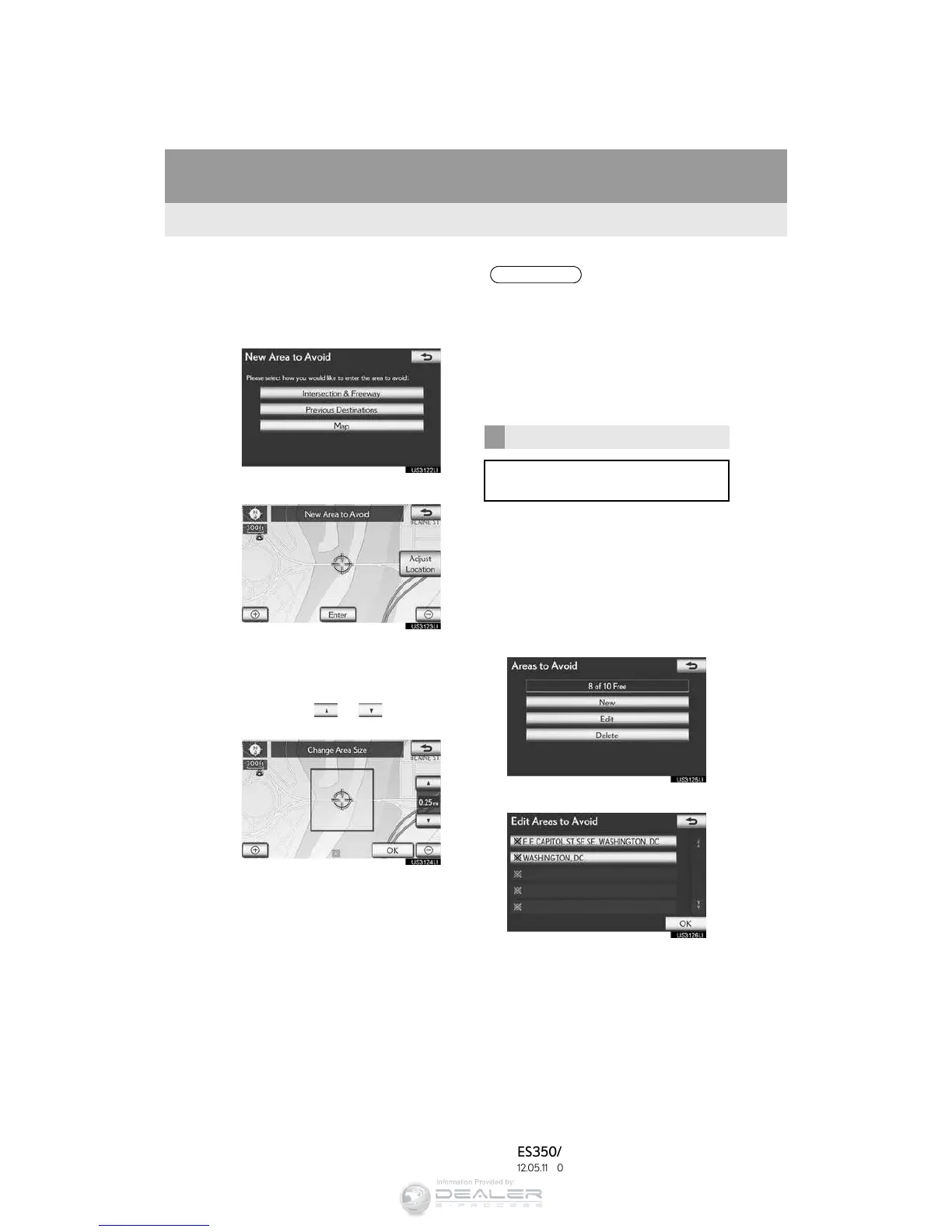
5 Select the desired screen button and
enter the location in the same way as for
a destination search, or display the map
of the area to be avoided. (See “DESTI-
NATION SEARCH” on page 68.)
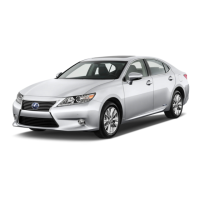
6 Scroll the map to the desired point.
“A d j u s t L o c a t i o n ” : Select to adjust the posi-
tion in smaller increments.
7 Select “Enter”.
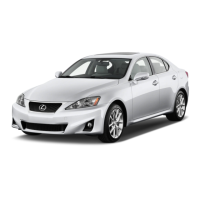
8 Select either or to change the
size of the area to be avoided.
9 Select “OK”.
” When registration of an area to avoid is
completed, the “Area to Avoid” screen will
be displayed.
1 Press the “MENU” button on the
Remote Touch, then select “Setup”.
2 Select “Navigation” on the “Setup”
screen.
3 Select “A r e a s t o Av o i d ” on the “Naviga-
tion Settings” screen.
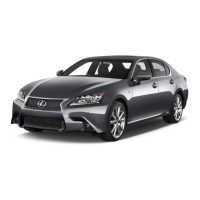
4 Select “Edit”.
5 Select the area to be avoided.
INFORMATION
● If a destination is input in the area to avoid
or the route calculation cannot be made
without running through the area to
avoid, a route passing through the area to
be avoided may be shown.
● Up to 10 locations can be registered as
p
oints/areas to avoid.
EDITING AREA TO AVOID
The name, location and/or area size of a
registered area can be edited.


 To Next Page