Need help?
Do you have a question about the Lezyne Mini GPS and is the answer not in the manual?
Explains the function of the device's buttons like ENTER, MENU, and LAP for navigation and operation.
Details how buttons are used in ride mode, covering functions like Start/Lap, Pause, and Scroll.
Describes button usage for menu navigation and pausing rides, including Select, Up, and Down actions.
Identifies and explains common icons displayed on the device, such as GPS and Battery status indicators.
Provides instructions on how to charge the GPS device, including connecting to a power source.
Guides users on attaching the device to a mount, covering both the mount and device connection steps.
Explains the procedure for powering on the Mini GPS device by holding the ENTER button.
Details the importance of a strong GPS signal for starting a ride and how to acquire it.
Outlines the steps to begin recording a ride, including checking GPS readiness and pressing the start button.
Describes how to pause, resume, and end a recorded ride, and save or discard the data.
Instructs users on how to transfer ride data from the device to a computer via USB cable.
Informs users about obtaining software updates for their GPS device from the official website.
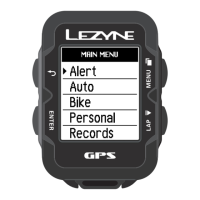
Explains how to access the main menu by holding the MENU button for navigation.
Describes the options for customizing the display to show 2, 3, or 4 lines of data during a ride.
Allows selection of specific data metrics to be displayed on the device's bottom data line.
Enables users to choose between Miles or Kilometer formats for displaying distance and speed.
Provides control over the backlight brightness percentage for better visibility in different conditions.
Sets the time display format to either 12-hour or 24-hour mode.
Adjusts the device's time based on the user's geographical location.
Allows adjustment of the time to account for daylight saving time changes.
Lets users select their riding type (e.g., ROAD, MOUNTAIN) for data categorization.
Enables the selection of the desired language for the device interface.
Inputting age assists in accurate calorie calculations during rides.
Inputting weight assists in accurate calorie calculations during rides.
Inputting height assists in accurate calorie calculations during rides.
Inputting gender assists in accurate calorie calculations during rides.
Configures automatic scrolling for the bottom data line to display different metrics.
Enables an automatic pause feature that stops recording when the device is stationary.
Allows setting timed or distance-based goals for lap notifications.
Controls whether the backlight automatically activates when a button is pressed.
Triggers a pop-up alert when a set distance goal is achieved.
Triggers a pop-up alert when a set time goal is achieved.
Triggers a pop-up alert when a set calorie goal is achieved.
Deletes all recorded rides and stored data from the device.
Removes the oldest recorded ride to free up space while keeping other data.
Displays the remaining recording time available on the device.
Allows deletion of recorded distance data for Trip 1.
Allows deletion of recorded distance data for Trip 2.
Deletes the accumulated total distance recorded on the odometer.
Displays a code used for device support and identification.
Shows the current version number of the device's firmware.
Provides options to reset the GPS chip (Warm Start, Cold Start) for better satellite acquisition.
Indicates the current number of satellites the device is actively using.
Displays data quality metrics, Horizontal and Vertical Dilution of Precision.
Provides detailed explanations of various data metrics like Speed, Distance, Calories, and Alerts.
Guides users on how to download and install software updates for the device.
Lists resources for help, including videos, FAQs, downloads, and contact information.
Explains how to perform a simple reset to resolve device unresponsiveness issues.
 General
| Brand | Lezyne |
|---|---|
| Model | Mini GPS |
| Category | Fitness Equipment |
| Language | English |

 To Next Page