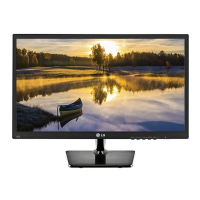
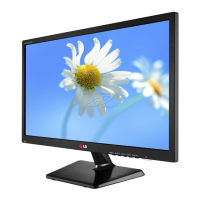
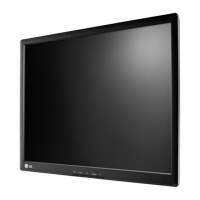
This document serves as the owner's manual for the LG Portable Monitor, specifically the 16MR70 Series. It provides comprehensive instructions for safe and convenient use, covering setup, operation, and maintenance.
Function Description
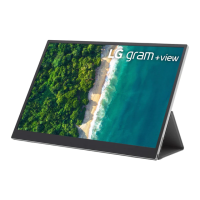
The LG Portable Monitor is designed to extend or mirror your PC screen, offering a larger or secondary display for enhanced productivity and convenience. It connects to devices like PCs and smartphones via USB-C™, supporting both power delivery (PD) and DisplayPort Alternate Mode (DP Alt Mode) for video output. The monitor is plug-and-play, meaning it automatically recognizes connected devices without requiring extensive user configuration. Its primary function is to provide an additional display, making it ideal for mobile professionals, students, or anyone needing more screen real estate on the go. The device is designed to be lightweight and easily transportable, complementing its "portable" designation.
Usage Features
The monitor offers several features to enhance its usability:
- Connectivity: The monitor features two USB-C™ ports. One port is primarily for connecting to external display screens and supports PD when a PD charger is connected. The other port also supports connection to external display screens. It's crucial to use only USB-C™ cables for connection to prevent damage to the connector. The manual emphasizes using the USB-C™ cable included with the monitor or one certified by LG Electronics for optimal performance.
- Power Delivery (PD) Functionality: When connected to a PD charger, the monitor can simultaneously power itself and charge the connected device (PC, smartphone, etc.). The amount of power delivered depends on the wattage of the PD charger. For instance, a 65W PD charger supports a maximum of 45W PD output, a 45W charger supports 30W, and a 25W charger supports 10W. It's recommended to use a PD charger of 25W or higher, with 45W or higher being ideal for optimal performance. The PD function does not operate when the monitor is in Sleep mode or powered off.
- Screen Brightness Adjustment: The monitor includes a dedicated button for adjusting screen brightness, located on the right side of the monitor. This allows users to easily customize the display's luminance to suit their environment and preferences.
- PC Screen Expansion Mode: The manual details how to set up the portable monitor in "Extension Mode" with a PC. This involves navigating through Windows settings (System > Display) to select "Extend these displays" and then adjusting the screen ratio and layout as desired. This feature is particularly useful for multitasking, allowing users to spread their work across multiple screens.
- LG Switch Software: To further enhance usability, LG provides "LG Switch" software. This application allows users to easily manage various monitor settings, including screen split functions, and switch between different screen configurations. The software is available for Windows operating systems and can be downloaded from the LG Electronics website. It also enables the "Auto Screen Rotation" function, which automatically adjusts the screen orientation.
- Folio Cover: The monitor comes with a versatile folio cover. This cover serves a dual purpose: protecting the monitor screen during transport and functioning as a stand. The cover can be folded into two different angles (Level 1 and Level 2) to prop up the monitor in either horizontal or vertical mode. The manual provides clear instructions on how to attach and fold the cover to achieve these configurations, emphasizing the correct direction of use to ensure stability and prevent damage.
Maintenance Features
The manual outlines several important safety precautions and maintenance tips to ensure the longevity and proper functioning of the portable monitor:
- Safe Placement: Users are advised to use the product in a safe place where there is no risk of it falling.
- Environmental Conditions: The monitor should not be used in dusty, humid, high-temperature, or low-temperature environments. These conditions can negatively impact the device's performance and lifespan.
- Cleaning: For cleaning the product, a dedicated cleaning agent for PC and monitor should be used. Solvents like thinners, benzene, or alcohol are explicitly warned against, as they can cause product damage or deformation. After cleaning, the product should be dried completely before reuse.
- Screen Care: Users are cautioned against pressing the monitor screen with fingers or placing objects on it. Tapping or scratching the screen with sharp objects should also be avoided. If the screen is damaged, users should not touch it with their hands.
- Screen Burn-in Prevention: To prevent screen burn-in, which can occur from displaying a paused image for an extended period, users are advised to use a screensaver or similar features. The manual notes that screen burn-in can persist even after the power is turned off.
- Cable Management: It is important to keep the power cable port free of foreign substances. When not using the PD function for a long time, the cable should be removed.
- Troubleshooting: The manual includes a "Pre-Tech Support Checklist" that helps users diagnose and resolve common issues such as a blank or unstable screen, power failure, exceeding supported frequency range, unclear screen, and screen burn-in. This section provides practical solutions, such as checking cable connections, ensuring device compatibility with DisplayPort Alternate Mode and USB Power Delivery, and adjusting screen resolution to the recommended settings. It also clarifies that minor pixel spots (red, green, blue, white, black) are normal for LCD screens and not indicative of a malfunction.

 Need help?
 General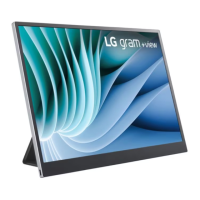

 To Next Page